"Search Google or type a URL." You have seen this sentence thousands of times. It sits in the middle of every new tab in Google Chrome, inviting you to type something. Most people never think about it twice, yet that small box decides where billions of visits go every day, and it can do much more than most users know.
Chrome holds about 68% of the browser market worldwide according to StatCounter, and Google handles roughly 90% of all searches. So the way this one box interprets what you type has a real effect on how people find websites, including yours.
This guide explains what "Search Google or type a URL" means, how the browser decides whether to run a search or open a website, whether you should search or type the address, and six ways to use the address bar like a power user: keyboard shortcuts, searching your tabs and history, site search shortcuts, instant answers, changing your search engine and controlling suggestions. You will also see what the same box looks like in Safari, Firefox and Edge, how to spot and fix a hijacked search bar, and what all of this means if you run a website.
What "Search Google or type a URL" means
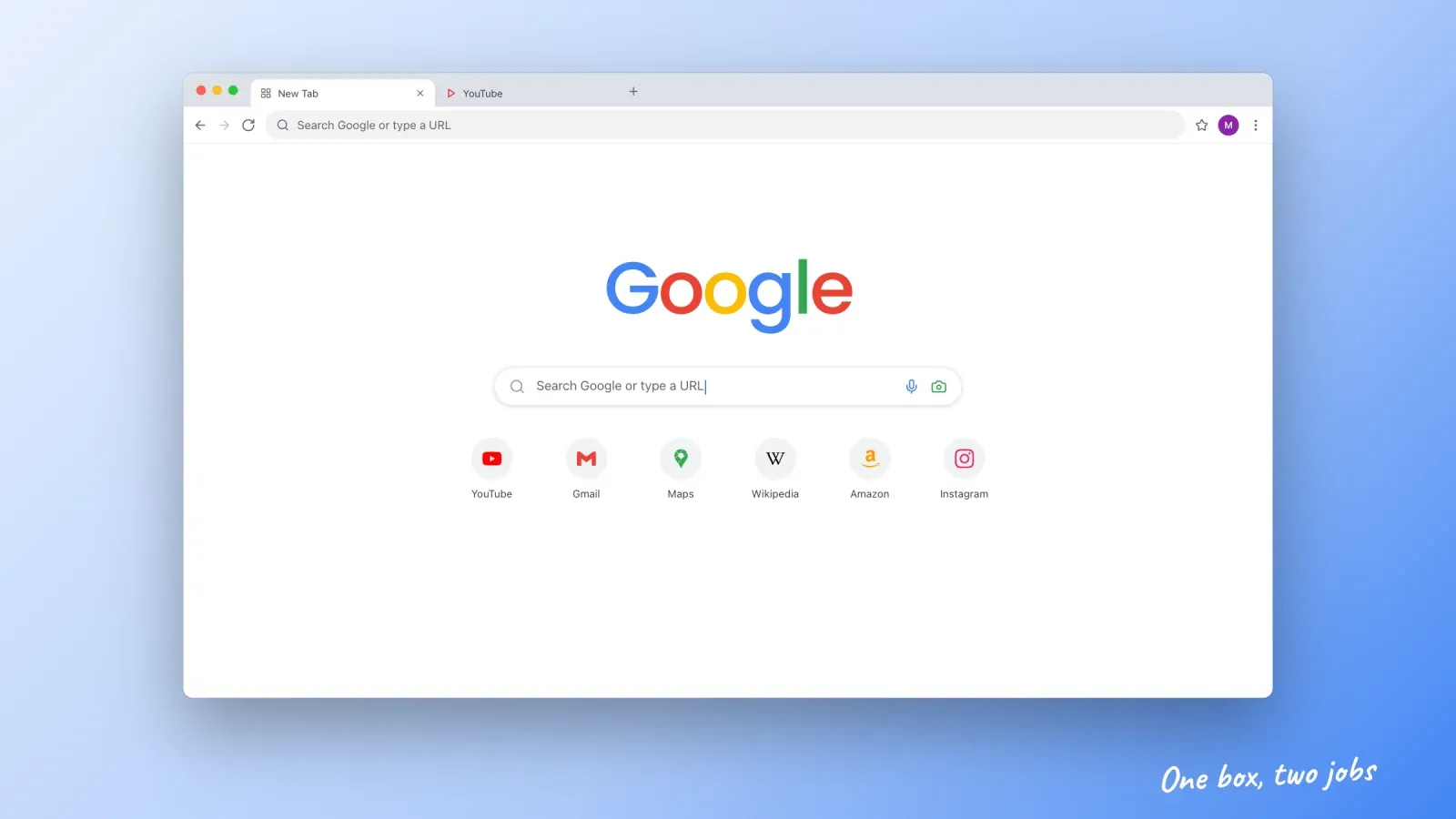
The sentence is the placeholder text of the search box on Chrome's New Tab page and, in practice, of Chrome's address bar. It tells you that the same box does two jobs:
- Search Google. Type words, such as "best running shoes for flat feet," and Chrome sends them to your default search engine, Google unless you changed it, and shows the results.
- Type a URL. Type a web address, such as "roctify.com" or "https://www.wikipedia.org," and Chrome opens that website directly, without a search.
Before 2008, browsers had two separate boxes: one for the address and one for the search engine. Chrome merged them into a single field that Google calls the omnibox, from the Latin "omni," meaning all. Every major browser has since adopted the same idea, which is why you rarely see a separate search box anymore.
On the New Tab page, the box in the middle of the page and the address bar at the top behave the same way. In recent versions of Chrome, clicking the box in the middle often moves your cursor straight to the address bar.
Search or URL, how the browser decides
When you press Enter, the browser has to guess your intention. It uses simple rules, plus your history.
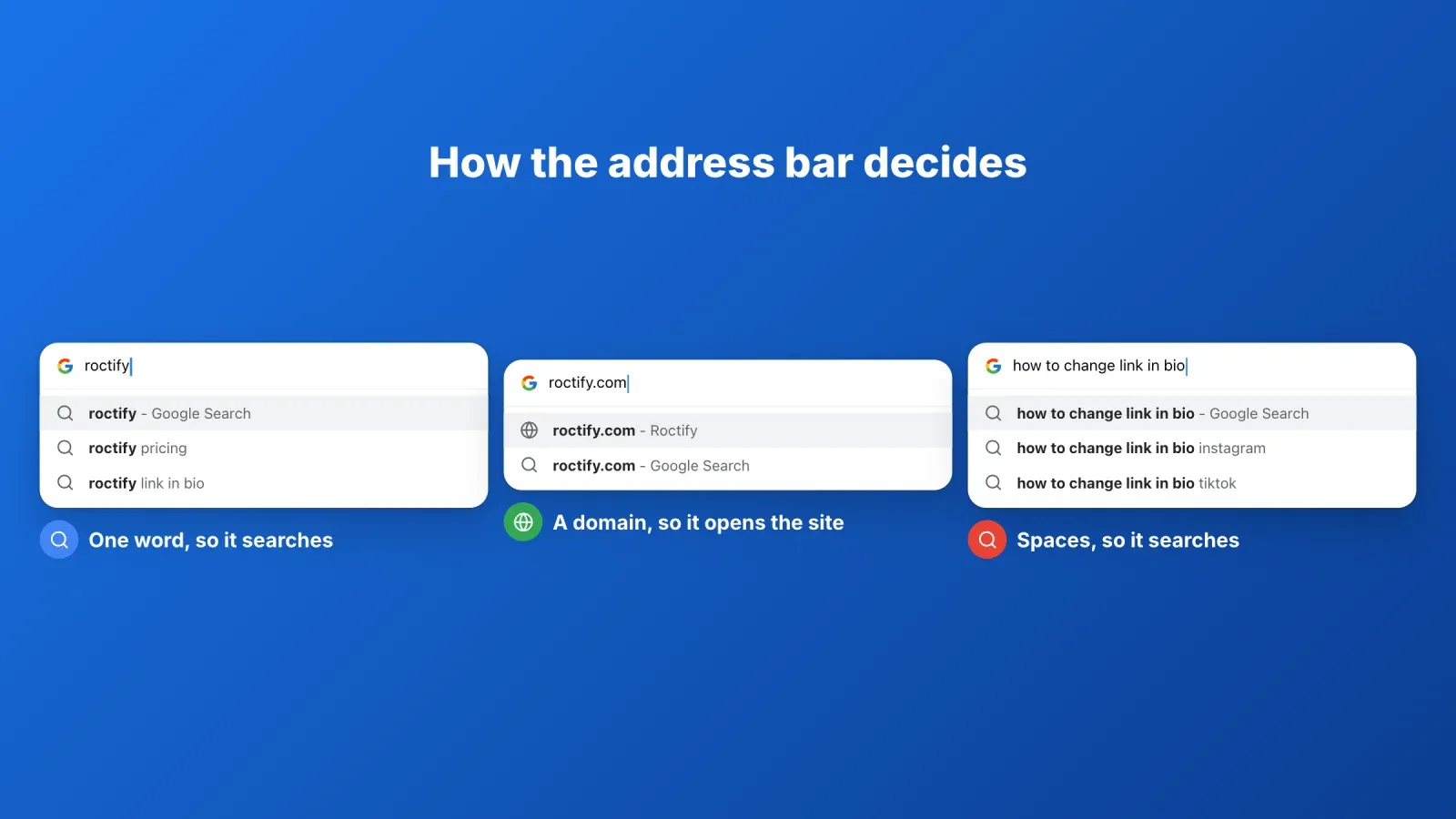
- It looks like a web address, so it opens the site. "roctify.com," "en.wikipedia.org" or "192.168.1.1" contain a dot and a valid domain ending, so Chrome navigates there.
- It starts with a protocol, so it opens the site. Anything beginning with "https://" or "http://" is treated as an address.
- It contains spaces or looks like a question, so it searches. "how to change link in bio" goes to the search engine.
- It is a single word, so it usually searches. Typing "amazon" runs a Google search for "amazon," even though you probably wanted the website. The first result will usually be the right one, but there is an extra step.
- It matches your history, so it autocompletes. If you often visit "github.com," typing "git" may already suggest and pre-select it. Press Enter and you go to the site.
A few tricks help when the guess is wrong:
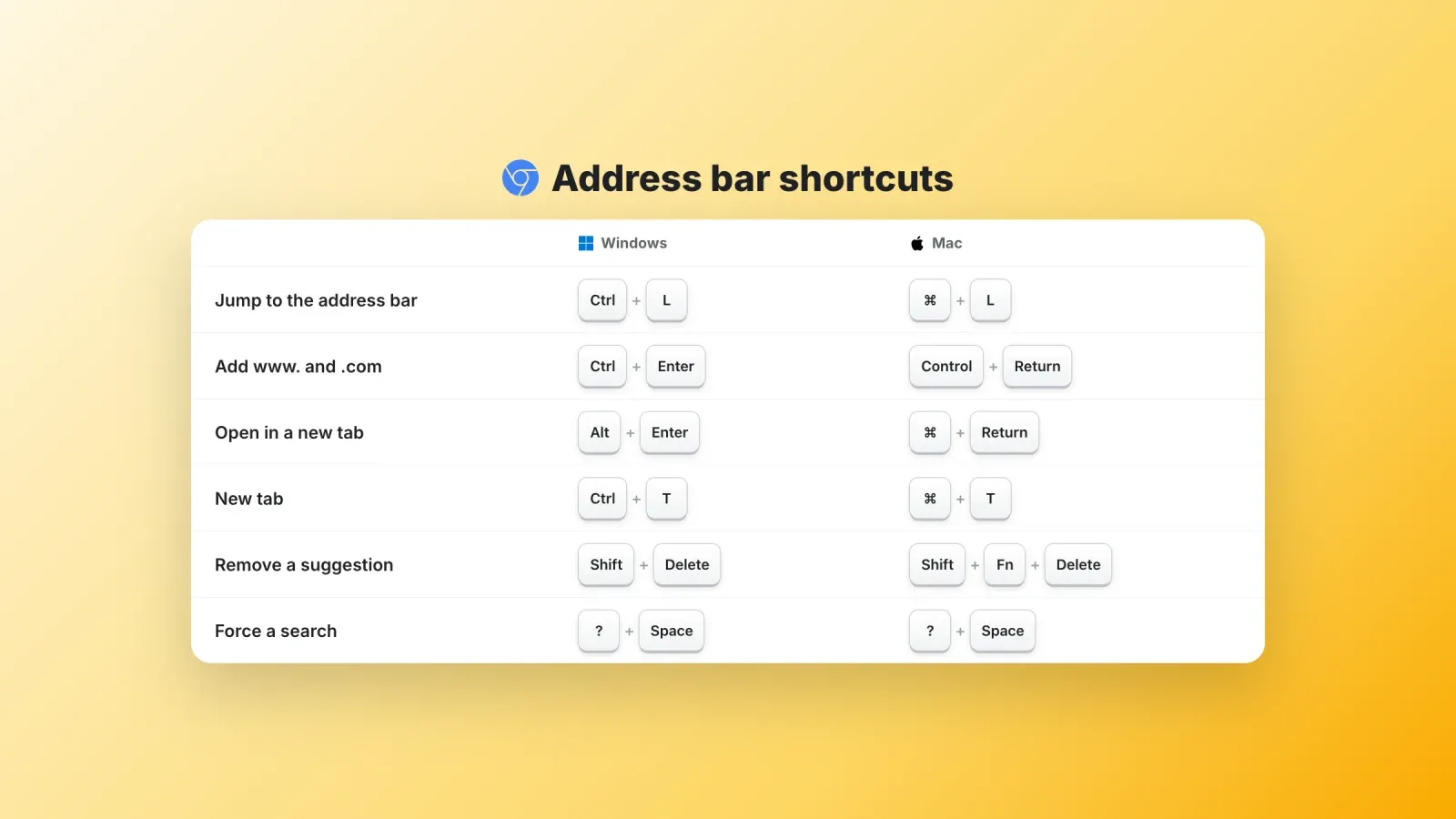
- Force a search by typing a question mark and a space first, for example "? roctify.com" searches for the text instead of opening the site.
- Force a website by typing the full address with "https://" or by using the Ctrl+Enter shortcut explained below.
- Remove a wrong suggestion by highlighting it with the arrow keys and pressing Shift+Delete on Windows or Shift+Fn+Delete on a Mac.
Should you search or type the URL?
Both work, but they are not equivalent.
Typing the URL is faster and safer when you know the address. You go straight to the official site without passing through a results page. This matters for security: criminals buy search ads and create look-alike sites to imitate banks, software downloads and online stores. If you type "mybank.com" yourself or use a bookmark, you skip those traps. Check the spelling, because typosquatters also register common misspellings of popular domains.
Searching is better when you are not sure of the address or want to compare options. Searching "Roctify pricing" brings you to the right page faster than guessing the exact URL, and you can see reviews or alternatives at the same time.
For sensitive sites, such as your bank, email or a payment page, the safest habit is a bookmark. It removes both typing errors and fake search ads.
1. Use keyboard shortcuts
A handful of shortcuts make the address bar much faster. These are for Chrome, and most also work in Edge and other Chromium browsers.
- Jump to the address bar. Ctrl+L, Alt+D or F6 on Windows and Linux, Cmd+L on a Mac. Whatever you type replaces the current address.
- Add "www." and ".com" automatically. Type a site name, such as "roctify," then press Ctrl+Enter. Chrome opens "www.roctify.com." On a Mac, use Control+Return.
- Open in a new tab. Type an address or search, then press Alt+Enter on Windows or Cmd+Return on a Mac.
- Open a new tab with the cursor ready. Ctrl+T on Windows, Cmd+T on a Mac.
- Search from anywhere. Ctrl+K or Ctrl+E on Windows places a search in the address bar. On a Mac, Cmd+Option+F does the same in Chrome.
- Accept the suggestion. Press the right arrow or Tab to accept an inline autocomplete without pressing Enter.
Learning just Ctrl+L and Ctrl+Enter saves a surprising amount of time over a week.
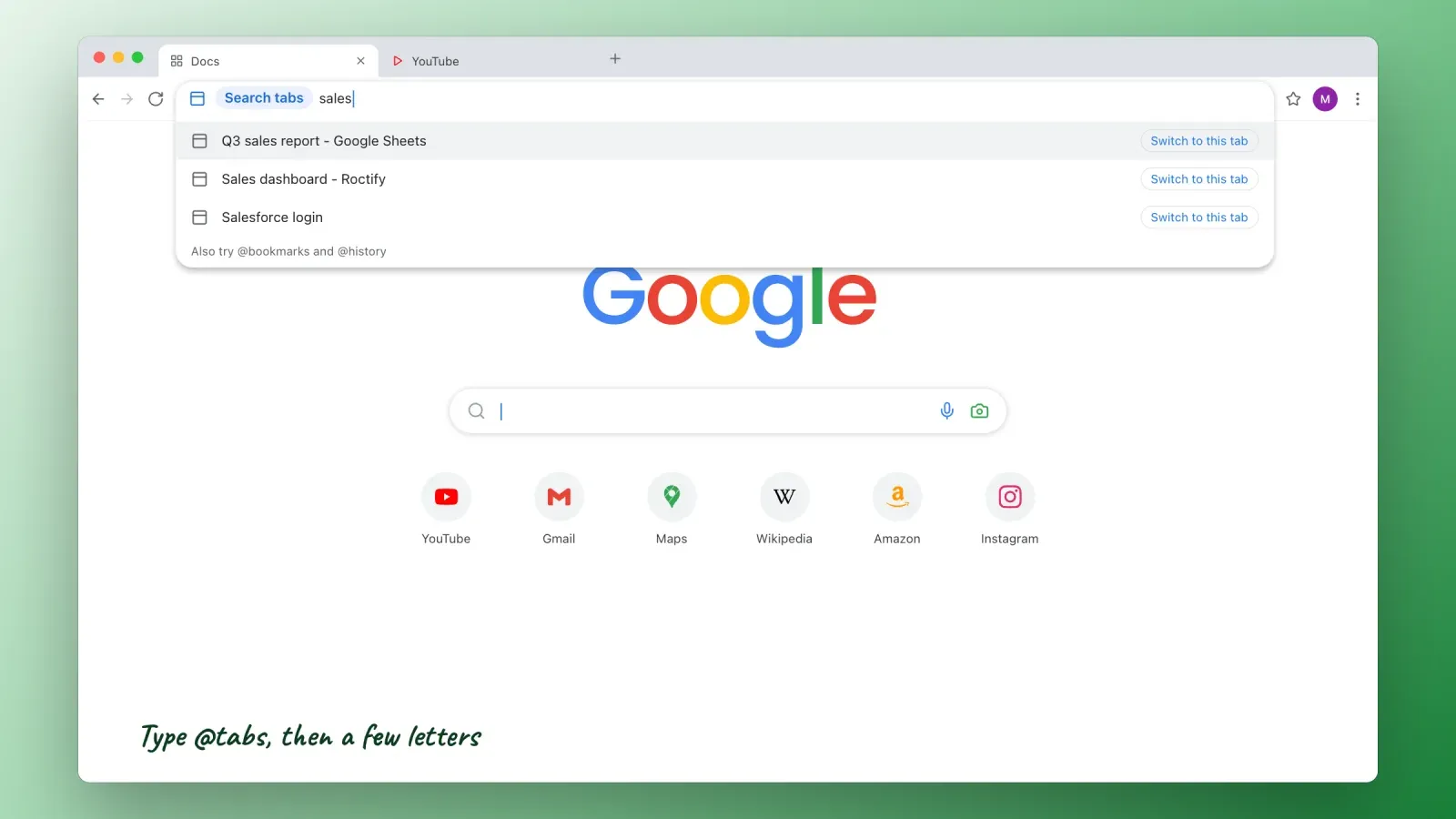
2. Search your tabs, bookmarks and history
The address bar can search inside Chrome itself, not only the web.
- @tabs searches your open tabs. Type "@tabs," press Space or Tab, then a few letters of the page title. Perfect when you have 40 tabs open.
- @bookmarks searches your bookmarks by name or address.
- @history searches the pages you visited, even weeks ago.
Even without these shortcuts, Chrome mixes open tabs, bookmarks and history into its suggestions. When a suggestion shows "Switch to this tab," pressing Enter takes you to the existing tab instead of opening a duplicate.
In some countries, recent versions of Chrome also add an AI Mode option in the address bar, so you can ask a longer question and get an AI-generated answer with links instead of a classic results page.
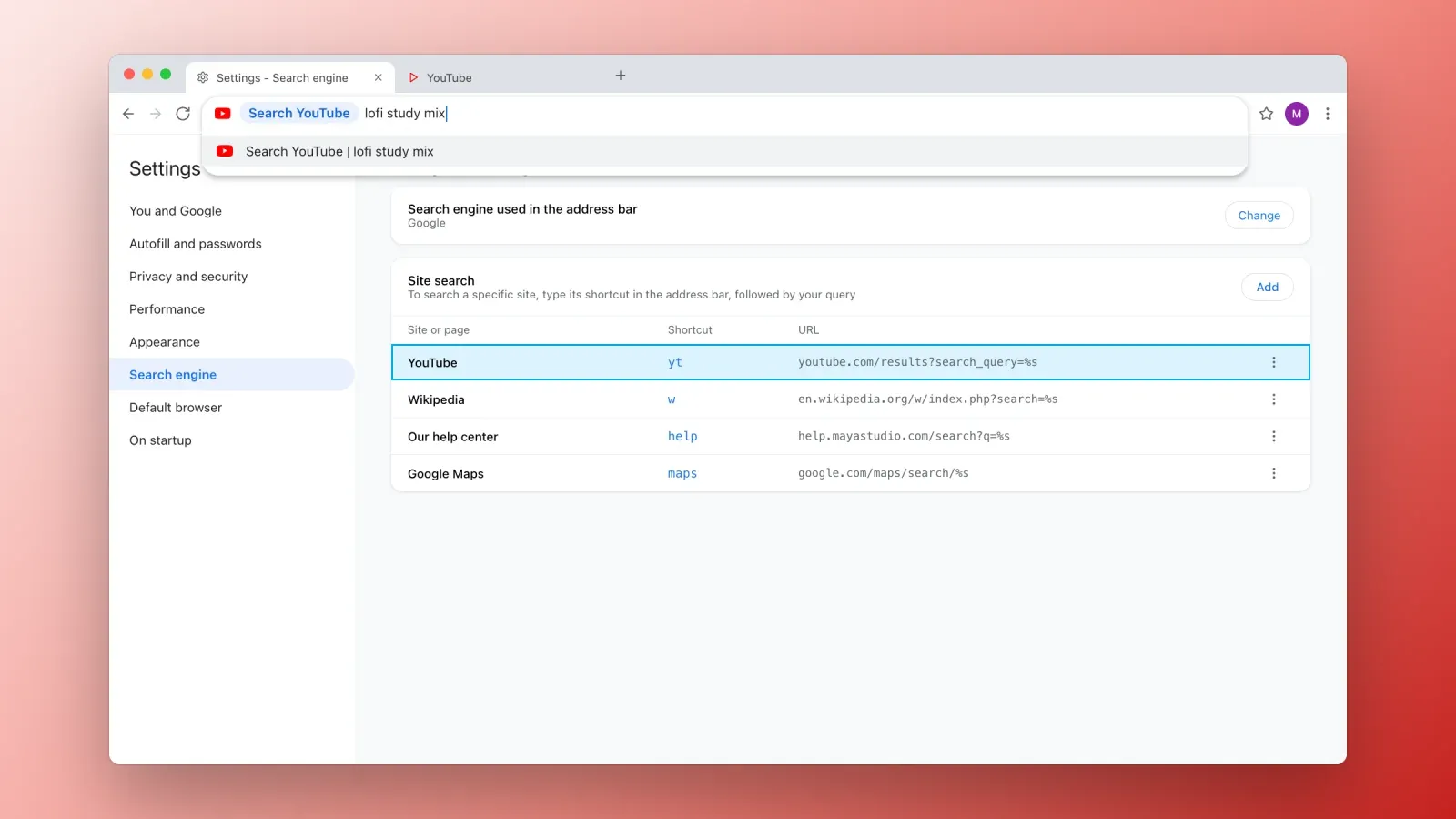
3. Create site search shortcuts
Site search lets you search a specific website straight from the address bar.
Many sites work out of the box: type the start of a site you visit often, such as "youtube.com," and Chrome may show "Search YouTube" or "Press Tab to search." Press Tab, type your query, press Enter, and you land on that site's own results.
You can also create your own shortcuts:
- Open Chrome Settings, then Search engine, then Manage search engines and site search.
- Under Site search, click Add.
- Enter a name, a shortcut, such as "yt," and the search address with "%s" where the query goes, for example "https://www.youtube.com/results?search_query=%s."
- Save. Now typing "yt," a space and your words searches YouTube directly.
Useful shortcuts include your company's help center, your online store's admin search, Wikipedia, a dictionary or a maps service.
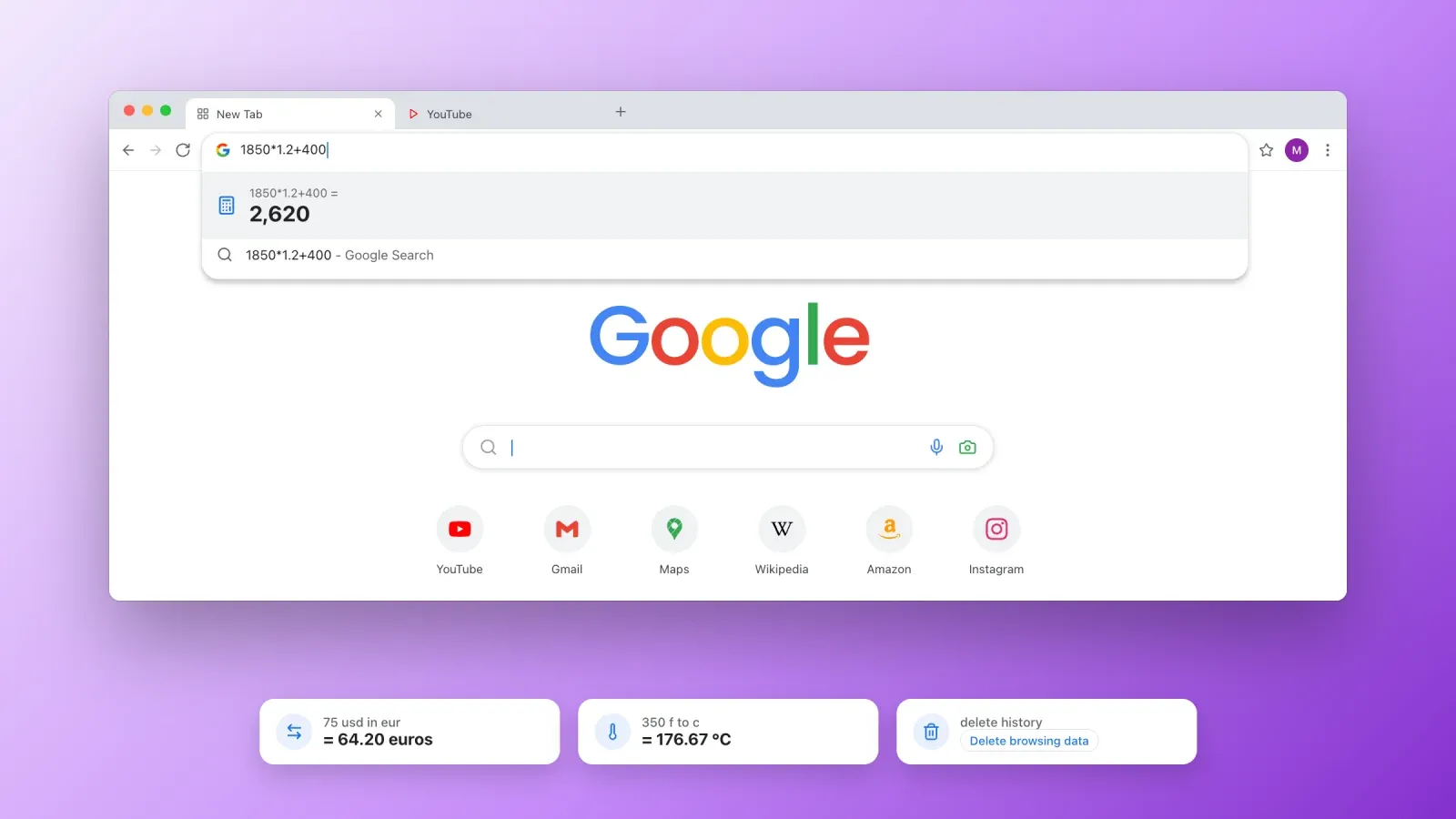
4. Get instant answers without opening a page
The address bar often answers before you even press Enter.
- Calculations. Type "1850*1.2+400" and the result appears in the suggestions.
- Conversions. "75 usd in eur," "180 cm in feet" or "350 f to c."
- Definitions and weather. "define omnibox" or "weather paris" may show a quick answer.
- Chrome actions. Type "delete history," "update chrome" or "manage passwords" and Chrome suggests a button that opens the right setting.
These answers depend on your search engine and your country, so the exact list varies.
5. Change the default search engine
"Search Google or type a URL" assumes Google is your search engine, but you can change it.
- On a computer. Open Settings, then Search engine, and pick another engine in the list, such as Bing, DuckDuckGo, Ecosia or Brave Search. The placeholder text changes to match.
- On Android. Open Chrome, tap the three-dot menu, then Settings, then Search engine.
- On iPhone and iPad. In Chrome, open Settings, then Search engine. In Safari, the setting is in the iPhone Settings app, under Apps, then Safari, then Search Engine.
In the European Union, the Digital Markets Act led Google to show a search engine choice screen in Chrome in 2024, so many European users chose their default engine when they first opened the browser.
If you are curious about the alternatives, our guide to 10 search engines other than Google compares their privacy, results and features.
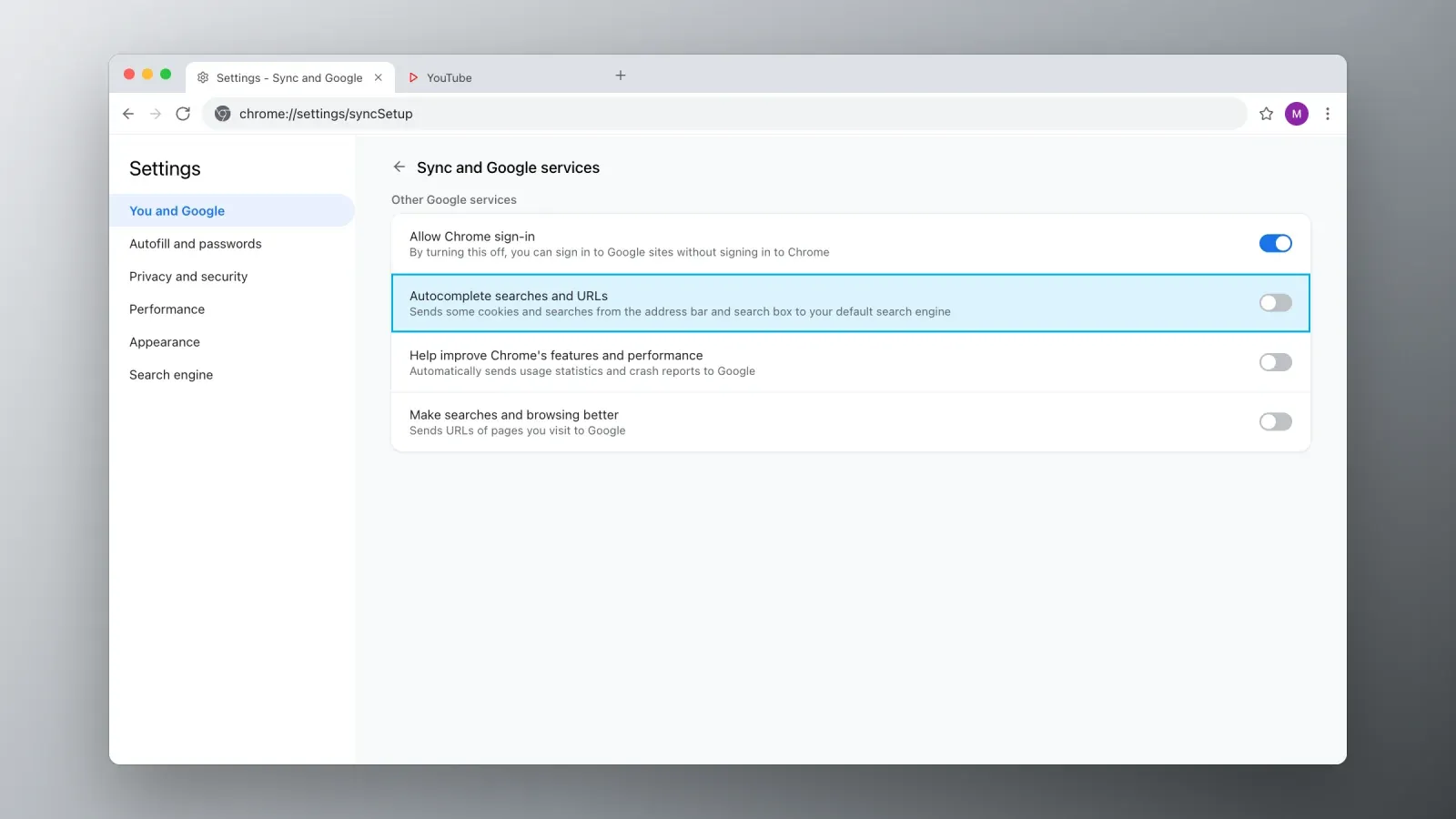
6. Control suggestions and privacy
Autocomplete is convenient, but it means what you type can be sent to your search engine before you press Enter, so it can suggest searches.
- Turn off search suggestions. In Chrome, open Settings, then You and Google, then Sync and Google services, and turn off Autocomplete searches and URLs. Chrome will still suggest from your history and bookmarks.
- Remove a single suggestion with Shift+Delete, or Shift+Fn+Delete on a Mac, when it is highlighted.
- Use an Incognito window, with Ctrl+Shift+N or Cmd+Shift+N, so the pages you visit are not saved to your history on that device. Your employer, school, internet provider and the sites you visit can still see your activity.
- Clear your history from Settings, then Privacy and security, then Delete browsing data, if you share the device.
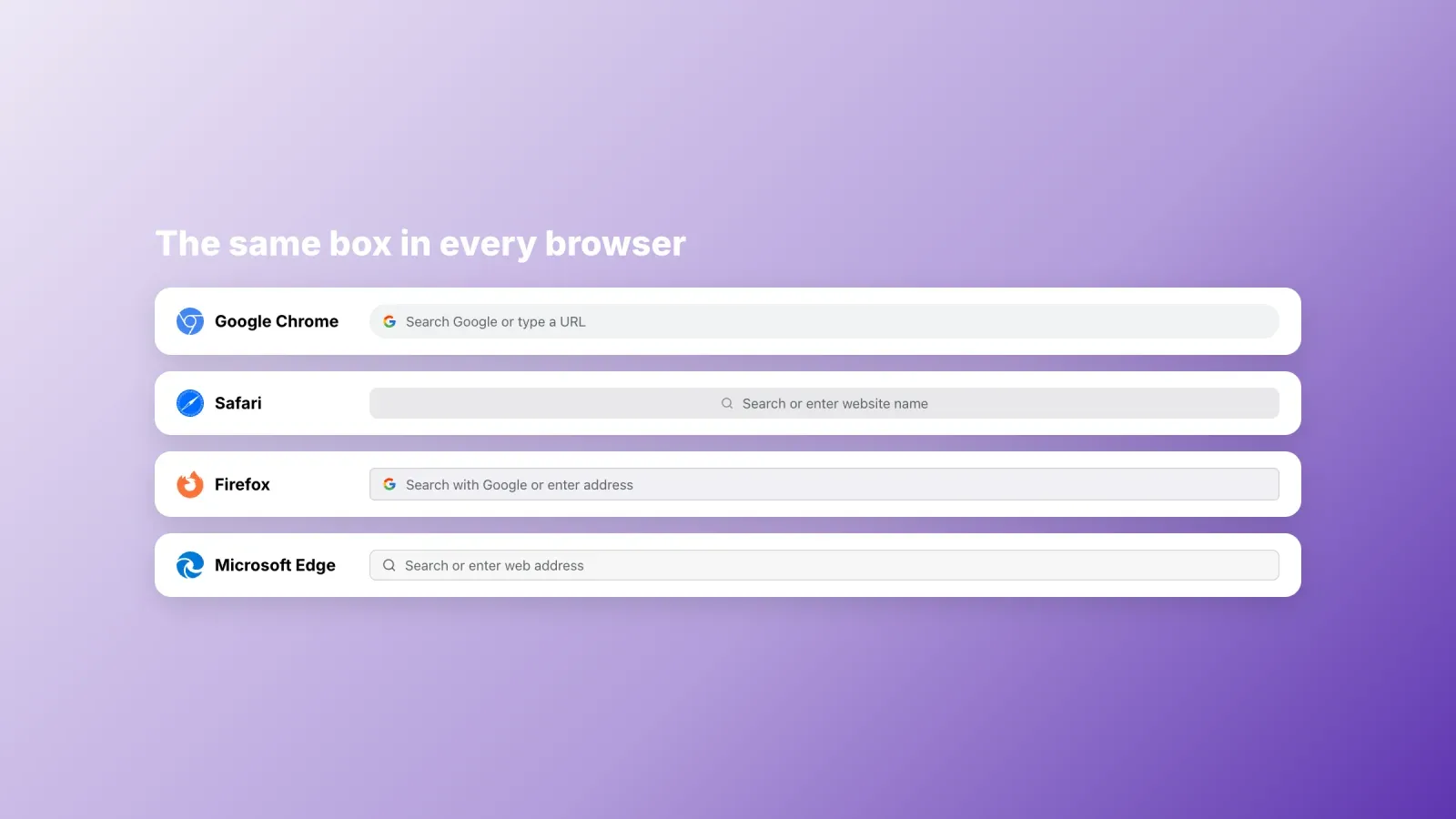
"Search Google or type a URL" in other browsers
Every modern browser has the same combined box, with slightly different wording and features.
- Google Chrome. "Search Google or type a URL." The omnibox, with tab search, site search shortcuts and Chrome actions.
- Safari. "Search or enter website name." Apple calls it the Smart Search field. On iPhone, it sits at the bottom of the screen by default.
- Mozilla Firefox. "Search with Google or enter address." Firefox lets you pick a different engine for a single search from the address bar.
- Microsoft Edge. "Search or enter web address." Built on the same engine as Chrome, with Bing as the default search engine.
- Samsung Internet and Opera follow the same principle, with the placeholder adapted to their default search engine.
The keyboard shortcuts above work in most of them, especially Ctrl+L or Cmd+L to jump to the address bar.
Using the address bar on your phone
On a phone, the same box works with a few extra tricks designed for touch screens.
- Search by voice. Tap the microphone icon in the address bar or on the New Tab page and say your search or the name of the site. It is often faster than typing a long query on a small keyboard.
- Search with your camera. In Chrome and the Google app, the Google Lens icon lets you search with a photo, for example to identify a product, translate a sign or copy text from a document.
- Paste and go. When you have copied a link, Chrome suggests "Link you copied" as soon as you tap the address bar. One tap opens it, without pasting manually.
- Move the bar to the bottom. Chrome on iPhone and recent versions on Android let you move the address bar to the bottom of the screen, where your thumb can reach it more easily. Press and hold the address bar to see the option, or look in the address bar settings. Safari on iPhone puts it at the bottom by default.
- Copy the current address. Tap the address bar, then the copy icon, or press and hold it to copy or share the link of the page you are viewing.
- Swipe between tabs. On many phones, swiping left or right on the address bar switches to the previous or next tab.
One difference matters on mobile: many people never open a browser to visit a site. They tap a link in an app such as Instagram, TikTok or a messaging app, which opens an in-app browser. In that case, there is no "Search Google or type a URL" box at all, only the link you shared. That is why a clear link in your social profiles often brings more visits than an address people would have to remember and type.
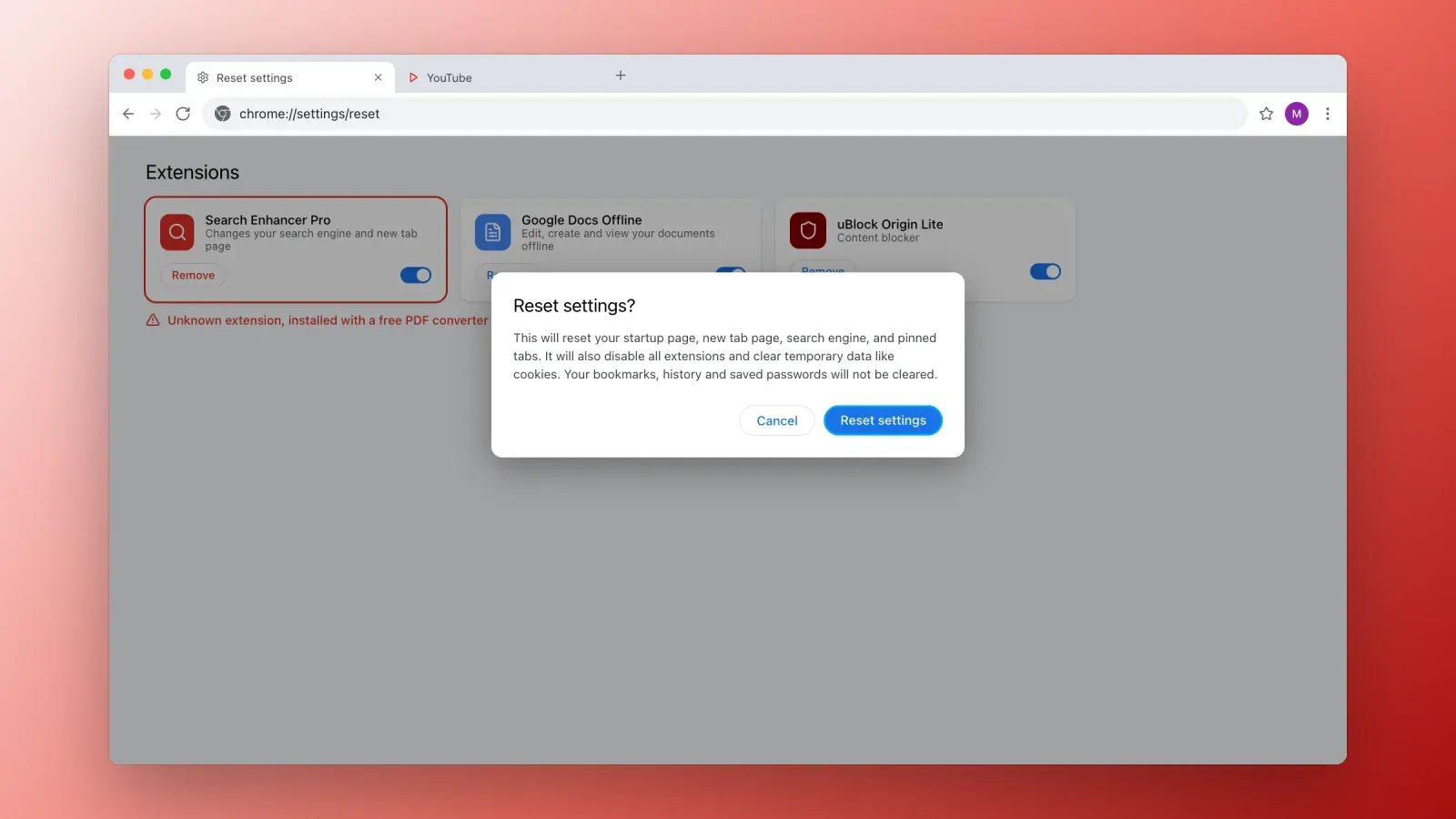
When your search bar is hijacked
Sometimes the box changes without your permission. Watch for these signs:
- Your searches suddenly go through an unknown search engine, often with many ads.
- Your homepage or New Tab page changed to a site you did not choose.
- Chrome shows "Managed by your organization" on a personal computer.
- You cannot change the search engine back, or it changes again after a restart.
- New toolbars, extensions or pop-ups appear.
These are typical of a browser hijacker, usually installed with free software or a fake update. To fix it:
- Remove suspicious extensions. Open the Extensions page from the puzzle icon or the menu, and remove anything you did not install or do not recognize.
- Reset Chrome. Open Settings, then Reset settings, then Restore settings to their original defaults. This resets your search engine, homepage and startup pages and disables extensions, without deleting bookmarks or saved passwords.
- Uninstall unknown programs on Windows or Mac, especially those installed around the time the problem started.
- Scan for malware with your system's built-in protection or a reputable security tool.
- Check policies. If "Managed by your organization" remains on a personal device after these steps, unwanted policies may still be installed. A security tool or a technician can remove them.
On a phone, remove recently installed apps you do not trust and check the default browser and search engine in your settings.
Troubleshooting the address bar
Typing a site name runs a search instead of opening the site. Add the domain ending, such as ".com," use Ctrl+Enter, or type the full address with "https://."
A wrong or embarrassing suggestion keeps appearing. Highlight it and press Shift+Delete, or Shift+Fn+Delete on a Mac.
The search box on the New Tab page is missing. A different search engine or a New Tab extension may have replaced the default page. Check your search engine setting and your extensions.
Suggestions do not appear at all. Make sure "Autocomplete searches and URLs" is on, and that you are not using a strict content blocker or a policy that disables it.
Internal company addresses open as searches. Type the full address with "http://" or "https://," or add a trailing slash, for example "intranet/."
What it means for your website
The address bar shapes how people reach you, which has consequences if you run a website or sell online.
- Most visitors search your name instead of typing your URL. Typing "roctify" without ".com" runs a search. Make sure your site ranks first for your own brand name, with a clear title and description, so that branded searches land on you and not on a competitor or a review site.
- A short, memorable address gets typed more. Simple domains without hyphens or unusual spellings are easier to type correctly and less exposed to typosquatting. A custom domain also makes your brand look more established than a long platform address.
- Measure who actually arrives. A site traffic website such as Google Analytics, Search Console or Plausible shows how many visitors typed your address, searched your name or tapped a link.
- Your page title matters in suggestions. Chrome suggests pages from history using their titles, so a clear, descriptive title helps returning visitors find you again.
- HTTPS is expected. Browsers show a warning for sites without a secure connection, which hurts trust. Our glossary entry on HTTPS and TLS explains why.
- On social media, people don't type at all. They tap. A single link in your profile that leads to a page with all your offers removes the need to remember any address.
FAQ about "Search Google or type a URL"
What does "Search Google or type a URL" mean? It is the placeholder text in Google Chrome's search box and address bar. It means you can either type words to search Google or type a web address to go directly to a website, in the same box.
What is a URL? A URL, or uniform resource locator, is the address of a page on the web, such as "https://www.roctify.com/blog." It tells the browser which protocol to use, which website to contact and which page to open.
What is the omnibox in Chrome? The omnibox is Google's name for Chrome's combined address and search bar. It handles web addresses, searches, suggestions, calculations, tab search and site search shortcuts.
Is it better to search Google or type the URL? Typing the URL or using a bookmark is faster and safer when you know the address, because it avoids fake ads and look-alike sites. Searching is better when you are not sure of the address or want to compare options.
How do I change "Search Google" to another search engine? In Chrome, open Settings, then Search engine, and choose another engine. The placeholder text in the box changes to match your choice.
Why does Chrome search instead of opening the website I typed? A single word without a domain ending, such as "amazon," is treated as a search. Add ".com" or press Ctrl+Enter to open the website directly.
How do I stop Chrome from showing search suggestions? Open Settings, then You and Google, then Sync and Google services, and turn off Autocomplete searches and URLs. You can also remove individual suggestions with Shift+Delete.
Why did my search engine change by itself? Usually because of a browser extension or a program installed on your computer. Remove unknown extensions, reset Chrome's settings and scan your device for malware.
Make your link the easiest one to find
"Search Google or type a URL" is a reminder that people reach websites in two ways: by searching a name or by typing an address. Make both easy. Rank first for your own brand, keep your address short and memorable, and give your social media followers a single link to tap instead of an address to remember.
Create your free Roctify page to get one short link for your bio that leads to all your products, links and content, ready for every follower who taps it, with 0% transaction fees on every plan.