You blocked someone on Facebook months ago, maybe after an argument, a breakup or a wave of annoying messages. Now things have calmed down, and you'd like to see their posts again, let them see yours or simply stop pretending they don't exist. The good news is that unblocking takes less than a minute. The less obvious part is everything around it. Where Facebook hides the blocked list, why some people don't appear in it, what changes after you unblock and why you can't change your mind right away.
This guide covers all of it. You'll find the exact steps to unblock someone on Facebook in the iPhone and Android app and on a computer, how to unblock someone who was only blocked in Messenger, how to unblock a profile from a Facebook Page you manage, what happens after you unblock, how to reconnect, the gentler alternatives to blocking and what to do when the person you're looking for isn't in your list. The menu names come from Meta's own Help Center, in the version available in October 2026.
Unblocking on Facebook, the short version
If you only need the path, here it is.
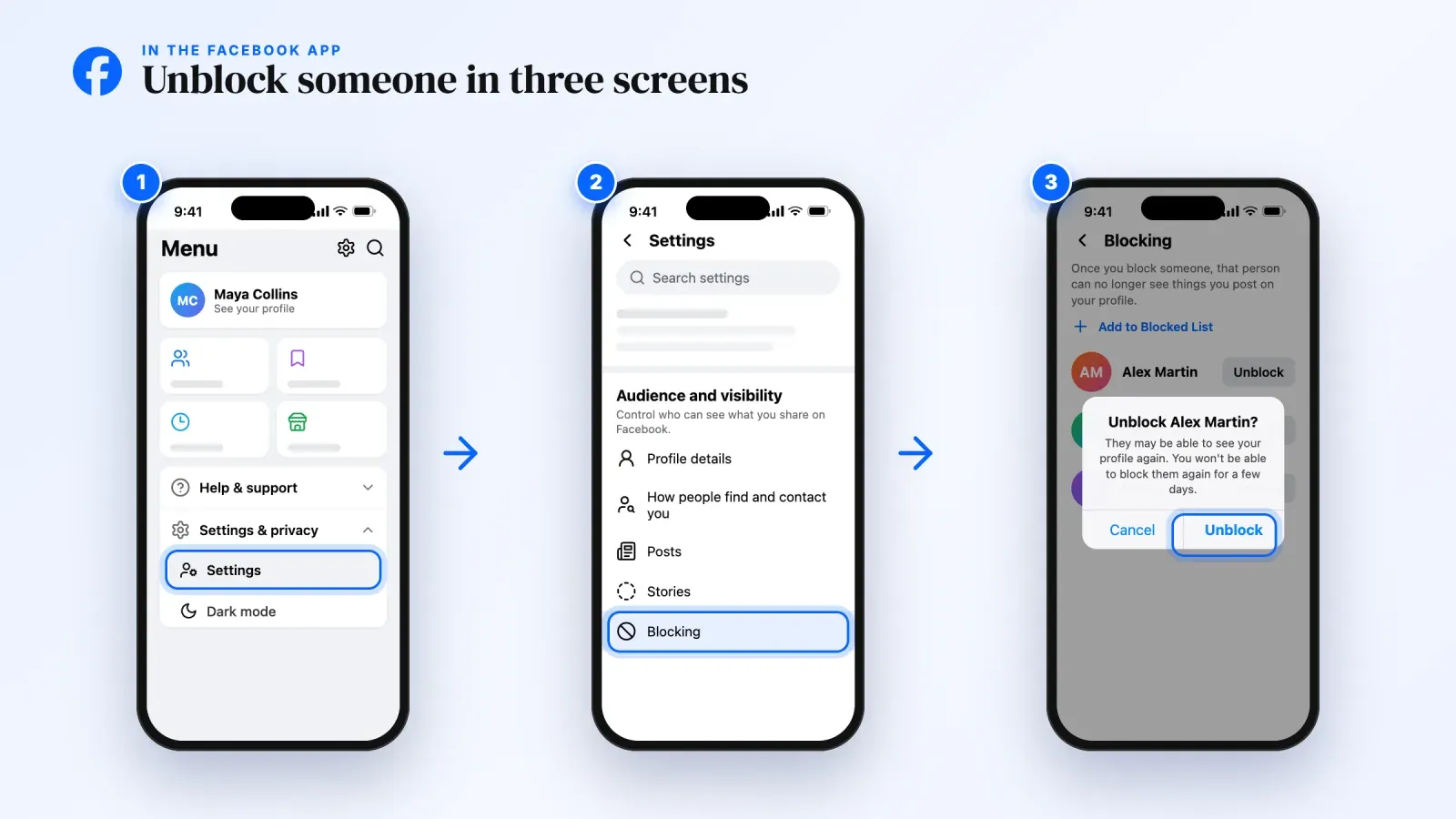
- In the Facebook app. Menu, then Settings & privacy, then Settings. Scroll to Audience and visibility, tap Blocking, tap Unblock next to the name and tap Unblock again to confirm.
- On a computer. Click your profile picture in the top right, then Settings & privacy, then Settings. In the left column, under Audience and visibility, click Blocking. In the Block profiles and Pages section, click Edit, then See your blocked list, then Unblock next to the name, and confirm.
Keep three rules in mind before you tap anything.
- Unblocking doesn't restore the friendship. If you were friends before, you'll need to send a new friend request.
- You can't block the same person again for a few days. Meta's Messenger help mentions a 48 hour wait. Make sure you really want to unblock before you confirm.
- The person isn't notified. Facebook doesn't send any alert when you block or unblock someone.
The sections below explain each step in detail, with screens for the app and the computer.
1. How to unblock someone on Facebook in the app
The Facebook app for iPhone and Android uses the same path. The only difference is where the Menu button sits. Depending on your device and app version, Menu is your profile picture in the bottom bar, an icon in the top right, or three lines in the top left. Once you're in Menu, the steps are identical.
- Open Menu. Tap your profile picture or the three lines icon to open the Menu screen with your shortcuts.
- Open Settings & privacy, then Settings. Scroll down to the bottom of Menu, tap Settings & privacy to expand it, then tap Settings.
- Find Audience and visibility. Scroll through Settings until you reach the Audience and visibility section. It groups your profile details, how people find and contact you, posts, stories and blocking.
- Tap Blocking. You'll see a list of every profile and Page you've blocked, each with an Unblock button.
- Tap Unblock next to the person. If your list is long, scroll slowly and check the profile picture, since several people can share the same name.
- Confirm. Facebook shows a short message reminding you what unblocking means. Tap Unblock again.
That's it. The name disappears from your Blocking list immediately. If you don't see the Audience and visibility section, type "Blocking" in the search bar at the top of Settings. It's the fastest way to find the page whatever your layout looks like.
A small tip if you manage several profiles. Facebook lets one account run more than one profile, and Meta notes that blocking is managed separately from each profile. If you blocked someone from a second profile, switch to that profile first and repeat the steps there.
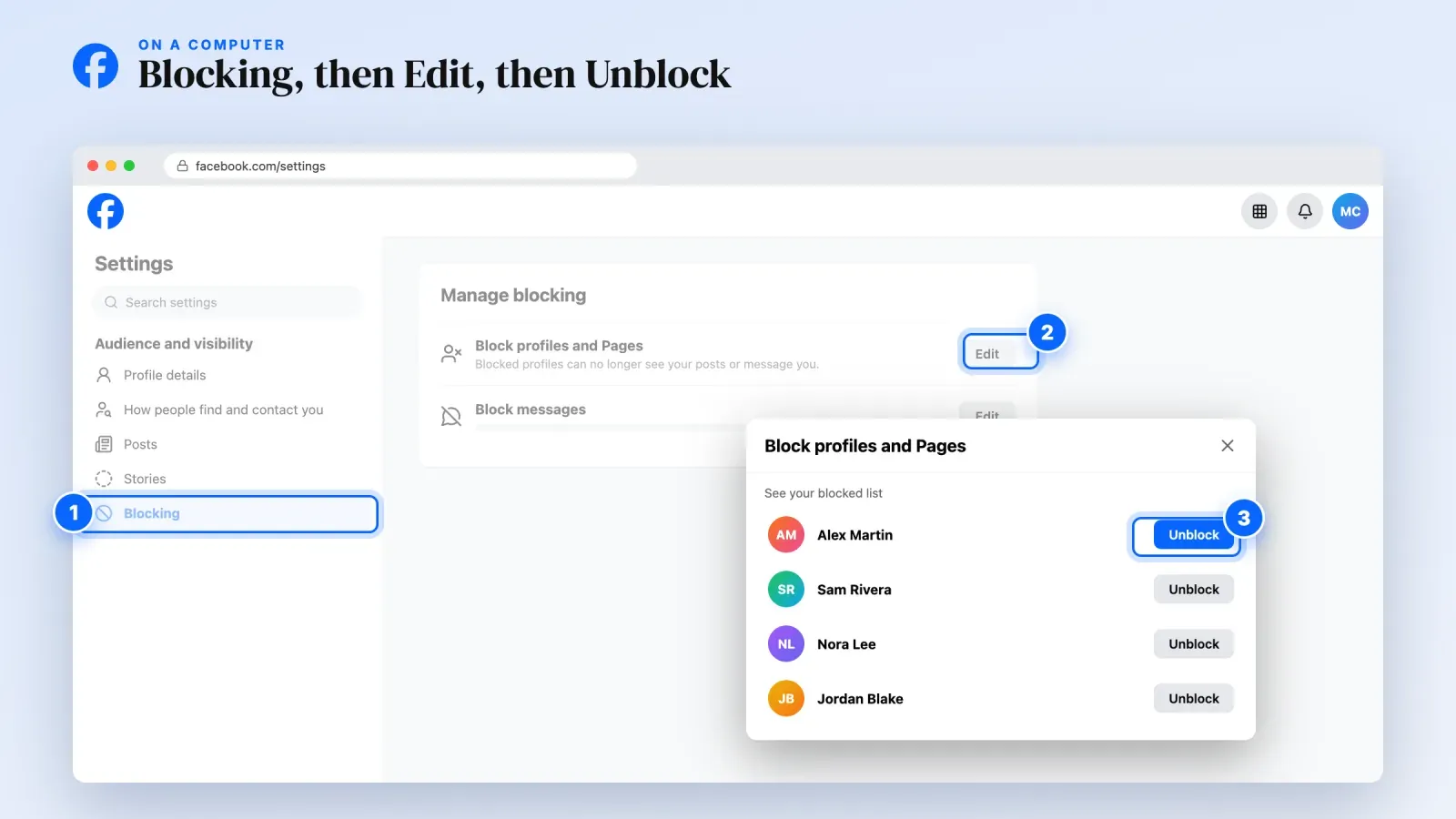
2. How to unblock someone on Facebook on a computer
On a Mac or PC, the blocked list is one level deeper because the Blocking page groups several types of blocks. Here's the path in a browser like Chrome, Safari, Edge or Firefox.
- Click your profile picture in the top right of Facebook.
- Select Settings & privacy, then click Settings.
- In the left column, below Audience and visibility, click Blocking.
- In the Block profiles and Pages section, click Edit.
- Click See your blocked list. A window opens with every profile and Page you've blocked.
- Click Unblock next to the name of the person or Page.
- Click Confirm to finish.
The Blocking page also contains other sections, such as Block messages, and each one has its own list. If the person you're looking for isn't in Block profiles and Pages, check Block messages, because you might have blocked them in Messenger only. The next section explains that case.
On a phone browser, Facebook's mobile website follows almost the same path as the app. Open Menu, go to Settings & privacy, then Settings, then Blocking. If something looks different, use the search bar inside Settings.
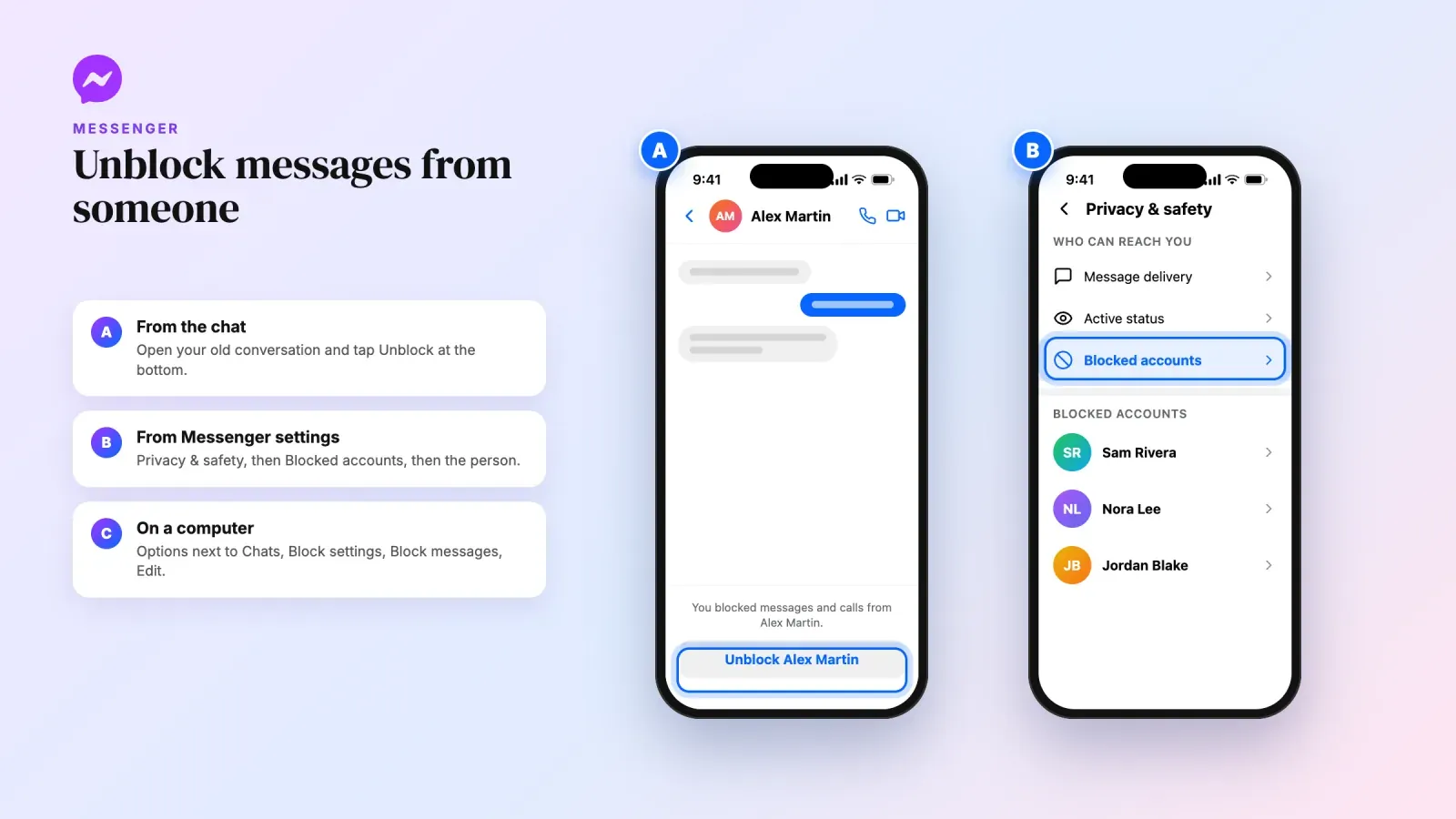
3. How to unblock someone on Messenger
Facebook has two kinds of blocks, and they don't behave the same way.
- A full block hides your profile from the person, ends the friendship and stops all interaction on Facebook and Messenger. This is the block covered in the two previous sections.
- A messages-only block stops the person from messaging or calling you on Messenger and in Facebook chats. You stay friends, and they can still see your profile and posts as usual.
If you only blocked messages, the person won't be in your Block profiles and Pages list. Here's how to unblock them.
From an old conversation. This is the fastest way. Open Messenger or Facebook chats, find the conversation with that person and open it. At the bottom of the chat, where the message field usually sits, you'll see a button that says Unblock followed by their name. Tap or click it and confirm.
In the Messenger app. Open Messenger, open the menu with your profile picture or settings icon, then go to Privacy & safety and Blocked accounts. Tap the person's name and choose to unblock messages. The exact wording varies a little between iPhone and Android, but the path always goes through Privacy & safety.
On a computer. In Facebook, open your chats. Next to Chats, click Options at the top, then Block settings. In the Block messages section, click Edit, then See your blocked list, and click Unblock next to the name.
One important detail. If you unblock someone's full Facebook profile from Messenger, Meta says it also unblocks them on Facebook, it won't add them back as a friend and you won't be able to block them again for 48 hours. Messenger and Facebook share the same blocking system for profiles, so you only need to unblock once.
4. How to unblock someone from a Facebook Page you manage
If you run a Facebook Page for a business, a creator account or a community, you can block people from the Page itself. Those blocks are separate from your personal blocks. A person blocked from your Page can't see what the Page posts, tag it, invite it to events or groups, message it or find it in search, but they can still interact with you personally.
To unblock someone from your Page on a computer:
- Click your profile photo in the top right of Facebook.
- Click See all profiles, then select the Page you want to switch into.
- Click your Page's profile photo in the top right.
- Click Settings & privacy, then Settings.
- In the left menu, click Blocking.
- In Block profiles and Pages, click Edit, then See your blocked list.
- Click Unblock next to the profile, app or Page you want to unblock.
You need full Facebook access to the Page to manage blocking from Page settings. If you only have task access to messages or comments, you can block and unblock from those tools instead, for example from the comment or the conversation where you blocked the person.
Note that blocking someone who followed your Page removes them as a follower. Unblocking won't bring them back automatically. They'll have to follow the Page again.
5. How to unblock a nickname in a Facebook group
Some Facebook groups let members post with a nickname instead of their profile name. If you blocked a nickname, it lives in the same Blocking page as profiles.
In the app, go to Menu, Settings & privacy, Settings, then Blocking under Audience and visibility, and tap Unblock next to the nickname. On a computer, go to Settings & privacy, Settings, Blocking, click Edit next to Block profiles and Pages, then Unblock next to the nickname.
Unblocking a nickname has two differences from unblocking a profile. You'll see that nickname's content in the group again and they can tag you and interact with your group content. And the waiting period before you can block again doesn't apply to nicknames, so you can block a nickname again right away if needed.
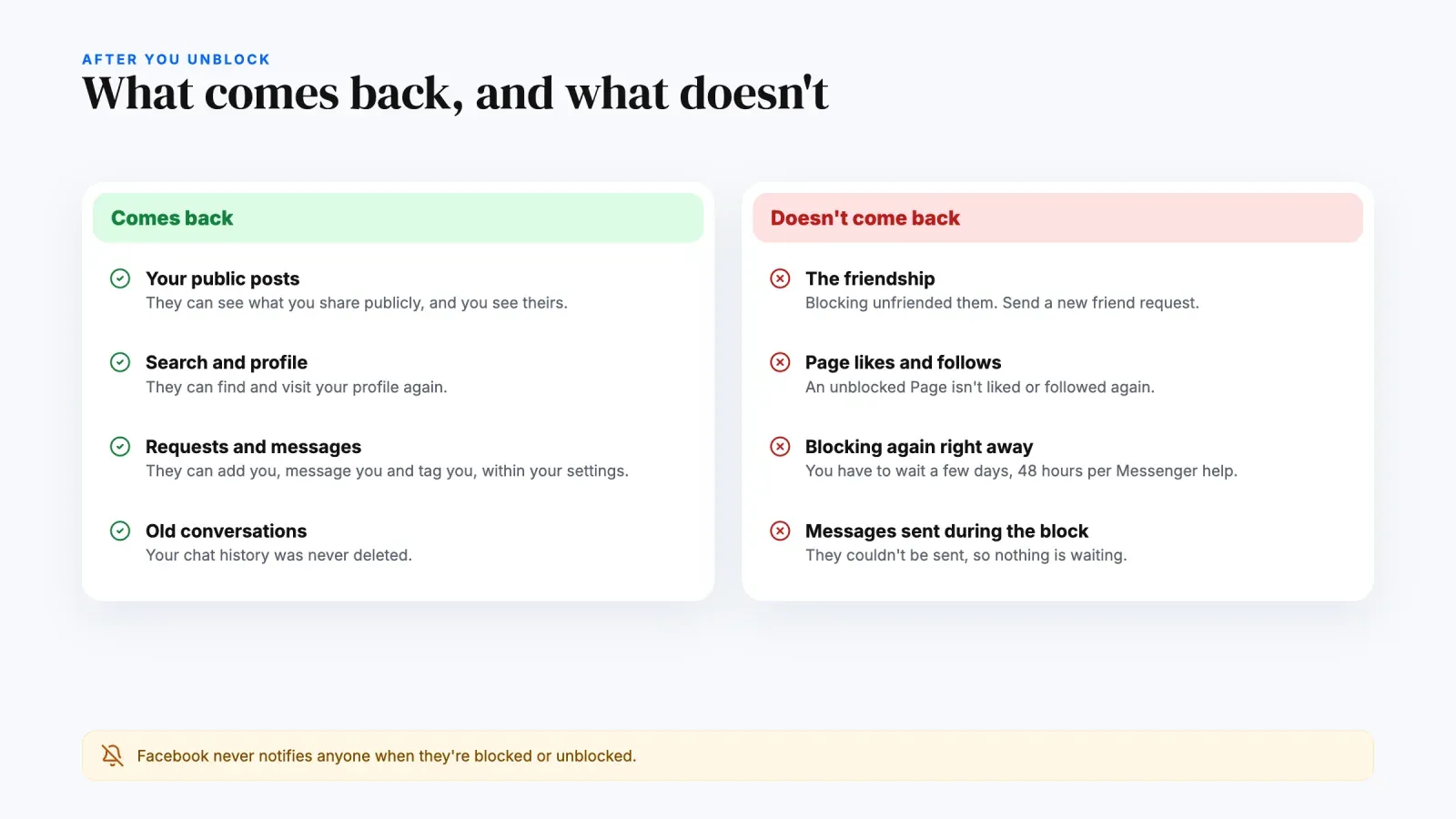
What happens when you unblock someone on Facebook
Unblocking reverses the block, but only partly. Here's what changes and what doesn't, based on Meta's Help Center.
What comes back.
- The person can see what you post publicly on Facebook again, and you can see their public posts.
- They can find your profile in search and visit it.
- They can send you a friend request, message you and tag you, within the limits of your privacy settings.
- You can see their comments and reactions on public posts again.
What doesn't come back.
- The friendship. Blocking unfriends the person. Unblocking doesn't add them back. If you want to be friends again, you have to send a new friend request, and they have to accept it.
- Follows and Page likes. If you blocked a Page, unblocking won't make you like or follow it again.
- Your ability to block again right away. After unblocking a profile or Page, you can't block it again for a few days. Messenger's help puts the delay at 48 hours.
What they'll know. Facebook doesn't notify anyone when they're blocked or unblocked. But people often notice indirectly. If they search for you and suddenly find your profile again, or see your public posts reappear, they may guess what happened.
Your old conversations stay where they were. Blocking doesn't delete chat history, so once you unblock, the conversation is still there for both of you.
How to reconnect after unblocking
Unblocking is a technical step. Reconnecting is a human one. If you unblocked someone because you want them back in your life, a few small moves help.
Send a friend request if you want to be friends. Go to their profile and tap Add friend. If they have restricted who can send them friend requests, for example to friends of friends only, the button may not appear. In that case, a message is the way in.
Write a short message first. A friend request that arrives out of nowhere after a block can feel strange. A short note like "Hey, I unblocked you and wanted to say hi. Hope you're doing well" sets the tone. If you're not friends, your message may land in their message requests, so don't worry if it takes time to get a reply.
Choose who sees what. If you want to reconnect slowly, you can add them as a friend and put them on your Restricted list. They'll only see your public posts and posts you tag them in. You can move them out later.
Respect a no. If the person doesn't accept your request or doesn't answer, leave it there. Unblocking gives them the option to reconnect, not the obligation.
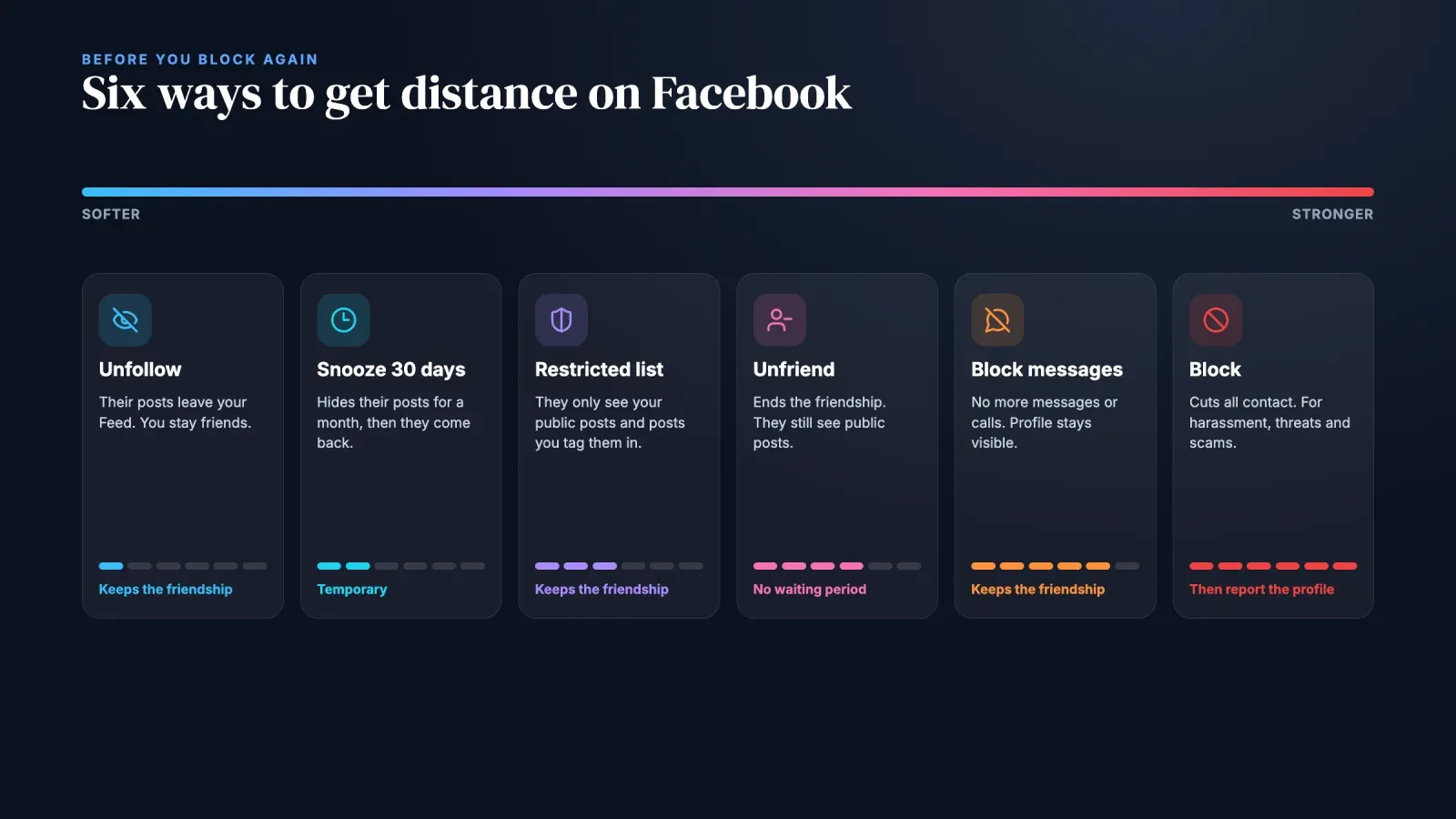
Alternatives to blocking someone on Facebook
Many people block because it's the most visible option, then regret it because it cuts everything. Facebook has gentler tools that solve most problems without the waiting period or the lost friendship.
- Unfollow. You stay friends, but their posts stop appearing in your Feed. They aren't notified. Ideal for the friend who posts too much politics or too many vacation photos.
- Snooze for 30 days. Hides their posts temporarily. Perfect during a tense moment, like an election or a breakup, when you know you'll want them back later.
- Restricted list. You stay friends, but they only see your public posts and posts where you tag them. Useful for a colleague or a family member you can't unfriend without drama.
- Unfriend. Ends the friendship without blocking. They can still see your public posts and send you a new request. They aren't notified.
- Block messages only. Stops messages and calls while keeping the friendship and profile visibility. Good for someone who sends too many messages but whom you don't want to cut off completely.
- Block. The full option. Use it for harassment, threats, scams or anyone you never want to interact with again.
If someone is harassing or threatening you, blocking is the right call, and you should also report the profile. Reporting helps Facebook act if the person does the same thing to others. Open their profile, click the three dots and choose the report option.
Can't find someone in your blocked list?
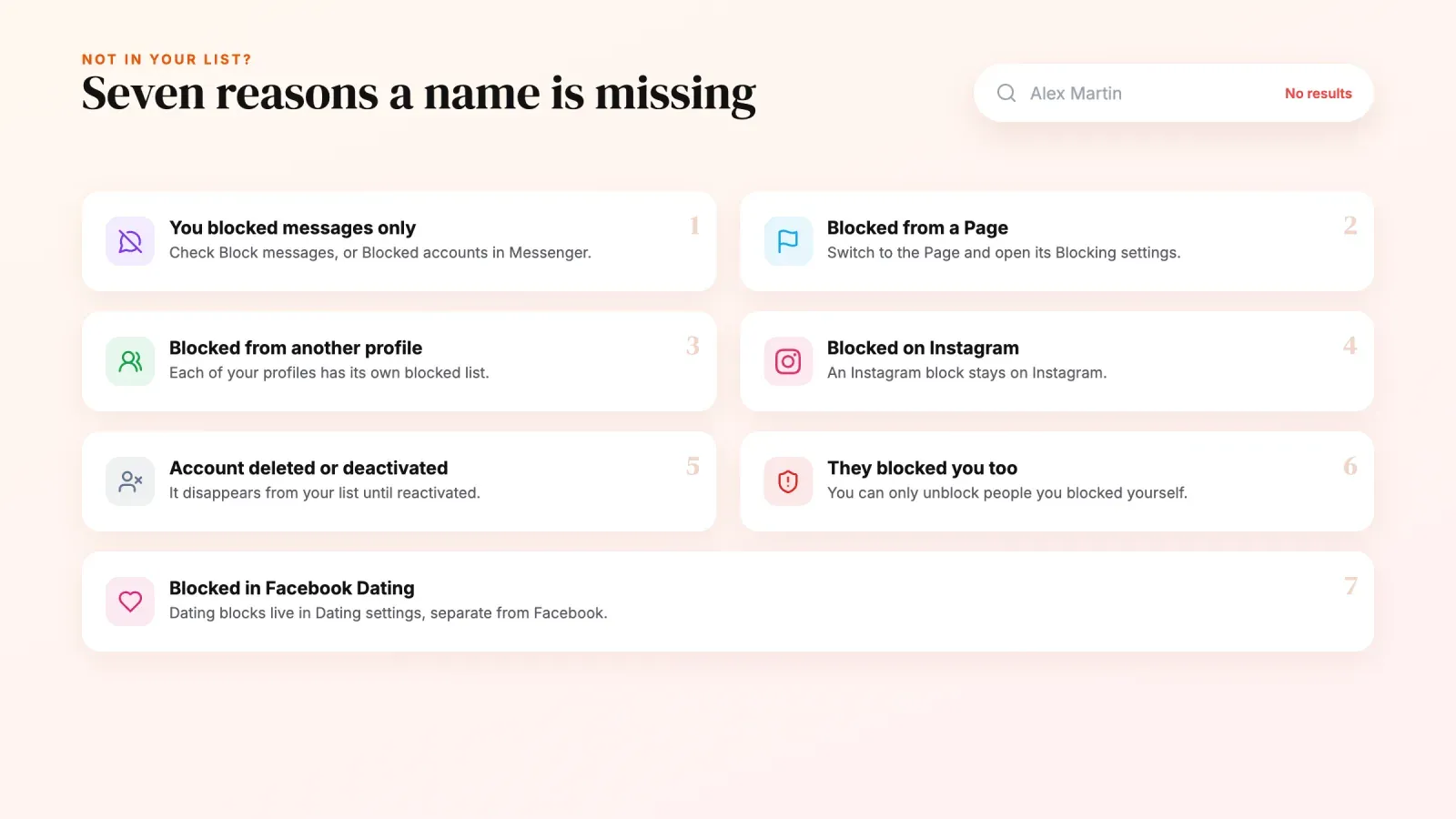
Sometimes you open Blocking and the person simply isn't there. Here are the usual reasons, from most to least common.
You blocked messages only. Check the Block messages section on a computer, or Privacy & safety and Blocked accounts in Messenger. You can also open your old conversation and look for the Unblock button at the bottom.
You blocked them from a Page, not from your profile. Switch to the Page and check its Blocking settings, as explained in section 4.
You blocked them from another profile. If you manage more than one Facebook profile, each has its own blocked list. Switch profiles and check again.
You blocked them on Instagram, not on Facebook. Even if your accounts are connected in Accounts Center, a block on Instagram stays on Instagram unless you chose to block their other accounts too. Check Instagram's own blocked accounts list.
They deleted or deactivated their account. A deleted account disappears from your list. A deactivated account may disappear until the person reactivates it.
They blocked you. If they blocked you too, they won't show up in your search, and you can't do anything about it. You can only unblock people you blocked yourself.
You're in the Dating section. Blocking someone in Facebook Dating doesn't block them on Facebook or Messenger, and the reverse is true too. Dating blocks are managed in Dating's own settings.
How to know if someone blocked you on Facebook
Facebook never tells you directly. A few signs together are a strong hint, but none of them alone is proof.
- You can't find their profile in search, while mutual friends still can.
- Their name appears in plain text in old comments or group posts, without a link to their profile.
- Your old conversation shows that you can't reply or that the person isn't available.
- They disappeared from your friends list, and you can't send a new request.
- Mutual friends can still see their profile, but you can't find it at all.
These signs can also mean that the person deactivated their account or changed their privacy settings. If the profile is visible when you're logged out but not when you're logged in, a block is the most likely explanation. Either way, you can't unblock yourself. If it matters to you, ask a mutual friend to pass along a message, or let it go.
How to block someone again after unblocking
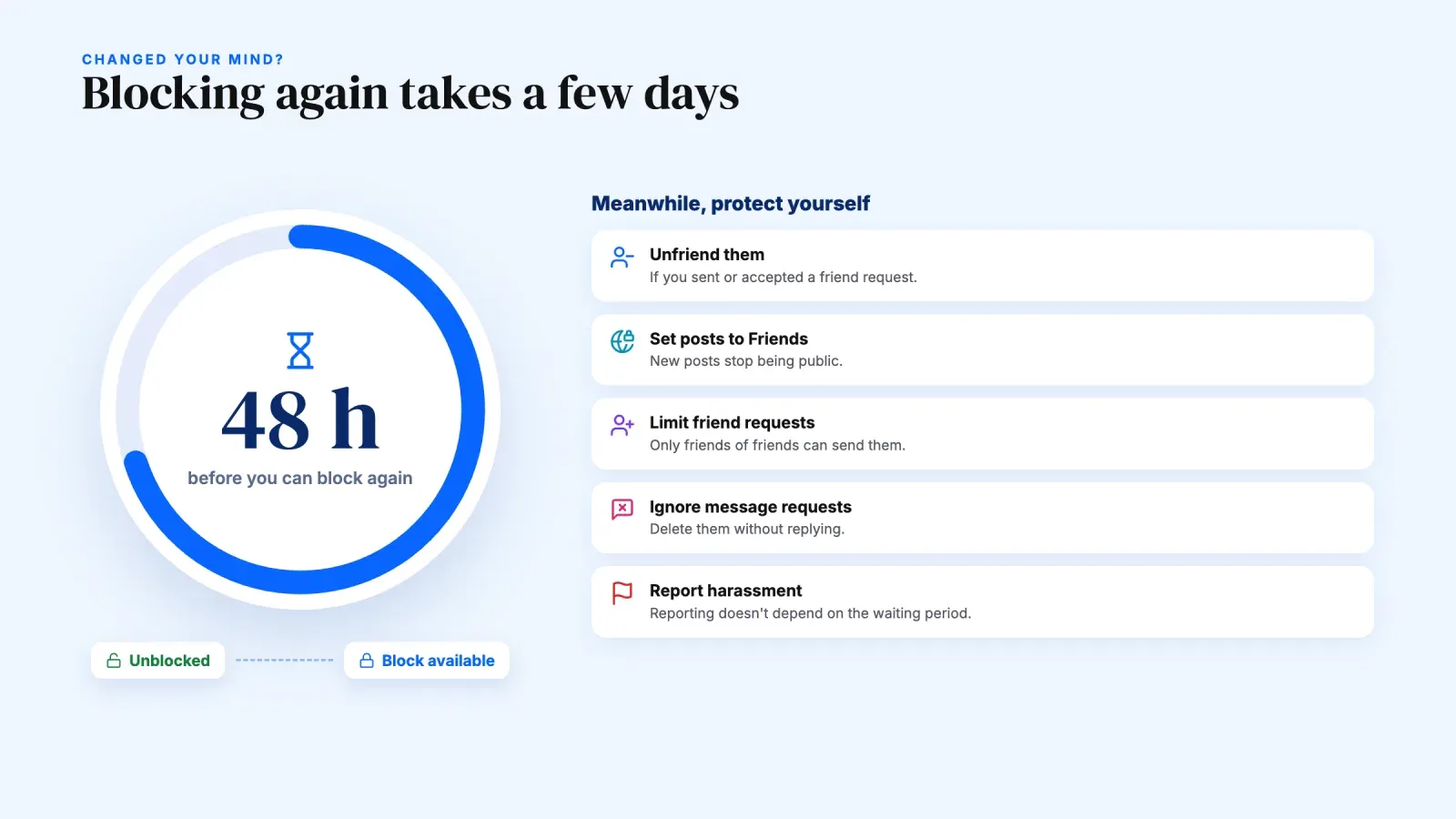
If you unblocked someone and realize it was a mistake, you'll have to wait. Meta says you can't block a profile or Page again for a few days after unblocking it, and Messenger's help gives 48 hours. The wait doesn't apply to group nicknames.
While you wait, protect yourself with other settings.
- Unfriend them if you sent or accepted a friend request.
- Change the audience of your posts to Friends instead of Public, so they can't see new posts.
- Limit who can send you friend requests to friends of friends.
- Ignore or delete message requests from them.
- Report the profile if they harass you. Reporting doesn't depend on the waiting period.
Once the delay is over, block again from their profile with the three dots and Block, or from Settings & privacy, Settings, Blocking and Add to blocked list. Note that Facebook no longer shows a Block option directly in the post menu of your Feed. Go through the profile or your settings.
Protect your audience beyond Facebook
If you use Facebook for a business, a side project or as a creator, blocking and unblocking is part of managing a community. But it also shows how fragile it is to depend on one platform. A misunderstanding, a restricted account or a changing algorithm can cut you off from people who wanted to hear from you.
That's why many creators and small businesses keep one simple page they control, with their links, their products, their booking options and an email signup, and share it everywhere. Whether someone finds you on Facebook, Instagram or TikTok, they land in the same place, and you keep a direct way to reach them.
FAQ about unblocking someone on Facebook
Does Facebook notify someone when you unblock them?
No. Facebook doesn't send any notification when you block or unblock someone. They might notice that they can see your profile again, but nothing tells them directly.
Will we be friends again after I unblock someone?
No. Blocking someone removes them from your friends, and unblocking doesn't restore the friendship. You'll need to send a new friend request, and they'll need to accept it.
Why can't I block someone again right after unblocking them?
Facebook adds a waiting period of a few days, 48 hours according to Messenger's help, before you can block the same profile or Page again. It prevents people from using block and unblock repeatedly to play with someone's access. The delay doesn't apply to nicknames in groups.
Does unblocking someone on Facebook also unblock them on Messenger?
Yes, for a full profile block. Facebook and Messenger share the same block. If you only blocked messages, you need to unblock messages separately in Messenger or from the Block messages section of your settings.
Can I see messages someone sent me while they were blocked?
No. Messages can't be sent while someone is blocked, so there's nothing waiting for you after you unblock. Your older conversation history is still there.
How do I unblock someone who blocked me on Facebook?
You can't. Only the person who placed the block can remove it. You can unblock people on your own blocked list, but you can't remove a block someone else placed on you.
Can I unblock someone on Facebook without them knowing?
Yes, in the sense that Facebook doesn't notify them. They can still notice indirectly if they search for you or see your public posts again. If you want to stay low-key, set your future posts to Friends so they don't see new content.
Is it better to unfriend or block someone on Facebook?
It depends on the situation. Unfriending ends the friendship but keeps things polite, they can still see your public posts. Blocking cuts all contact. For a simple falling out, unfriend, unfollow or the Restricted list is usually enough. For harassment, threats or scams, block and report.
Unblock with intention
Unblocking someone on Facebook takes a few taps. Menu, Settings & privacy, Settings, Blocking, Unblock, confirm. On a computer, add one more click through Block profiles and Pages and See your blocked list. What deserves more thought is the why. Unblock when you're ready for the person to see your public life again, remember that the friendship won't come back on its own and that you can't block again right away, and use the gentler tools when you need distance rather than a wall.
If Facebook is one of the places where people discover your work, give them one link that leads to everything you offer. Create your free Roctify page to gather your links, products and contact options in one place you control, and share it from every profile.