Every YouTube video, channel, playlist, and Short has its own link, and each one can do a different job. A plain video link gets someone watching. A timestamped link drops them straight into the best moment. A subscribe link asks them to join your channel the second they land. Knowing which YouTube URL to use, and where to put it, is one of the simplest ways to turn views into subscribers, clicks, and customers.
The problem is that YouTube hides these options in different places, and a few rules are easy to miss: links in Shorts descriptions are not clickable, external links in cards and end screens require the YouTube Partner Program, and the link you copy on your phone is not always the one you want to share.
This guide covers every type of YouTube link, how to copy each one on mobile and desktop, how to add links to your channel, descriptions, and comments, and where to share your videos so they get the most clicks.
The main types of YouTube links
Before copying anything, it helps to know which link fits which goal.
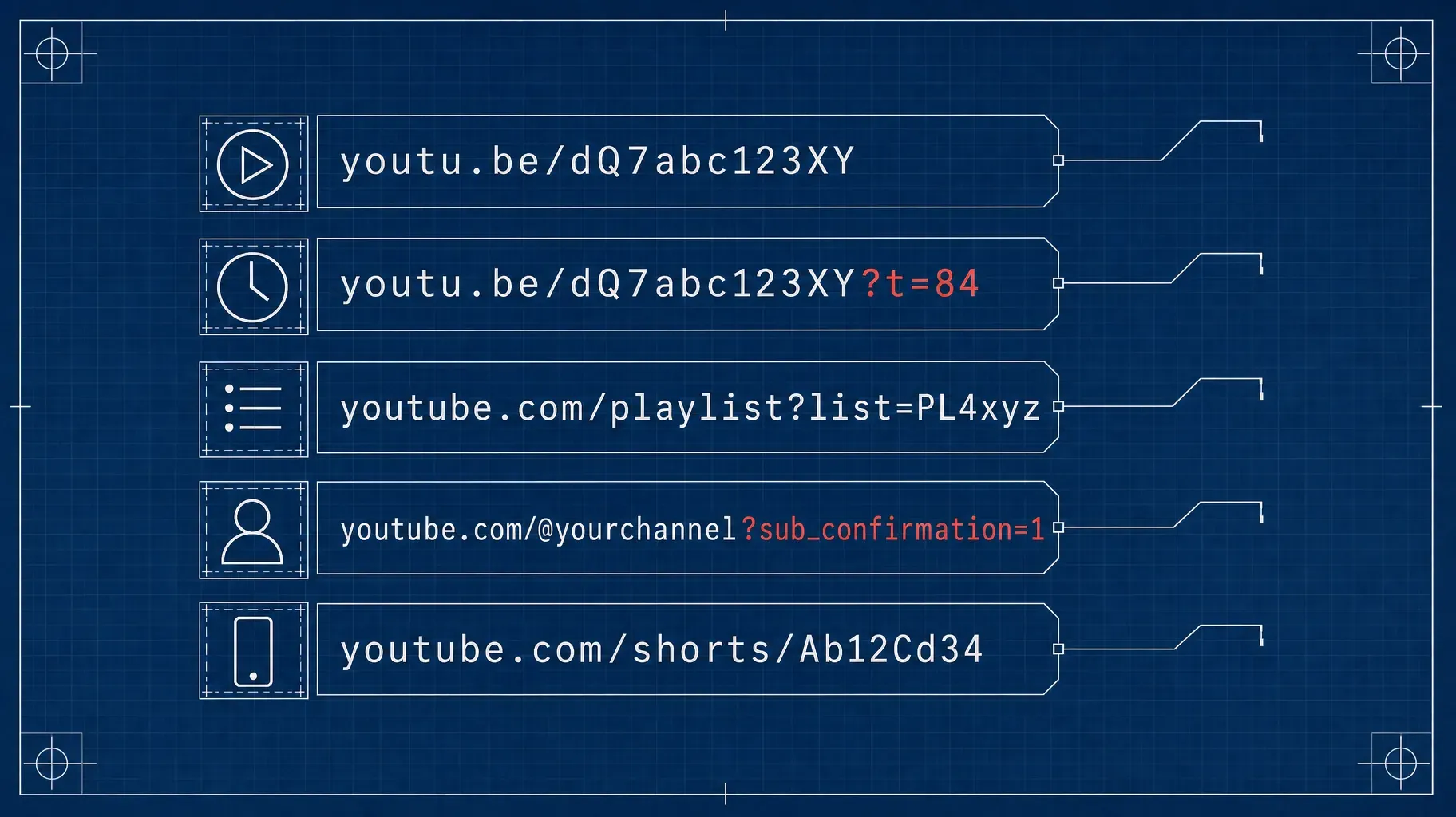
- Video link. The standard address of a video looks like youtube.com/watch?v= followed by an 11-character video ID. The short version looks like youtu.be/ followed by the same ID. Both open the same video.
- Timestamped link. Adding ?t= followed by a number of seconds to a short link starts the video at that moment. For example, youtu.be/VIDEO_ID?t=84 starts at 1:24.
- Channel link. Your channel address uses your handle: youtube.com/@yourhandle. Older channels may also have legacy addresses, but the handle URL is the one to share today.
- Subscribe link. Add ?sub_confirmation=1 to your channel URL, as in youtube.com/@yourhandle?sub_confirmation=1. Visitors land on your channel with a subscribe confirmation pop-up.
- Playlist link. A playlist address looks like youtube.com/playlist?list= followed by the playlist ID. It is ideal for series, courses, and tutorials meant to be watched in order.
- Shorts link. Shorts use youtube.com/shorts/ followed by the video ID.
- Live link. youtube.com/@yourhandle/live points to your current live stream when you are live, which makes it handy to share before a stream starts.
Keep this list nearby. Most of the steps below are about getting the right version of one of these links in a few taps.
Which YouTube link should you use?
Pick the link based on what you want the viewer to do next.
- You want them to watch one specific video: use the short video link.
- You want them to see one moment: use a timestamped link.
- You want them to watch several videos in a row: use a playlist link.
- You want them to subscribe: use your subscribe link.
- You want them to explore your channel: use your channel handle URL.
- You want them to join a live session: use your live link.
- You want them to see a video without leaving your site: use an embed.
When in doubt, ask one question: what is the single action I want after the click? The answer tells you which link to share.
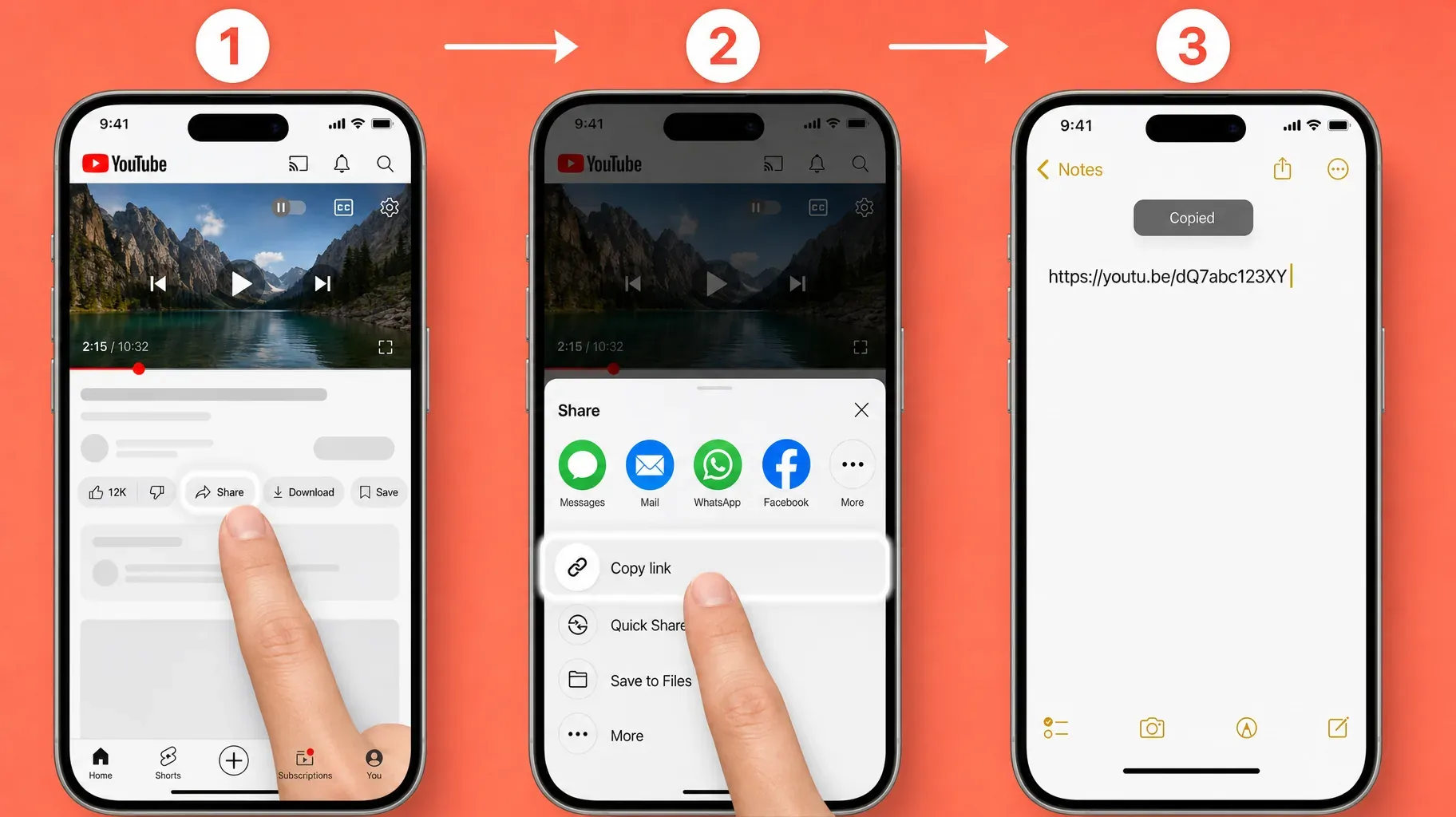
1. Copy a YouTube video link on your phone or computer
The share button is the fastest way to copy a clean video link.
On your phone:
- Open the video in the YouTube app.
- Tap Share under the video.
- Tap Copy link in the share sheet.
- Paste the link wherever you need it.
On a computer:
- Open the video on youtube.com.
- Click Share under the player.
- Click Copy next to the link.
The copied link uses the short youtu.be format. It sometimes includes an extra ?si= parameter that YouTube uses to track shares. You can remove everything from ?si= onward if you want a cleaner link. The video will still open normally.
You can also copy the address from your browser's address bar on desktop, which gives you the long youtube.com/watch?v= version. Both formats work anywhere. The short version is simply easier to read in posts and messages.
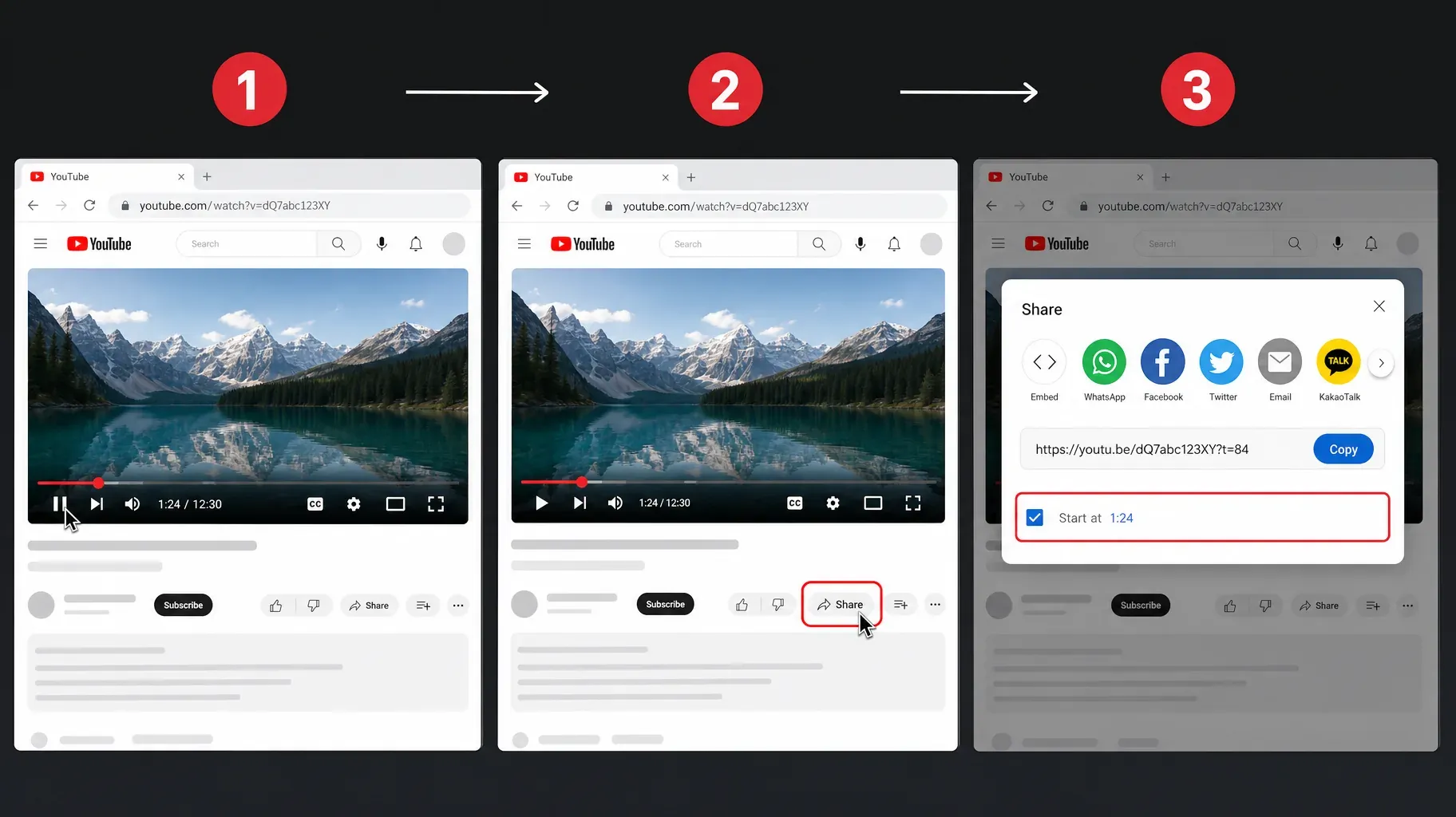
2. Share a video at a specific moment with a timestamp
Timestamped links are perfect when the useful part of a video starts halfway through, or when you want to point someone to a specific tip, demo, or answer.
On a computer:
- Play the video and pause it at the moment you want to share.
- Click Share under the player.
- Check Start at. The time of your pause appears next to it.
- Click Copy.
On your phone:
The mobile share sheet does not always offer a start time, so add it by hand:
- Copy the video link with Share and Copy link.
- Note the moment you want, for example 3 minutes and 15 seconds.
- Convert it to seconds: 3 × 60 + 15 = 195.
- Add ?t=195 to the end of a youtu.be link, or &t=195 if the link already contains a question mark.
A quick rule: the first parameter in a link starts with a question mark, and every other parameter starts with an ampersand. So youtu.be/VIDEO_ID?t=195 is correct, and youtube.com/watch?v=VIDEO_ID&t=195 is correct too.
Timestamps work great in comments, newsletters, and replies to questions. They also make long videos feel more accessible, because people can jump straight to what they need.
3. Copy your channel URL and create a subscribe link
Your channel link is the one to use when you want people to explore everything you make, not just one video.
Find your channel URL:
- On a computer, open YouTube and click your profile picture, then View your channel.
- Copy the address from the browser. It looks like youtube.com/@yourhandle.
- In the app, open your channel, tap the three-dot menu or the share icon, and choose Share or Copy link.
Create a subscribe link:
- Take your channel URL, such as youtube.com/@yourhandle.
- Add ?sub_confirmation=1 to the end.
- Test it in a private browser window. You should see your channel with a pop-up asking to confirm the subscription.
The subscribe link removes one step from the path to subscribing. Use it in your email signature, on your website, at the end of newsletters, and in the bio of your other social profiles, anywhere people already know and like your work.
About your handle. Your handle is your unique channel name after the @. You can change it in YouTube Studio, but links using the old handle may stop working after a while, so update your links everywhere if you change it.
4. Link to playlists, Shorts, and live streams
Playlists. Open the playlist and copy the link from the share button or the address bar. To share a playlist that starts on a specific video, open that video from the playlist and copy its link. The address will include both the video ID and the playlist ID. Playlists are the best link for courses, series, and "start here" collections, because they keep viewers moving from one video to the next.
Shorts. Open the Short, tap Share, and tap Copy link. The link uses the youtube.com/shorts/ format. Shorts links work well on other short-video platforms and in messages.
Live streams. Share youtube.com/@yourhandle/live in advance. When you go live, the link points to your stream. You can also schedule the stream and share the link of the scheduled video, which shows a countdown and lets people set a reminder.
Embeds. To put a video on your website, click Share, then Embed, and copy the code. Most website builders also accept a plain video link and turn it into a player automatically.
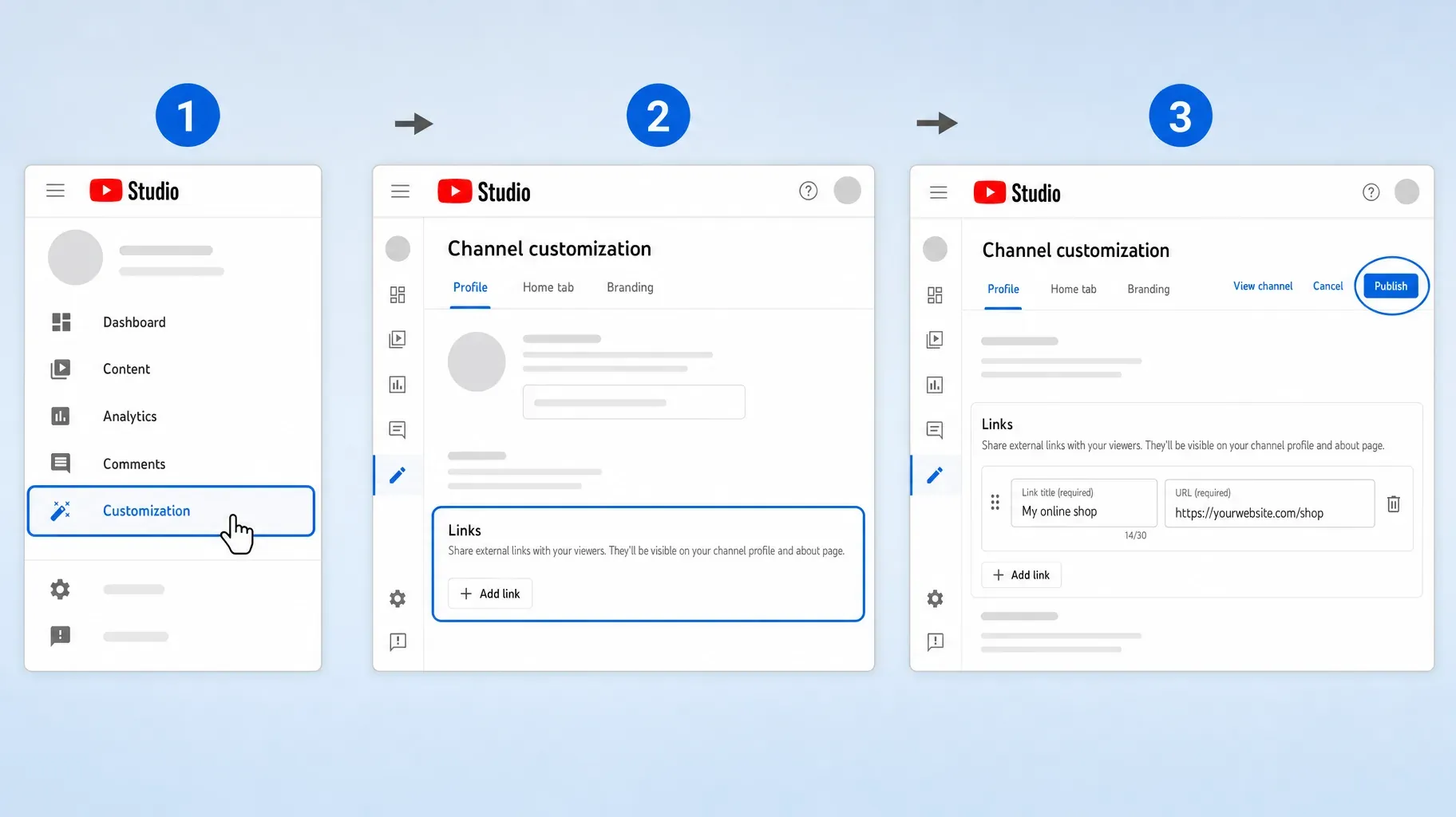
5. Add links to your YouTube channel
Your channel can display a set of links to your website, shop, newsletter, and social profiles. These are some of the most visible links you have, because anyone who visits your channel sees them.
- Open YouTube Studio on a computer.
- Click Customization in the left menu.
- Open the Profile tab.
- Under Links, click Add link.
- Enter a Link title and the URL.
- Repeat for each link, then click Publish.
You can add up to 14 links. Your first link appears on your channel page next to your channel description, followed by a mention of how many other links you have. Visitors can open the full list in a tap. Put your most important link first, such as your link-in-bio page, your shop, or your newsletter.
Channel links must follow YouTube's external links policy. Links to harmful, misleading, or spammy websites can be removed, and repeated violations can affect your channel.
6. Put links in descriptions, comments, cards, and end screens
Beyond your channel page, YouTube offers several spots for links inside or around your videos.
Video descriptions. Links in the description of regular videos are clickable. Put your most important link in the first two lines, because only the beginning of the description shows before viewers tap "more." Add a short reason to click, such as "Free template used in this video" followed by the link.
Pinned comments. Links in comments on regular videos are clickable too. Pin a comment with your key link so it stays at the top of the comments.
Timestamps and chapters. Add timestamps in your description, starting with 0:00, to create chapters. They are not external links, but they help viewers jump to the part they need, and they can make your video easier to discover.
Cards and end screens. Cards appear during a video, and end screens appear in the last seconds. Both can link to other videos, playlists, and channels for everyone. Linking to an external website from cards or end screens requires your channel to be in the YouTube Partner Program.
Shorts. Links in Shorts descriptions and comments are not clickable. Instead, you can connect a Short to one of your longer videos using the related video option when you upload or edit it, and send viewers to your channel page, where your channel links are visible.
7. Share YouTube links where they get clicks
Copying a link is the easy part. Putting it in the right places is what brings viewers.
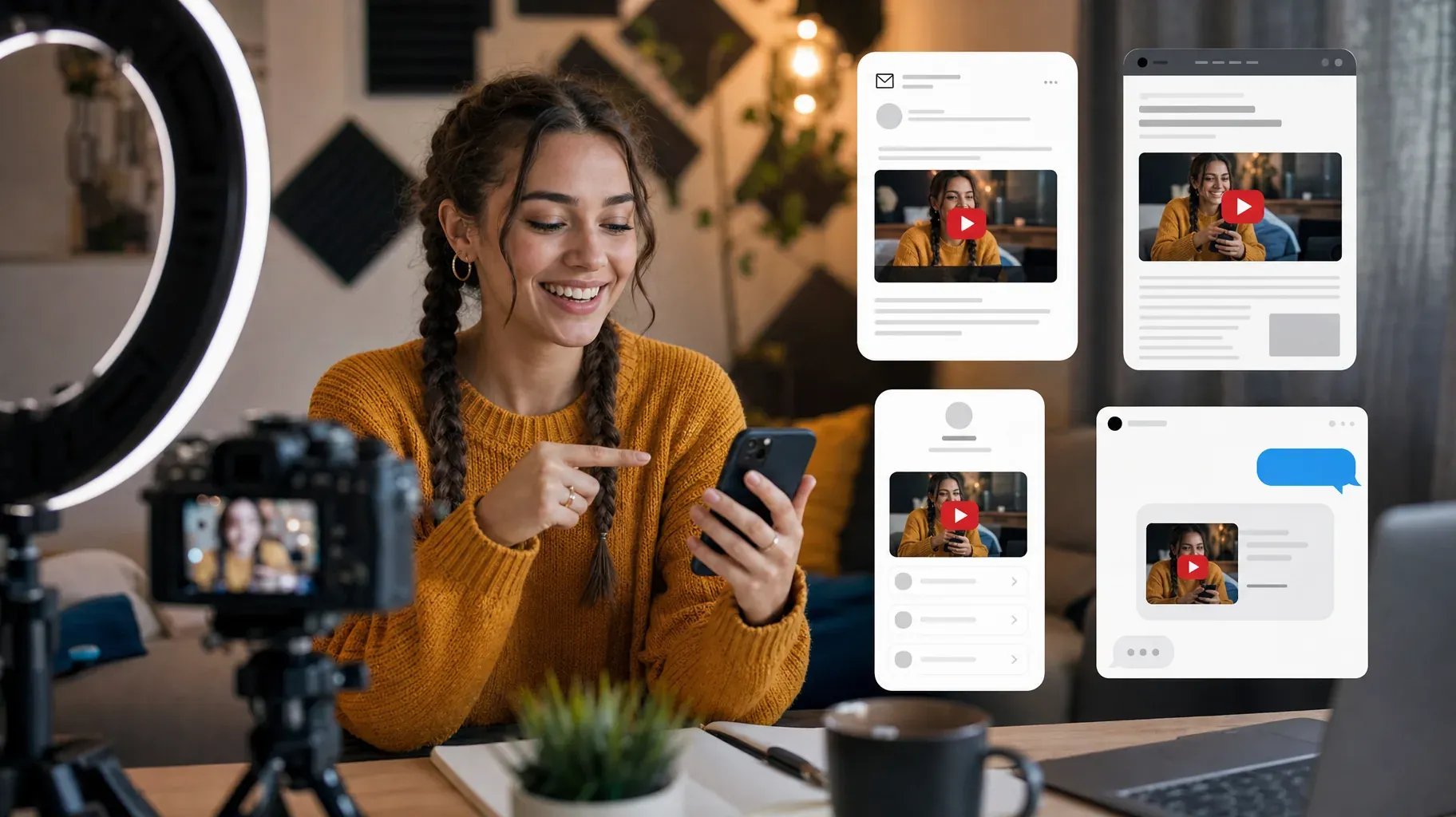
Your newsletter. A thumbnail image with a play button, linked to the video, gets far more clicks than a plain text link. Add one sentence about what people will learn or see.
Your website or blog. Embed videos in relevant articles and pages. A video that explains a product or a process keeps visitors on the page longer and gives them a reason to subscribe.
Other social platforms. Share the short youtu.be link with a hook in the caption. On platforms where links are not clickable in posts, point people to the link in your bio.
Your link-in-bio page. Feature your latest video or your best playlist near the top of your link-in-bio page, and add a subscribe link as a button. People who find you on Instagram or TikTok can then watch and subscribe in one place.
Messages and communities. When someone asks a question you answered in a video, reply with a timestamped link to the exact moment. It is helpful and brings a new viewer to your channel.
Email signature. Add your subscribe link under your name. Every email becomes an invitation to your channel.
Link your videos to each other
The easiest views to win are from people who already watch you. Linking your own videos together keeps them on your channel longer.
End screens. In the last 5 to 20 seconds of a video, add an end screen that suggests your next video or a playlist, plus a subscribe element. Every channel can do this.
Cards. Add a card at the moment you mention another video, so curious viewers can open it right away.
Playlists. Group related videos in playlists and link the playlist, not just a single video, in your descriptions. Viewers who finish one video move to the next automatically.
Descriptions. Add a short "Watch next" line with the link to a related video or playlist at the top of your description.
Clean up and shorten your YouTube links
A clean link looks more trustworthy and is easier to share.
Remove share tracking. Links copied from the share button may end with ?si= followed by a code. Delete that part for links you publish permanently. If the link also contains a timestamp, keep the t= parameter and remove only the si= part.
Prefer youtu.be for posts. The short format is easier to read in captions and messages. For websites and documents, either format is fine.
Use a QR code for print. For flyers, packaging, and slides, turn your channel or playlist link into a QR code so people can scan instead of typing.
Use a link you control when the destination changes often. If you promote "my latest video" in a printed brochure or an old email, point it to a page you control, such as your link-in-bio page, so you can update the destination without changing the link.
Track clicks from your YouTube links
Knowing which links bring viewers helps you focus on what works.
YouTube Analytics. In YouTube Studio, open Analytics and look at traffic sources. The external traffic report shows which websites and apps sent viewers to your videos. It will not track every individual link, but it shows the big picture.
Links to your own website. When you link from YouTube to your website, add campaign parameters to the URL, such as a source of "youtube" and a medium of "description," so your analytics tool shows exactly how many visitors each video sends.
Link-in-bio analytics. If your channel's first link points to a link-in-bio page, that page can show how many people arrived from YouTube and which buttons they tapped next.
Compare before and after. When you add a new link to a description or a pinned comment, compare clicks and subscribers over the following weeks. Small changes in wording or placement can make a noticeable difference.
Examples of YouTube links in action
A cooking channel pins a comment on every recipe video with a link to the printable recipe on its website, and puts the subscribe link in its newsletter footer.
A software tutorial creator answers support questions with timestamped links that jump straight to the relevant step, and groups beginner videos in a "Start here" playlist linked from the channel page.
A musician shares the live link a week before a streamed concert, then puts the replay and a merch link in the description afterward.
A fitness coach links a Short to the full workout video, and uses the first channel link for a link-in-bio page with programs, coaching, and social profiles.
An online shop embeds product demo videos on product pages, and links each video description back to the matching product.
In every case, each link has one clear job: watch, jump to a moment, subscribe, or buy.
Mistakes to avoid
Putting links in Shorts descriptions. They will not be clickable. Use the related video option and your channel links instead.
Burying the main link. A link at the bottom of a long description rarely gets clicked. Put it in the first two lines or in a pinned comment.
Sharing messy links. Remove unnecessary tracking parameters like ?si= when you publish a link somewhere permanent.
Forgetting to test timestamps. A wrong number of seconds sends people to the wrong moment. Open the link before sharing it.
Changing your handle without updating links. Old handle links can stop working. Update your website, bio, and signature right after a change.
Using the wrong link for the goal. A single video link will not grow subscriptions as well as a subscribe link, and a random video will not keep people watching like a playlist.
Frequently asked questions
How do I copy a YouTube video link?
Tap or click Share under the video, then choose Copy link on mobile or Copy on desktop.
How do I share a YouTube video at a specific time?
On a computer, pause the video, click Share, check Start at, and copy the link. On mobile, add ?t= followed by the number of seconds to the end of a youtu.be link.
What is my YouTube channel URL?
It is youtube.com/@ followed by your handle. You can copy it from your browser when you view your channel, or from the share option in the app.
How do I make a link that subscribes people to my channel?
Add ?sub_confirmation=1 to the end of your channel URL. Visitors will see a pop-up asking them to confirm the subscription.
Why are links in my Shorts not clickable?
YouTube does not allow clickable links in Shorts descriptions and comments. Use the related video feature and your channel links instead.
Can I add external links to cards and end screens?
Only if your channel is in the YouTube Partner Program. Every channel can link to videos, playlists, and channels in cards and end screens.
What is the difference between youtube.com and youtu.be links?
Nothing for the viewer. youtu.be is YouTube's own short domain, and it redirects to the full youtube.com/watch?v= address of the same video. Use the short version when space matters, such as captions and messages, and either version on websites.
How do I link to a playlist starting at a specific video?
Open the video from inside the playlist and copy its link. The address will include both the video ID and the playlist ID, so viewers start on that video and continue with the rest of the playlist.
Make every YouTube link count
Each YouTube link can do a specific job. Use video links to get people watching, timestamps to deliver the best moment instantly, playlists to keep them watching, subscribe links to grow your channel, and channel links to point everything else to where you want visitors to go.
If you share your videos across several platforms, bring them together in one place. A Roctify link-in-bio page can feature your latest video, your best playlist, a subscribe button, and your products or services, all behind a single link you can add to your YouTube channel and every other profile. Create your Roctify page and give your viewers a clear next step.