Every ad running on Facebook and Instagram right now is visible to anyone who knows where to look. The Facebook Ads Library, officially called the Meta Ad Library, is a free public database where you can see the ads of any brand, creator or competitor, read their full copy, check when they started, see which platforms they run on and, for ads shown in Europe, even see how many people they reached by country, age and gender.
Most people open it once, type a brand name, scroll for a minute and leave. That wastes one of the most useful free research tools in marketing. Used properly, it tells you which offers a market responds to, how hard a competitor is testing, which creative formats dominate your category and what happens after the click.
This guide walks through the Facebook Ads Library step by step, with real screenshots of every screen in its current version. You will learn how to search precisely, which filters matter, how to read an ad card and the European transparency data, how to use the Ad Library Report, branded content search and the API, and what the library cannot tell you. When you know the tool, our guide on how to research Meta ads without copying shows how to turn what you find into original campaigns.
What the Facebook Ads Library is
The Facebook Ads Library is a searchable archive run by Meta at facebook.com/ads/library. Meta first opened it in 2018 as an archive of political ads, after the controversies around the 2016 elections, then turned it into the Ad Library for every ad in 2019. European rules, in particular the Digital Services Act, later forced Meta to publish much more detail for ads delivered in the European Union.
Here is what it covers today.
- All active ads on Meta technologies. Facebook, Instagram, Messenger, the Audience Network and Threads.
- Ads about social issues, elections or politics that ran in the past seven years, with spend and audience ranges.
- Ads that ran anywhere in the EU in the past year, even after they stop, with reach and audience details.
- Ads that ran in the UK in the past year, for ads running after 1 July 2025.
Three practical facts are worth remembering. It is free. You do not need a Facebook account to search it. And a new ad appears in the library within about 24 hours of its first impression, with changes also reflected within 24 hours.
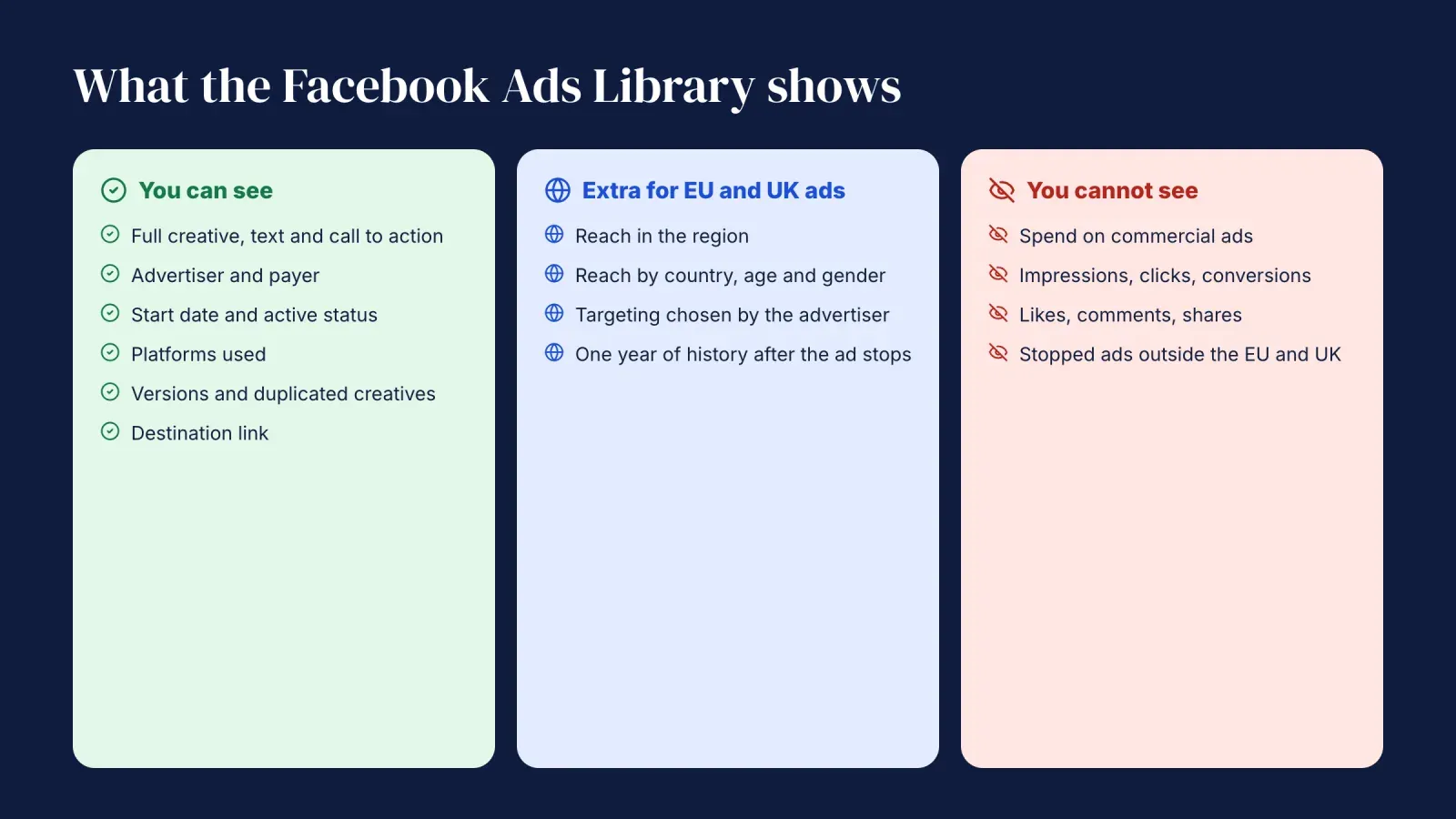
What you can see, and what you cannot
Before you start, set your expectations. The library is transparent about creative and very discreet about performance.
What you can see for every active ad:
- The full creative, image, video or carousel, with the primary text, headline and call to action.
- The Page or account running it and, when relevant, the person or company paying for it.
- The date it started running.
- The platforms it runs on.
- Whether the ad has several versions, and how many ads use the same creative and text.
- The link to the destination, through the call to action button.
What you can also see for ads delivered in the EU or the UK:
- Estimated reach in the region, meaning the number of accounts that saw the ad at least once.
- A breakdown of that reach by country, age range and gender.
- The targeting the advertiser chose, such as age, gender and locations.
- Who paid for the ad and who benefits from it.
What you cannot see for commercial ads:
- How much the advertiser spent.
- Impressions, clicks, conversions or return on ad spend.
- Engagement figures such as likes, comments and shares in the library itself.
- Ads that stopped running outside the EU and the UK, which simply disappear.
Political and social issue ads are the exception: they show spend ranges, impression ranges and audience demographics, and stay in the library for seven years.
How to use the Facebook Ads Library step by step
The steps below follow the order of the interface. Each screenshot was taken from the live library.
1. Open the library and choose a country
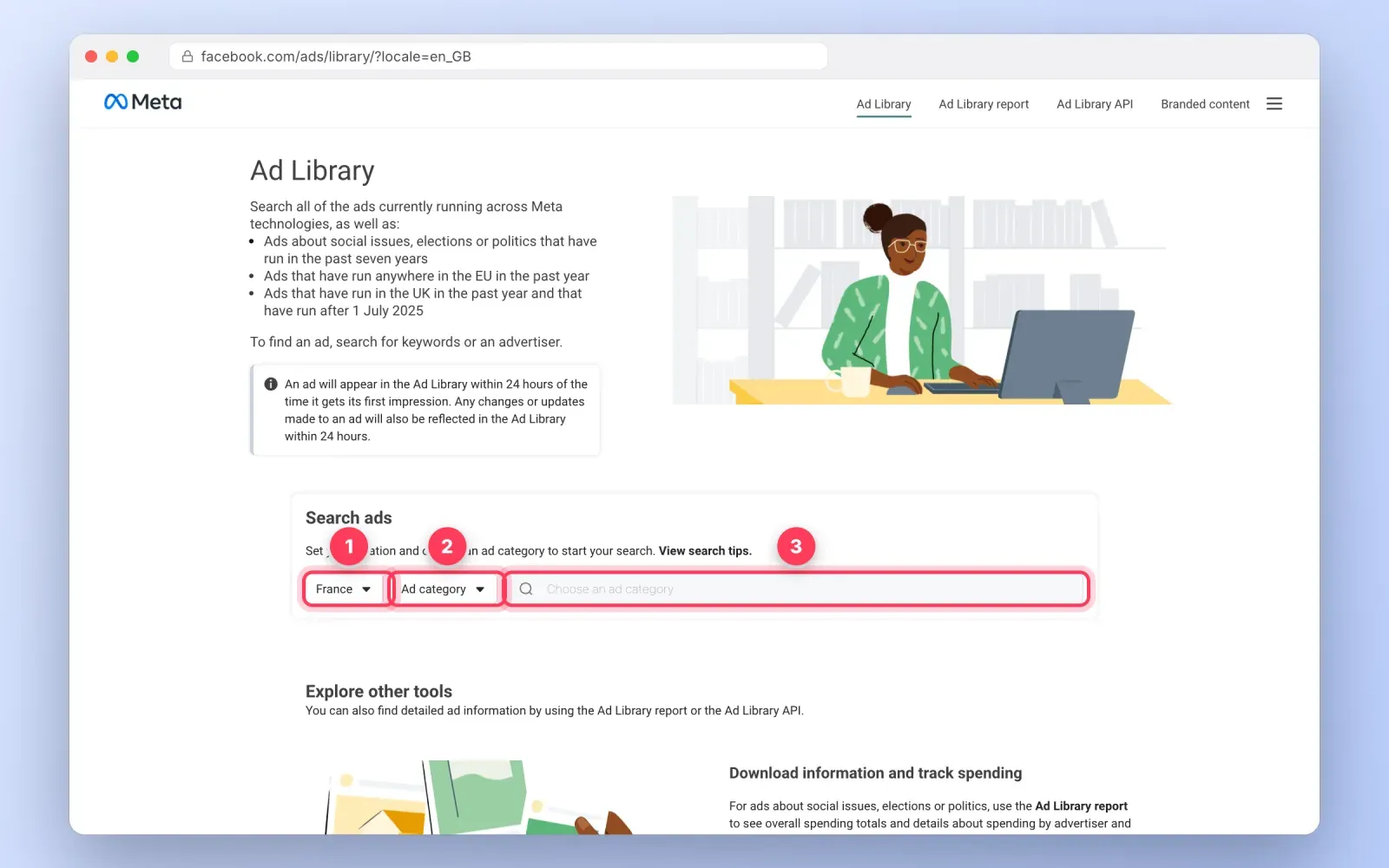
Go to facebook.com/ads/library. The home page explains what the library contains and shows a "Search ads" box with three controls: a country selector, an ad category selector and a search field.
Start with the country. The library only shows ads delivered in the country you select, and the same brand often runs completely different ads from one market to another. A French brand may run a winter promotion in France and a brand awareness campaign in Belgium at the same time. Choose the market where your customers are. Select "All" only when you want to see everything a global advertiser runs.
2. Pick the ad category
The category selector offers two choices.
- All ads. Every commercial and non-commercial ad. This is the setting you need for marketing research.
- Issues, elections or politics. Only ads about social issues, elections or politics. Choose it if you work in public affairs or a cause-related field, since these ads come with spend and audience data.
For almost every business, "All ads" is the right choice.
3. Search by keyword or advertiser
Type in the search field. As you type, the library suggests matching advertisers, with their Page name and number of followers. You now have two kinds of search.
Advertiser search. Pick an advertiser from the suggestions to see every ad that Page runs. Be careful with similar names: large brands often run several Pages per country or product line, and resellers sometimes use names close to the brand. Check the Page picture and follower count before you click.
Keyword search. Press Enter instead of choosing a suggestion to search the words in the ad text. This is how you discover advertisers you did not know about. A search for "candles" or "bougie" shows every brand currently paying to talk about candles in your country, including small newcomers.
A few tips make keyword search far more precise.
- Use quotation marks for an exact phrase. "free shipping" finds that phrase, while free shipping without quotes finds ads containing both words anywhere.
- Search the words your customers use. "Dry skin" will surface different ads from "moisturizer".
- Search offer language. "Buy one get one", "30% off" or "limited edition" reveal how a category promotes.
- Remember that only text is searched. Words that appear only inside an image or video are not indexed.
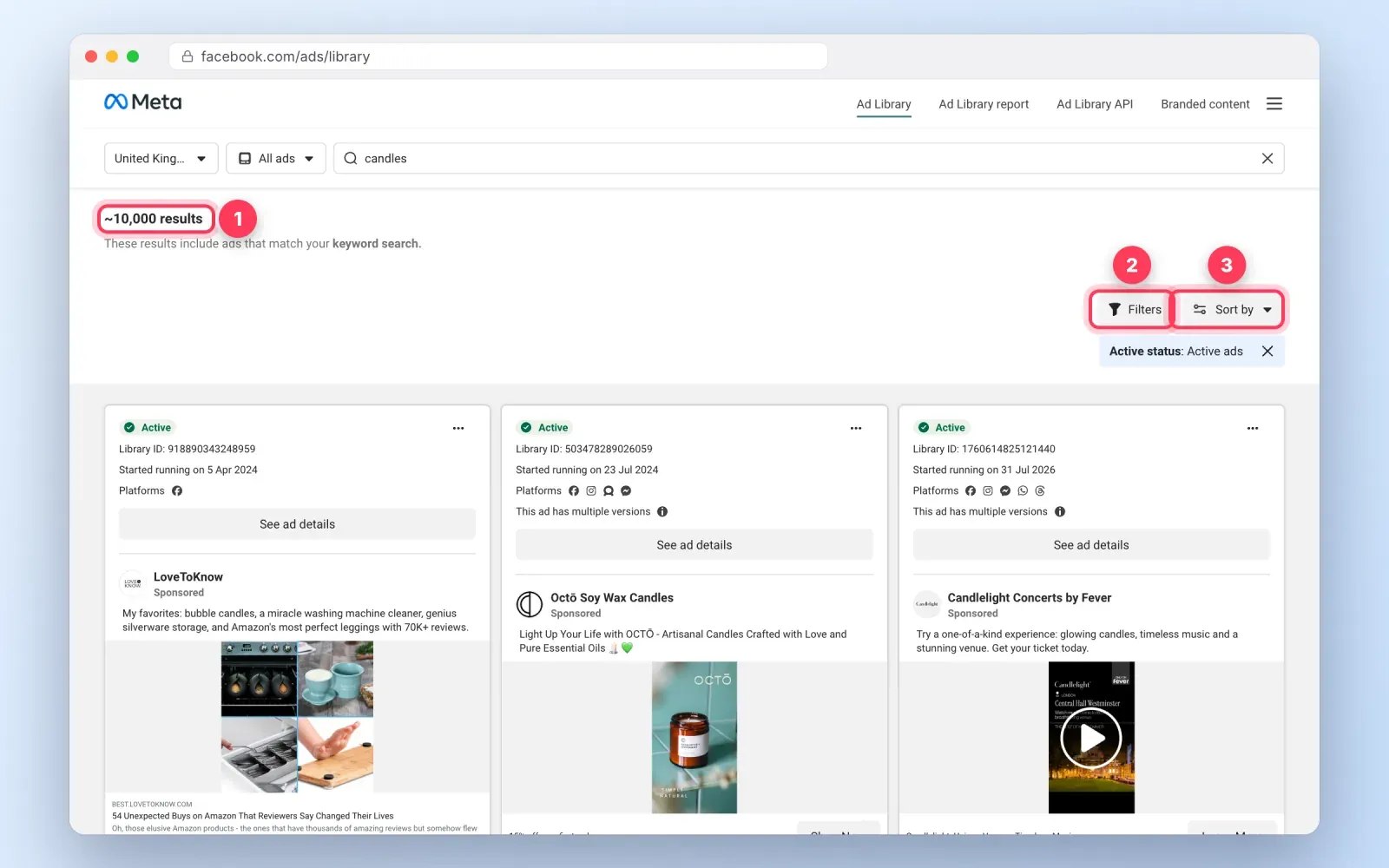
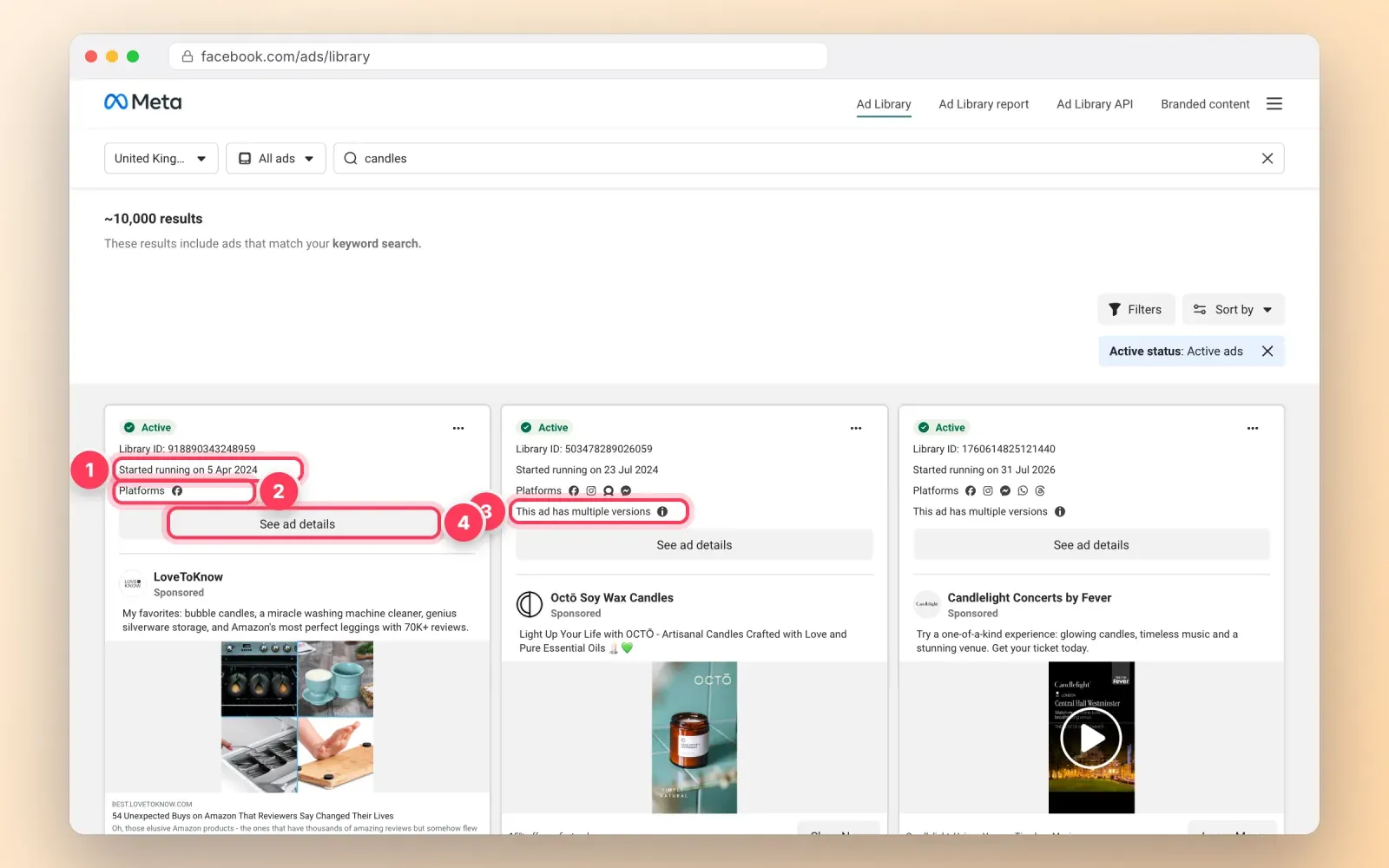
The results page shows how many ads match, for example "~10,000 results", followed by a grid of ad cards.
4. Narrow the results with filters and sorting
Above the results, two buttons do most of the work: "Filters" and "Sort by".
The Filters panel contains:
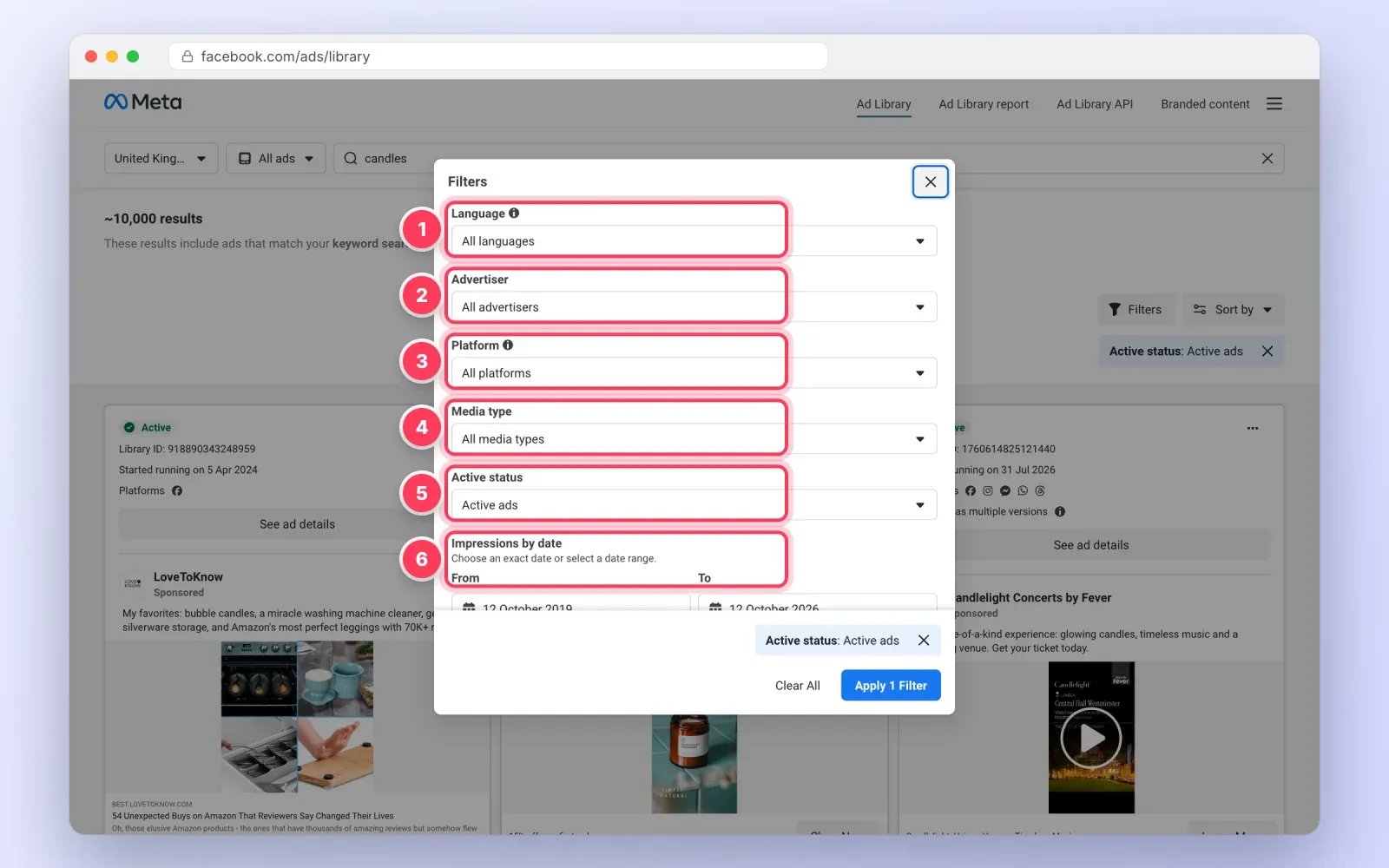
- Language. Useful in multilingual countries or to isolate ads written for a specific community.
- Advertiser. Restrict a keyword search to one or several advertisers.
- Platform. Facebook, Instagram, Messenger, the Audience Network or Threads.
- Media type. Images, videos, memes, images and memes, or ads with no image or video.
- Active status. Active ads, inactive ads or all ads. Inactive ads are mainly available for the EU, the UK and political ads.
- Impressions by date. A date range, to see ads that were shown during a given period, such as Black Friday or a product launch.
The Sort by menu reorders the grid. Sorting by total impressions, from highest to lowest, pushes the ads that have been shown most to the top, even though the impression numbers themselves stay hidden for commercial ads. Sorting by most recent shows the newest launches, which is the fastest way to see what a competitor is testing this week.
A practical combination: country, "All ads", a keyword, media type "Videos", active status "Active ads", sorted by impressions. In a few seconds you see the video ads in your category that Meta has shown the most.
5. Read an ad card
Each card in the grid packs several signals before you even open the ad.
- Active or Inactive. The green "Active" label means the ad is currently running.
- Library ID. A unique number you can note in your research log or use to find the ad again.
- Started running on. The launch date. This is the single most useful signal in the library, because advertisers rarely keep paying for an ad that loses money. An ad that has been running for three months is very likely working for that advertiser.
- Platforms. The icons show where the ad runs.
- "This ad has multiple versions". The advertiser is testing variations of text, headline or image within the same ad.
- "X ads use this creative and text". The same creative is used in several ads, often for different audiences or countries. A high number usually means the advertiser has scaled a winner.
- EU transparency. The ad has extra European data you can open in the details.
- The ad preview. Text, creative and call to action, as people see them in their feed.
Look at these signals together. An ad started four months ago, with multiple versions and twelve ads using the same creative, is a strong candidate for a proven message. An ad started yesterday is an experiment.
6. Open the ad details and the EU transparency data
Click "See ad details", or "See summary details" for grouped ads. A panel opens with the full ad on the left and expandable sections on the right.
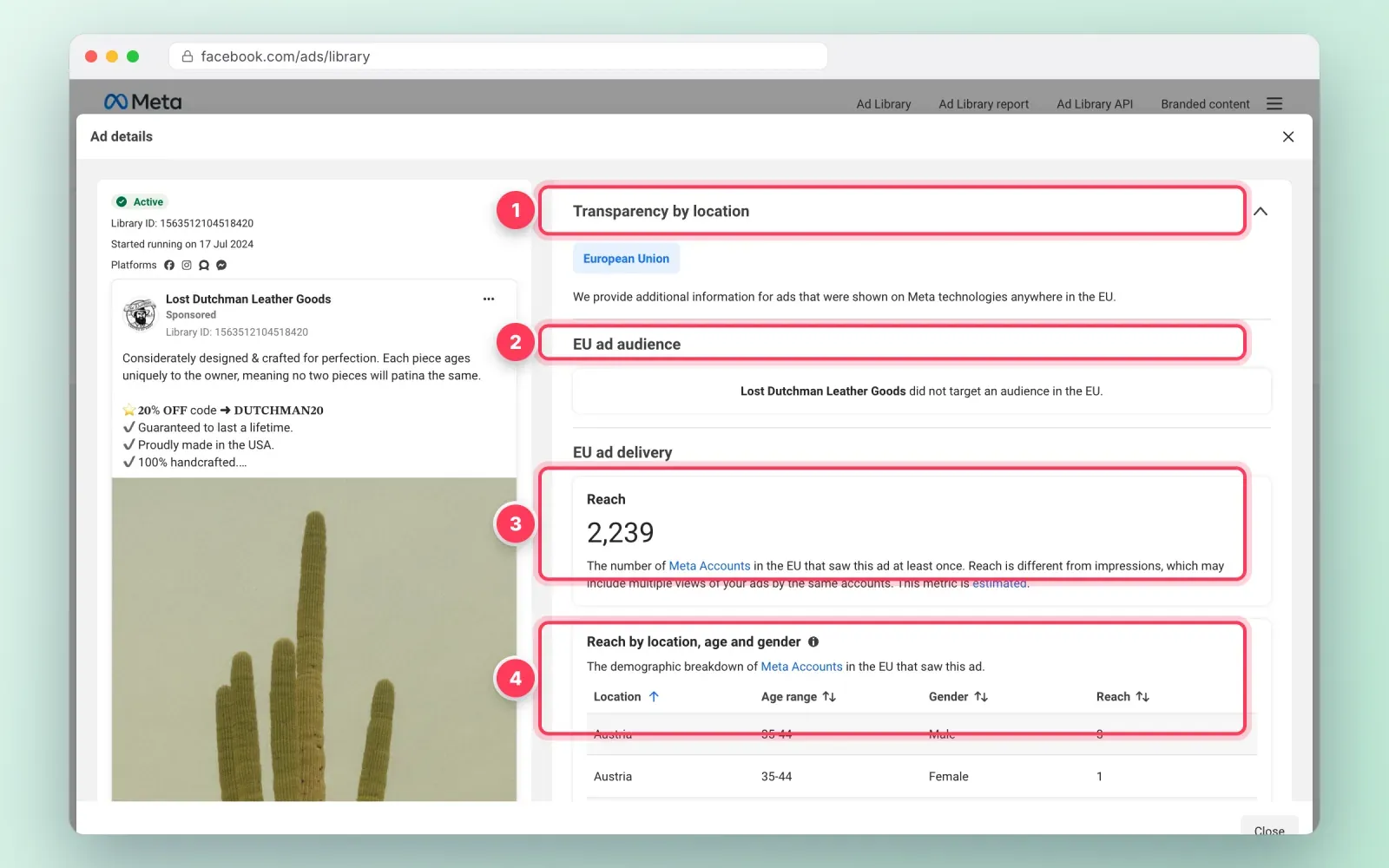
For ads delivered in Europe, the "Transparency by location" section is the most valuable part of the library. It shows:
- The audience the advertiser targeted in the EU, by location, age and gender. Sometimes the panel states that the advertiser did not target an audience in the EU at all, which tells you the ad reached Europeans through broad delivery.
- Reach in the EU, the estimated number of Meta accounts in the region that saw the ad at least once.
- Reach by location, age and gender, a table you can sort to see which countries, age ranges and genders the ad actually reached.
- Who paid and who benefits, which reveals agencies and parent companies.
In the example shown here, an American leather goods brand did not target an audience in the EU, yet its ad reached 2,239 accounts in the region, and the table shows exactly where. Comparing targeting with real reach is one of the best ways to understand how Meta's delivery works in your category.
Reach is not spend, and not performance. Still, comparing the reach of several ads from the same advertiser shows which ones received the most budget.
7. Check who is behind the Page
The details panel also contains "About the advertiser", and every Page in the library has a Page transparency section. It shows:
- When the Page was created.
- Previous names, if the Page was renamed.
- The countries where the people who manage the Page are located.
- Whether the Page merged with others.
This matters more than it seems. A Page created three weeks ago with several previous names and managers in a different country than its customers is a very different competitor from a brand with a ten-year-old Page. It also helps you spot copycats and dropshipping stores that imitate established brands.
8. Follow the ad to its landing page and save your findings
The ad is half the story. Click the call to action to open the destination and note the price, the offer, the guarantees, the delivery promise, the reviews and how the page continues the ad's message. Many winning ads send traffic to a product page, a listicle, a quiz or a dedicated landing page rather than the home page.
Then save what you learn. Outside Europe, ads disappear from the library as soon as they stop, so take a screenshot, copy the Library ID and the start date, and add a short note on why the ad matters. A simple spreadsheet with columns for advertiser, ID, start date, format, hook, offer, landing page and notes turns casual browsing into a research asset.
Use the Ad Library Report for political and issue ads
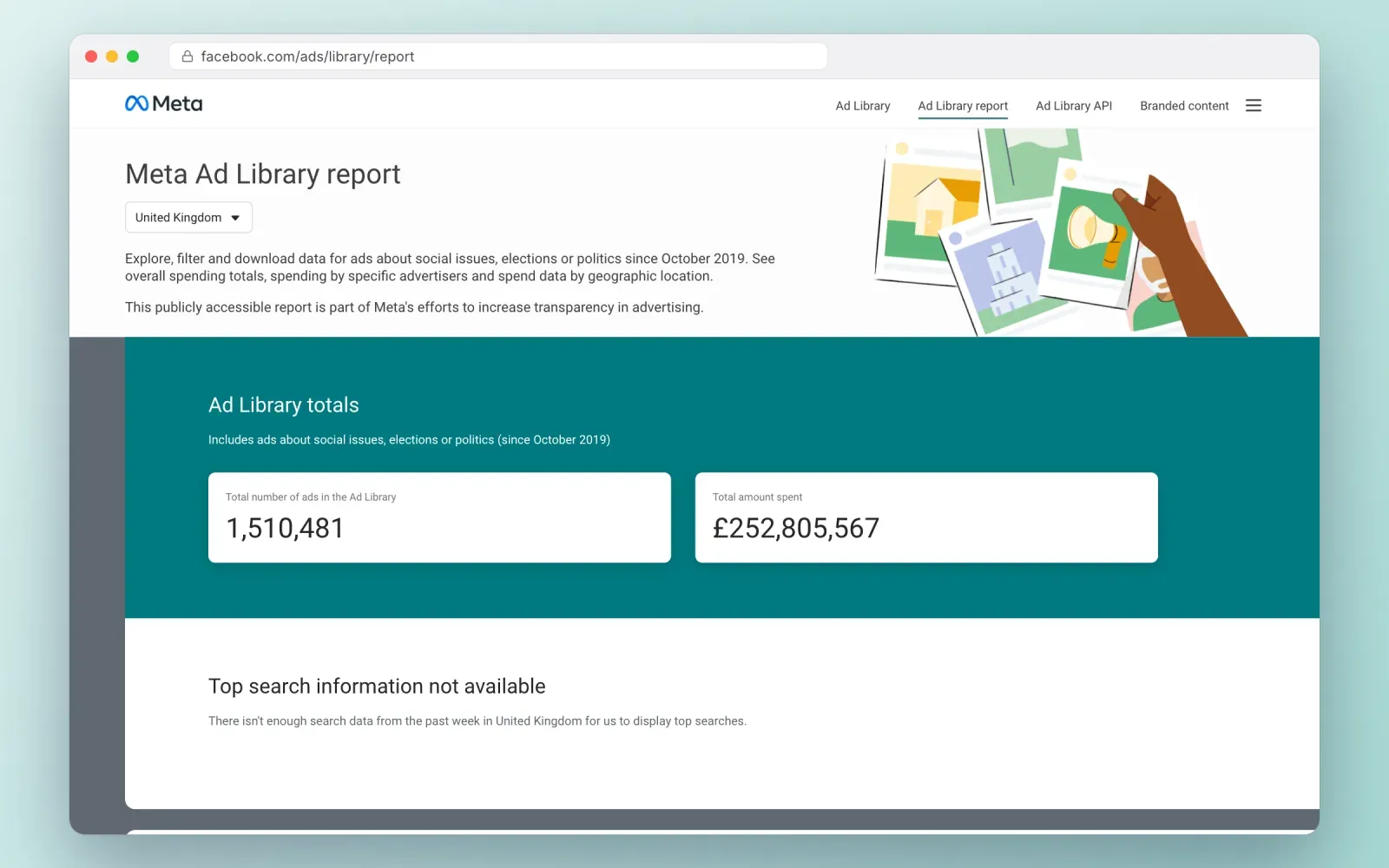
The Ad Library Report, available from the top menu, summarizes ads about social issues, elections or politics. For each country, it shows the total number of such ads and the total amount spent since 2019, plus spend by advertiser, by region and over time. At the time of writing, the report showed more than 1.5 million political and issue ads in the United Kingdom with over £252 million spent, and about 611,000 ads in France with around €63 million spent.
You can filter the report by date and download the data as a CSV file. It is mainly useful for journalists, researchers, public affairs teams and nonprofits. For commercial research, it gives you a sense of who spends the most on advocacy in your sector, which can matter if your category is regulated.
Search branded content and creator partnerships
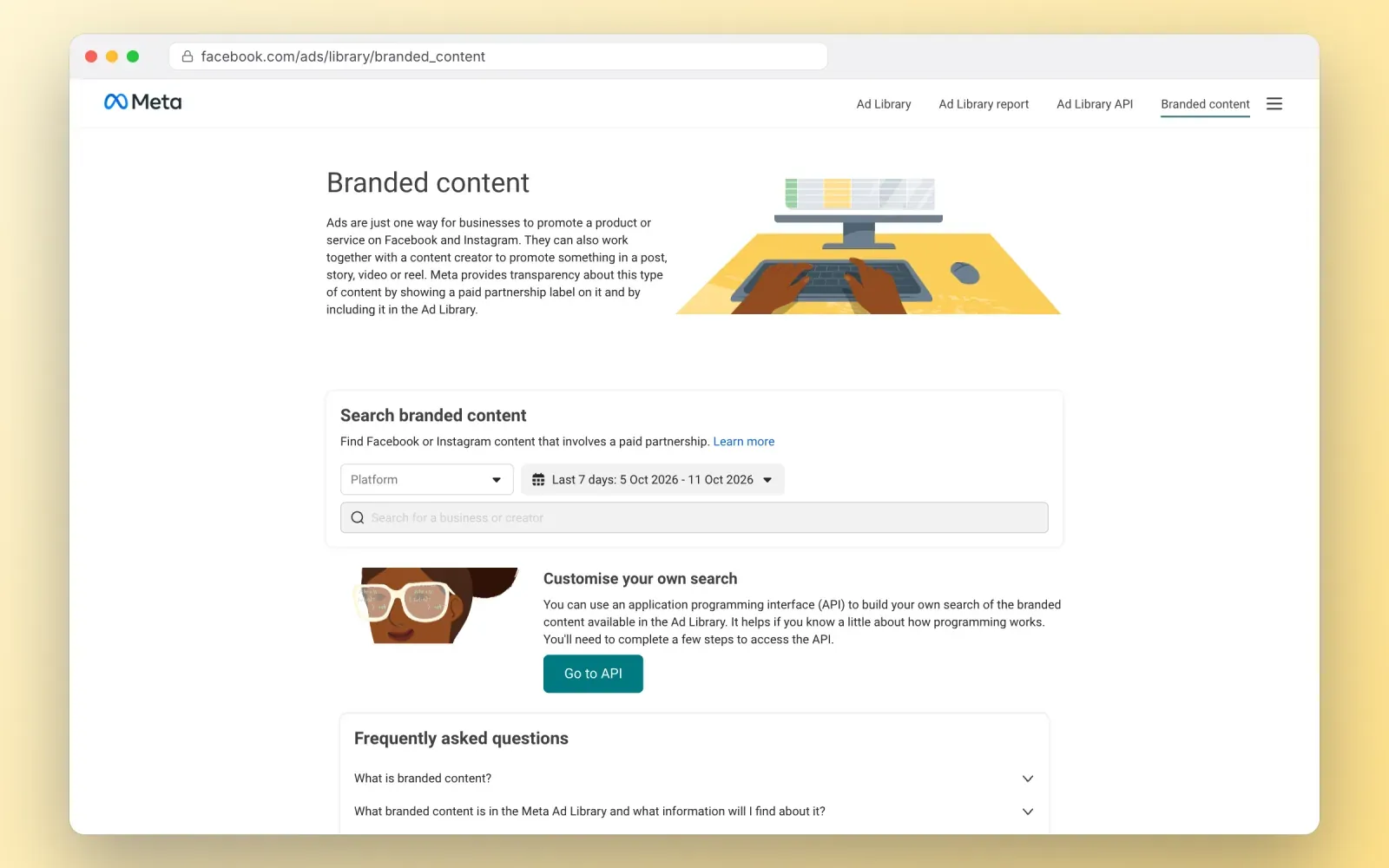
The "Branded content" tab, also in the top menu, lets you search Facebook and Instagram posts that use the paid partnership label. You choose a platform and a date range, then search for a brand or a creator.
This is the best free way to see which creators a brand works with, how often, and in which formats. If you plan influencer partnerships, search your competitors to see which creators they already pay, and search creators you are considering to see which brands they already promote.
The Ad Library API, for developers and researchers
The Ad Library API gives programmatic access to the same data through Meta's Graph API. It returns ads about social issues, elections or politics worldwide, and all ads delivered in the EU or the UK, with fields such as reach, targeted ages, genders and locations, and the payer and beneficiary.
Access requires confirming your identity and location with Meta, which usually takes a few days, then creating an app on Meta for Developers. The API does not return commercial ads that only ran outside the EU and the UK, it gives spend and impressions as ranges for political ads only, and it links to an ad snapshot rather than the image or video files. It is a tool for researchers and developers building dashboards, not a shortcut for everyday marketing research.
How to check your own ads in the library
Search your own Page in the library from time to time. It shows your ads exactly as the public sees them, including any version you forgot was still running, the platforms used and, for European delivery, the reach and demographics Meta reports. It is also a quick way to make sure an ad that was rejected or paused has really disappeared, and to see your ads the way your competitors see them.
Signals worth reading in the library
The library gives no performance figures, but several signals are reliable when you read them together.
- Duration. The longer an ad runs, the more likely it is profitable. Fewer than seven days means a test, two to four weeks means promising, more than two months usually means proven.
- Versions and duplicates. Multiple versions show testing. Many ads using the same creative show scaling.
- Launch rhythm. A cluster of new ads launched the same day is a test batch. A steady stream of launches every week shows an advertiser with a structured creative process.
- Format mix. If most long-running ads in your category are short videos with captions, that is what the market rewards right now.
- Repeated angles. When the same promise, objection or proof appears in many long-running ads from different advertisers, it is a validated angle in your market.
- European reach. For ads delivered in the EU, comparing reach between ads of the same advertiser shows where they put their money.
None of these signals is a guarantee. Big brands sometimes keep image ads running for months for brand reasons, and a new ad can perform very well from day one. Use them as clues and confirm with your own tests.
The limits of the Facebook Ads Library
- No spend or performance data for commercial ads. Duration and reach are proxies, not results.
- No history outside Europe. Ads that stop running disappear from most countries.
- No saved searches, alerts or exports in the public interface. Monitoring a competitor means coming back manually.
- Keyword search only covers text. Words inside images and videos are not searchable.
- Meta only. For TikTok, Google, YouTube or LinkedIn, you need their own libraries.
- No grouping by campaign. You see ads, not the structure behind them.
When these limits start to cost you time, a paid tool can help with history, filters by days running, alerts and team boards. Our comparison of the best adspy tools covers the options, from free libraries to Minea, PiPiAds and Foreplay. For TikTok, the TikTok ads library works in a similar way.
Common mistakes
Searching only in the United States. The default country may not be your market. Always set the country where your customers live.
Choosing the first advertiser suggestion. Similar Page names are common. Check the picture and follower count.
Treating a new ad as a winner. Look at the start date before drawing conclusions.
Ignoring the landing page. Two ads with the same hook can perform very differently depending on the page behind them.
Copying instead of learning. Patterns, structures and angles are fair to study. A competitor's images, videos, scripts and brand assets belong to them. Copying them is risky and makes your brand forgettable.
Researching without a question. Decide what you want to learn before you search, for example "which offers do skincare brands in France run this month", and stop when you have the answer.
Frequently asked questions
Is the Facebook Ads Library free? Yes. It is completely free, with no subscription and no usage limit.
Do I need a Facebook account to use it? No. Anyone can search the library from a browser without logging in.
Does the Facebook Ads Library show Instagram ads? Yes. It covers ads on Facebook, Instagram, Messenger, the Audience Network and Threads, and you can filter by platform.
Can I see how much a competitor spends on Facebook ads? Not for commercial ads. Spend ranges are only shown for ads about social issues, elections or politics. For ads delivered in Europe, reach figures give an indirect idea of where an advertiser puts its budget.
How far back does the library go? Active ads are always visible. Ads delivered in the EU stay for a year after they stop, UK ads running after 1 July 2025 also stay for a year, and political and issue ads stay for seven years. Other commercial ads disappear when they stop.
Why can't I find an ad I saw in my feed? Check the country filter first, then the active status. The ad may have stopped running, it may be delivered under a different Page name, or it may be too recent, since it can take up to 24 hours to appear.
Can I use the Facebook Ads Library on my phone? Yes, in a mobile browser at facebook.com/ads/library. The layout is simpler, but search, filters and ad details work the same way.
Is it legal to use competitors' ads from the library? Viewing and analyzing them is exactly what the library is for. Reusing their images, videos, text or brand assets is a different matter and can infringe copyright and trademarks.
Turn your research into your own winning ads
The Facebook Ads Library shows you what your market is already paying to say. Use it to choose sharper angles, then send the clicks from your own ads to a page that keeps the promise. Create your free Roctify page to turn your link in bio into a storefront for your products, bookings and digital downloads, with 0% transaction fees on every plan. When you are ready to write, our list of ad hooks that stop the scroll will help you open your ads with confidence.