A digital business card does the same job as the paper card in your wallet, introducing you and making it easy to get back in touch, but it lives on a phone instead of in a pocket. People open it with a tap, a scan, or a link, save your details in seconds, and can see far more than a name and a number: your work, your services, your booking calendar, and every place they can follow you.
If you have heard the term but are not sure what it really covers, this guide explains it from the ground up. You will learn what a digital business card is, what goes on one, how the technology works behind a QR code or an NFC tap, how it compares with paper, its real benefits and drawbacks, what it costs, and how to create your own in seven steps.
What is a digital business card?
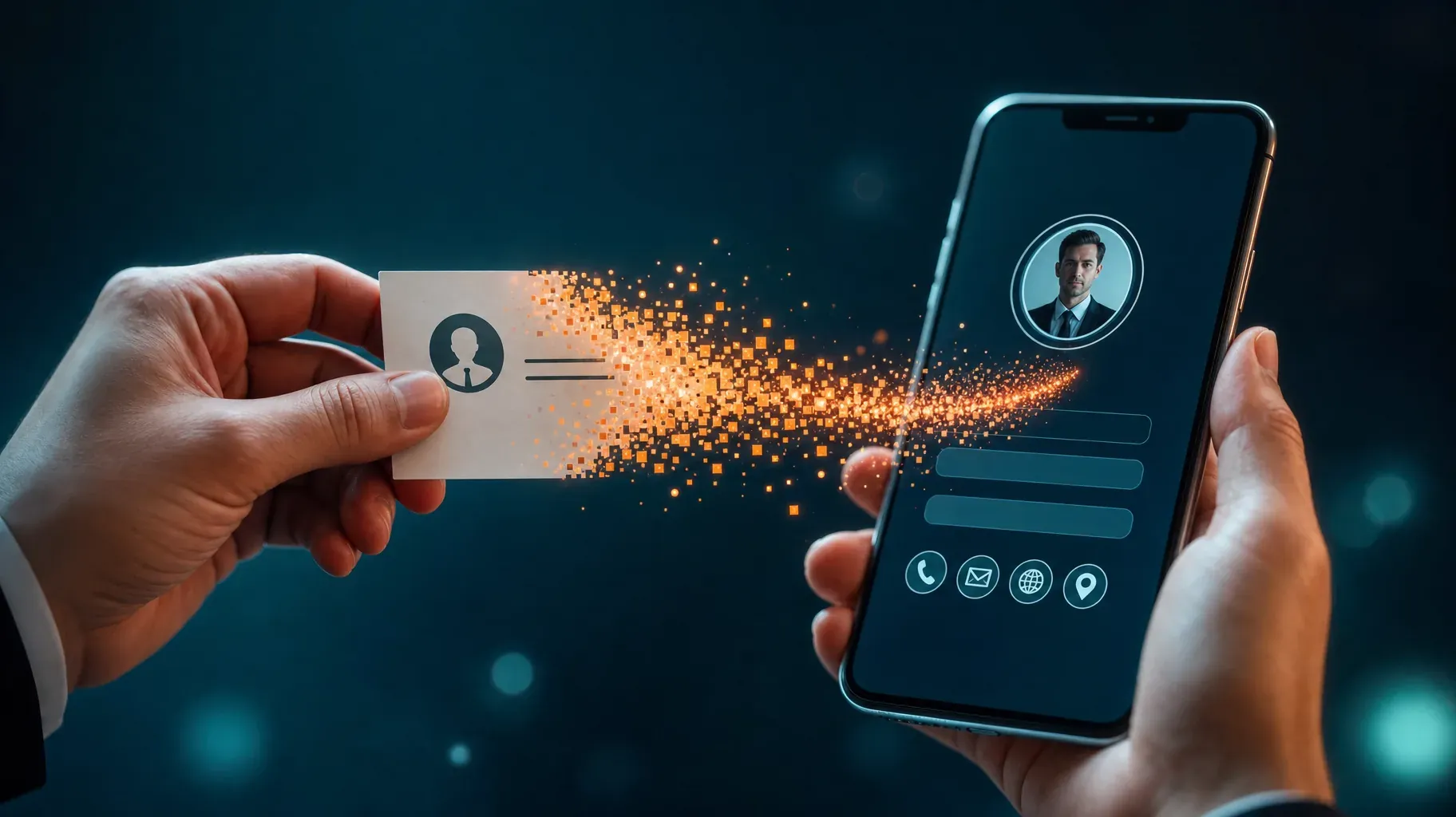
A digital business card is a mobile-friendly page, or a contact file, that holds your professional details and can be shared electronically. Instead of handing someone a printed card, you let them open your card on their own phone by scanning a QR code, tapping an NFC card, clicking a link, or receiving it by message or email.
Most digital business cards are small web pages. They show your photo, name, role, and contact buttons, and they often include links to your website, social profiles, portfolio, or booking page. Many also let visitors download your details as a contact file so they can add you to their address book in one step.
You may also see them called virtual business cards, electronic business cards, e-business cards, or smart business cards. The idea is the same: your contact information, always up to date and always one tap away.
What is on a digital business card?
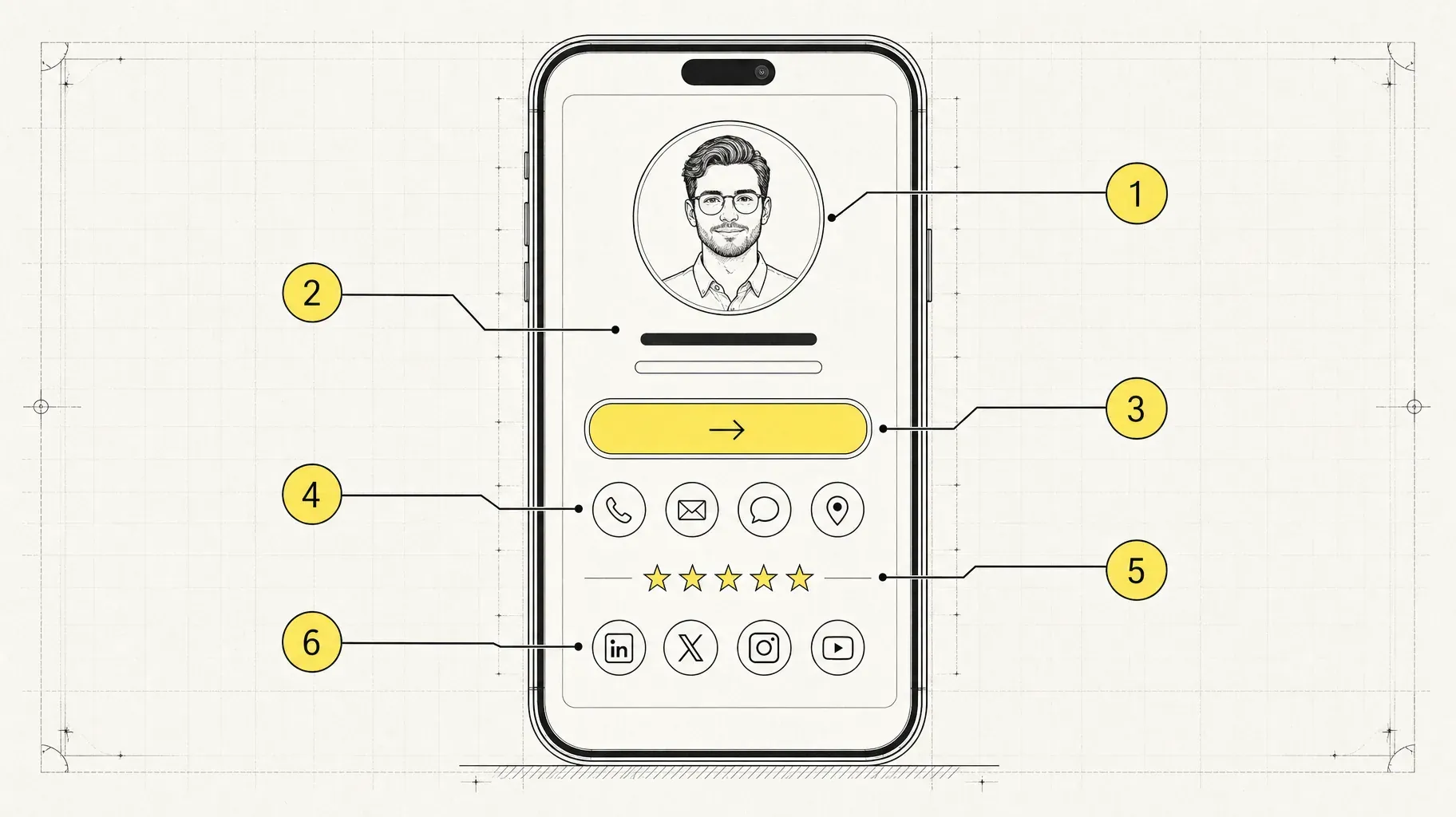
A good digital business card is built from a few simple parts:
- A photo or logo. A clear portrait for individuals, a logo for businesses. It helps people remember who they met.
- Your name and a one-line description. Your role and what you do, in plain words, such as "Wedding photographer in Bordeaux."
- Contact buttons. Call, email, and message buttons that open the right app on the visitor's phone.
- A save-contact option. A button that downloads your details as a contact file, so nobody has to type your number.
- A main call to action. The one thing you most want people to do: book a call, view your menu, see your listings, or watch your latest video.
- Proof. A testimonial, a rating, a few client logos, or portfolio images that show you are worth following up with.
- Links. Your website and the two or three social profiles that matter most for your work.
- Location or service area, when people need to visit you or know where you work.
Paper cards can only hold the first three. The rest is what makes a digital card more useful after the conversation ends.
How does a digital business card work?
Behind the scenes, a digital business card relies on a few simple technologies. Knowing how they work helps you choose the right sharing method for each situation.
The card page. Your card is usually a web page with its own address. Anyone with a browser can open it, with no app to install. Because it is a web page, you can change it at any time, and everyone who opens it sees the latest version.
The contact file. Most phones understand a standard contact format, often called a vCard, with the file extension .vcf. When a visitor taps "save contact," their phone reads the file and offers to create a new contact with your name, phone, email, website, and sometimes your photo already filled in.
The QR code. A QR code is simply your card's web address encoded as a square pattern. Phone cameras recognize it and show a link to open. You can print it on a badge, a flyer, packaging, or the back of a paper card, or display it on your phone's screen.
NFC. Near Field Communication is the same short-range wireless technology used for contactless payments. An NFC card or sticker contains a tiny chip that stores your card's link. When someone holds their phone close to it, the phone reads the link and opens your card. Most recent smartphones support NFC reading, although settings and behavior vary slightly between models.
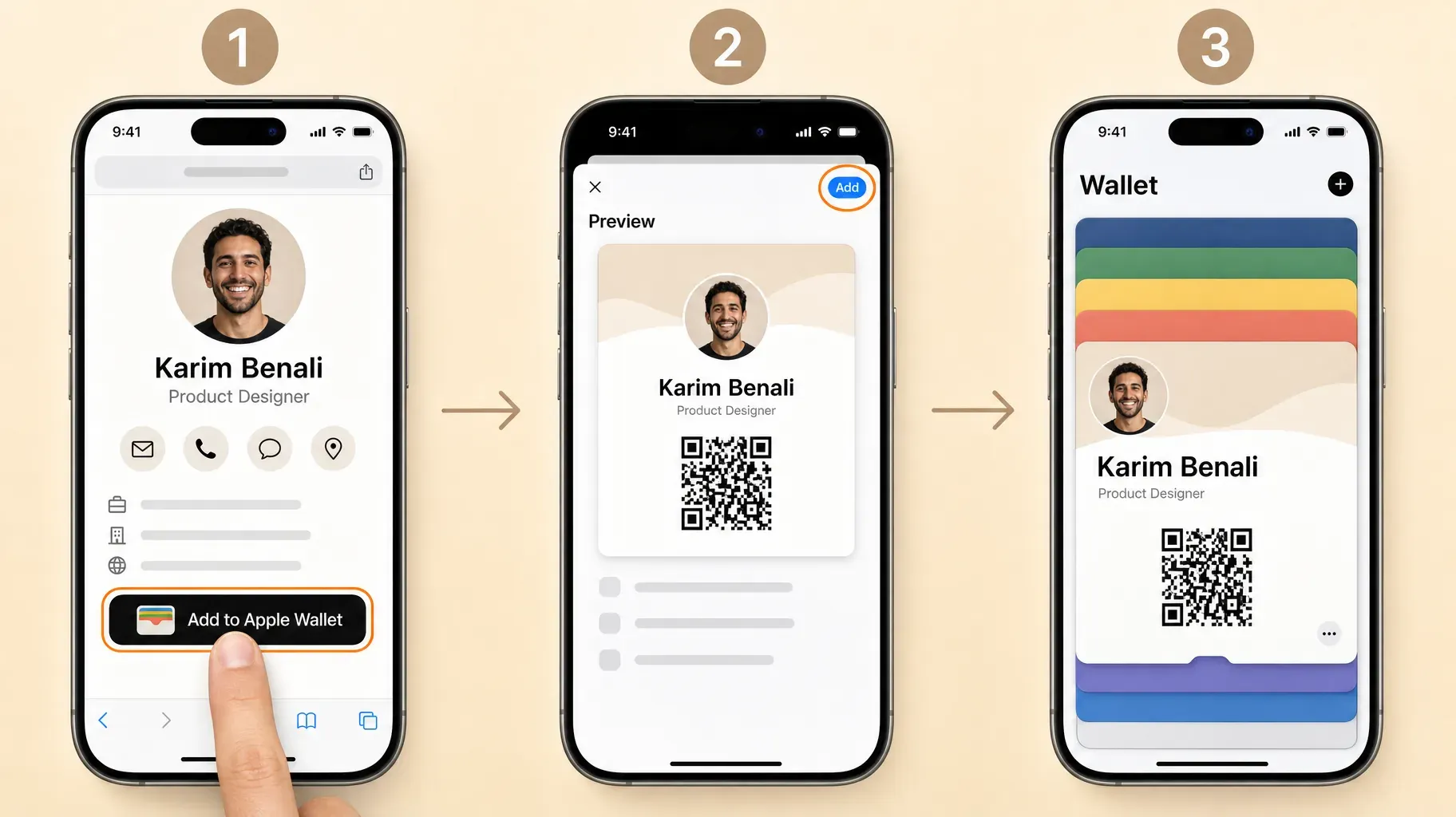
Phone wallets. Some tools let you save your card as a pass in Apple Wallet or Google Wallet. The pass usually shows your QR code, so you can pull it up in a second without opening an app or a browser.
Phone-to-phone sharing. Recent iPhones can exchange contact cards by bringing two phones close together, a feature Apple calls NameDrop. It shares the contact card stored on your phone rather than a web page, but it is a handy complement when both people use iPhones.
In practice, most professionals combine several of these: a QR code on their badge, an NFC card in their pocket, the link in their email signature, and a wallet pass for quick access.
Digital vs. paper business cards
Paper cards still have their place, but digital cards have clear practical advantages.
- Updating. Paper needs reprinting every time your number, title, or company changes. A digital card updates instantly.
- Content. Paper holds a name, a title, and a few contact lines. A digital card can add links, a booking calendar, videos, a portfolio, and reviews.
- Saving. Paper cards are typed in by hand later, or never. A digital card can be saved to contacts in one tap.
- Supply. Paper cards run out at the worst moment. A digital card never runs out.
- Measurement. Paper gives you no feedback. Many digital card tools show how many people viewed your card and which buttons they tapped.
- Cost and waste. Digital cards avoid repeated printing costs and boxes of outdated cards.
Paper still wins in a few situations: with people who prefer something physical, in cultures and industries where the exchange of printed cards is part of the etiquette, and as a backup when phones are low on battery. Many professionals keep a small stack of paper cards with a QR code on the back that leads to their digital card, which gives them the best of both.
The benefits of a digital business card
Always current. Change jobs, move offices, or launch a new service, and your card reflects it immediately, including for people who saved it months ago and open the link again.
More reasons to follow up. A booking button, a portfolio, or a free resource gives people a concrete next step while they still remember the conversation.
Faster exchanges. At events, a scan or tap takes a couple of seconds, and nobody has to spell an email address in a noisy room.
One link everywhere. The same card works in your email signature, your social media bios, your website, your presentations, and your printed materials.
Better for teams. Companies can give every employee a card with the same branding while keeping individual details personal, and update company information for everyone at once.
Insight. Tracking views and clicks shows which events, materials, or channels actually bring you new contacts.
Less waste. No boxes of old cards to throw away when details change.
The drawbacks, and how to avoid them
Digital business cards are not perfect. Knowing the limits helps you avoid them.
They depend on phones and connectivity. A dead battery or a weak signal can get in the way. Keep a QR code on a printed card or badge as a backup, and save your card as a wallet pass for quick offline access to the code.
Not everyone is comfortable with them. Some people still prefer paper, or are unsure how to scan a code. Offer both when it matters, and be ready to send your link by text.
NFC is not universal. Most recent phones read NFC, but settings and placement of the reader differ. Always print a QR code on your NFC card too.
Tool lock-in and costs. Some platforms keep your card behind a subscription, or make it hard to move. Choose a tool with a free plan or a clear price, a link you can keep, and easy export of your data.
Privacy. Cards that collect visitor information must handle it responsibly. Only collect what you need, explain why, and follow the data protection rules that apply to you.
Design mistakes. A cluttered card with dozens of links can be less useful than a simple paper card. Focus on one main action and a few essentials.
Who uses digital business cards?
Almost any professional who meets people can benefit, but some use them more than others:
- Freelancers and consultants, who want new contacts to book a call or see their portfolio.
- Sales teams, who meet many prospects and need consistent, trackable cards.
- Real estate agents, who want buyers to save their number and browse listings.
- Creators and artists, who want fans and brands to find their latest work and social profiles.
- Restaurants, cafés, and local shops, who want customers to find the menu, hours, and directions.
- Speakers and event organizers, who share slides and follow-up links with a large audience.
- Job seekers and students, who want recruiters to save their details and open their résumé.
For layouts designed for each of these professions, see our guide to digital business card templates.
How to create a digital business card in 7 steps
You can build a clear, useful card in an afternoon. Follow these seven steps in order, and you will end up with a card that is easy to share and easy to act on.

1. Decide what your card should achieve
Before choosing a tool or a design, decide the one action you want people to take after opening your card. A freelancer might want booked calls, a café might want reservations, a job seeker might want résumé downloads. This goal decides what goes at the top of your card and what can wait further down.
Also think about where you will share it most: at events, in your email signature, in your social bios, or on printed materials. Your main sharing situations influence the tool and features you need.
2. Choose your tool
Many tools can create a digital business card, including dedicated card apps and link-in-bio platforms. Compare them with a short checklist:
- A free plan or a clear price that fits your needs.
- A link you control, ideally short and easy to remember, that will not change.
- Mobile-first design with large buttons and fast loading.
- Contact buttons and a save-contact option.
- QR code download in high resolution.
- Analytics showing views and clicks.
- Extras you need, such as booking, product sales, forms, NFC card support, or wallet passes.
- Data export and clear privacy practices.
If you already use a link-in-bio page, it can often double as your digital business card, so you manage a single page for both your social profiles and your in-person introductions.
3. Add your identity and contact details
Upload a clear, recent photo or your logo, and write your name and a one-line description. Then add your contact buttons: phone, email, and the messaging app you actually use for work. Turn on the save-contact option if your tool offers it, and check that your details appear correctly when you save the contact on your own phone.
Keep the wording simple. "Brand designer for food startups" helps someone remember you. "Creative visionary" does not.
4. Add your main action and proof
Place your main call to action directly under your description, as the largest button on the card. Then add proof that supports it: a short testimonial, a rating, a few portfolio images, or client logos. Finish with your website and two or three social profiles.
Resist the urge to add everything. Each extra link competes for attention. If a link would rarely be used, leave it out.
5. Design it for phones
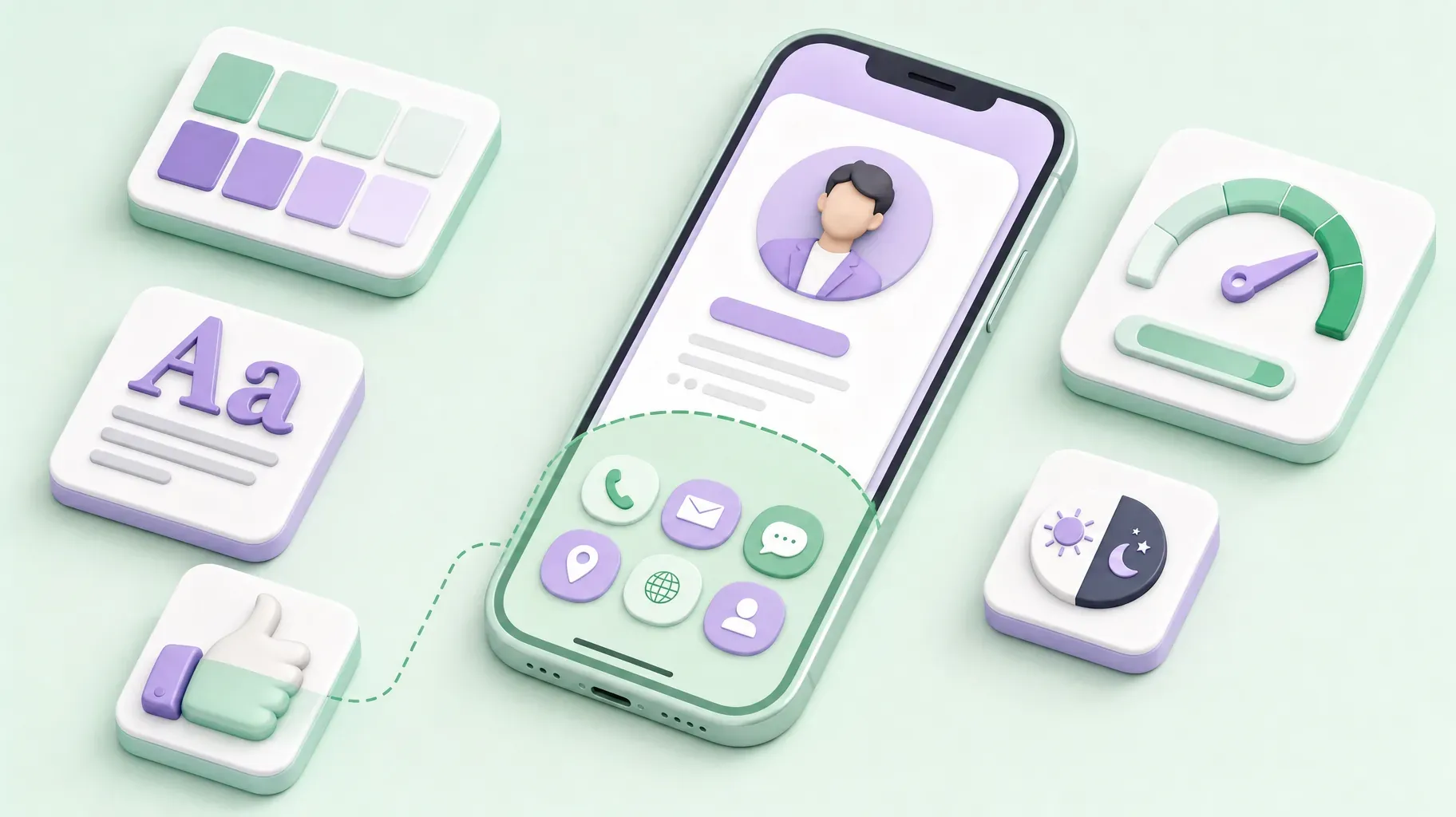
Nearly everyone will open your card on a phone, often while standing or walking. Design for that moment:
- Use your brand colors, but keep text highly readable against the background.
- Stick to one or two fonts.
- Make buttons large enough to tap with a thumb.
- Keep your photo, name, description, and main action visible without scrolling.
- Compress images so the card loads quickly, even on a weak connection.
Open your card on your own phone in bright light and in a dark room to check readability.
6. Generate your QR code, save it to your wallet, and test everything
Download your card's QR code in high resolution for print and screens. If your tool supports it, add your card to Apple Wallet or Google Wallet, so the code is always one swipe away on your phone.
Then test everything:
- Scan the QR code with a few different phones.
- Tap every button and link on the card.
- Save the contact on your phone and check the details.
- Ask a friend to open the card and tell you what they would do next.
- If you use an NFC card, tap it with an iPhone and an Android phone.
Fix anything that feels slow, unclear, or broken before you start sharing.
7. Share it everywhere and keep it updated
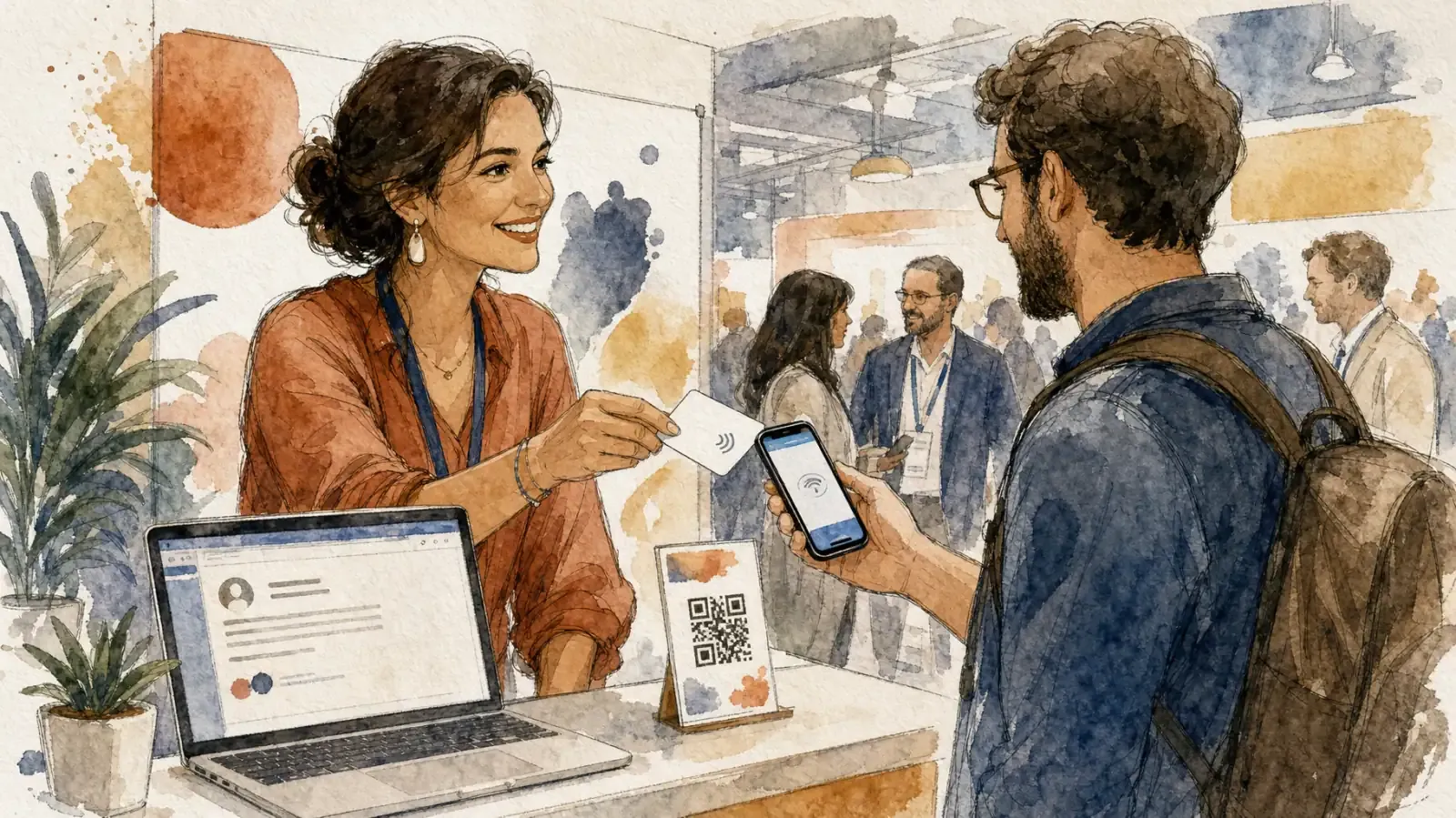
Put your card wherever people might want your details:
- Events: QR code on your badge, NFC card in your pocket, and the code on the last slide of your talk.
- Email: a link or small button in your signature.
- Social media: your card link in your bios.
- Printed materials: QR code on flyers, packaging, receipts, and a few paper cards.
- Messages: send the link after a call or meeting as a quick follow-up.
Review your card every few months, and right away whenever your role, offer, or contact details change. The whole point of a digital card is that it is always current.
Privacy and data on digital business cards
A digital business card is a public page, so treat it that way.
Share only what you are comfortable making public. A work email and phone number are usually enough. Avoid personal addresses unless your business requires it.
Be careful with lead capture. If your card collects names or emails, explain what you will do with them, collect only what you need, and follow the data protection rules that apply to you and your visitors.
Understand the analytics. Card views and clicks are useful, but choose tools that respect privacy and explain what they track.
Protect access. Use a strong password and two-step verification on the account that manages your card, so nobody can change your details without you.
How much does a digital business card cost?
Costs vary with the features you need.
- Free plans usually cover a card page, contact buttons, a QR code, and basic links.
- Paid plans often add a custom domain, advanced design options, detailed analytics, lead capture, integrations, or team management.
- NFC cards are a one-time purchase if you want a physical tap-to-share card.
- Team plans for companies are usually priced per user.
Compared with repeatedly printing paper cards for yourself or a whole team, a digital card is often cheaper over time, especially when your details change.
Common myths about digital business cards
"People need an app to open it." Most digital cards open in any phone browser. No app is required.
"Only tech companies use them." Restaurants, real estate agents, coaches, artists, and students use them every day.
"They replace networking skills." A card makes the follow-up easier, but the conversation still matters most.
"They are hard to set up." A simple card takes less than an hour to create with the right tool.
"Paper cards are dead." Paper still has a role. Many professionals use both, with a QR code on the paper card leading to the digital one.
Frequently asked questions
What is a digital business card in simple terms?
It is an online version of your business card, usually a mobile page, that people open by scanning a QR code, tapping an NFC card, or clicking a link. It holds your contact details and links, and lets people save you to their contacts.
How do I share a digital business card?
With a QR code, an NFC card or sticker, a link by text or email, your email signature, your social media bios, or a wallet pass on your phone.
Does the other person need an app?
No. Most digital business cards open in a normal web browser, and saving the contact uses the phone's built-in contacts app.
Can I use my link-in-bio page as a digital business card?
Yes. A link-in-bio page with your photo, description, contact buttons, and main call to action works as a digital business card, and you can share it by QR code or link.
Is a digital business card free?
Many tools offer free plans that cover the essentials. Paid plans add features like custom domains, advanced analytics, or team management.
Do I still need paper business cards?
Not always, but a few paper cards with a QR code on the back are useful in situations where people expect something physical.
Make your first impression last
A digital business card turns a quick introduction into a lasting connection. It is always up to date, easy to save, and far more useful than a name and a number, because it gives people a clear next step: book you, buy from you, or follow your work.
Ready to create yours? Start with the goal, keep the card focused, and share it everywhere you meet people. For layout ideas by profession, browse our digital business card templates. A Roctify page gives you a mobile-first card with your photo, contact and booking buttons, products and links, plus a single URL you can turn into a QR code. Create your Roctify page and start sharing it today.