Your Instagram profile has its own web address, and it is one of the most useful links you own. A URL to Instagram lets people jump straight to your profile from your website, your email signature, a business card, a podcast description, or a message from a potential client. Instead of asking people to search for your name and hoping they pick the right account, you give them one link that always lands in the right place.
Finding that link is easy once you know where to look, but a few details trip people up. The display name on your profile is not the same as the username in your URL, the app hides the copy option behind different menus depending on whose profile you are on, and changing your username quietly breaks every link you have already shared.
This guide shows you exactly how to get the URL to your Instagram profile on iPhone, Android, and a computer, how to copy someone else's profile link, how to write the address by hand without mistakes, where to share it for the best results, how to track clicks, and how to keep it working over time.
What is your Instagram profile URL?
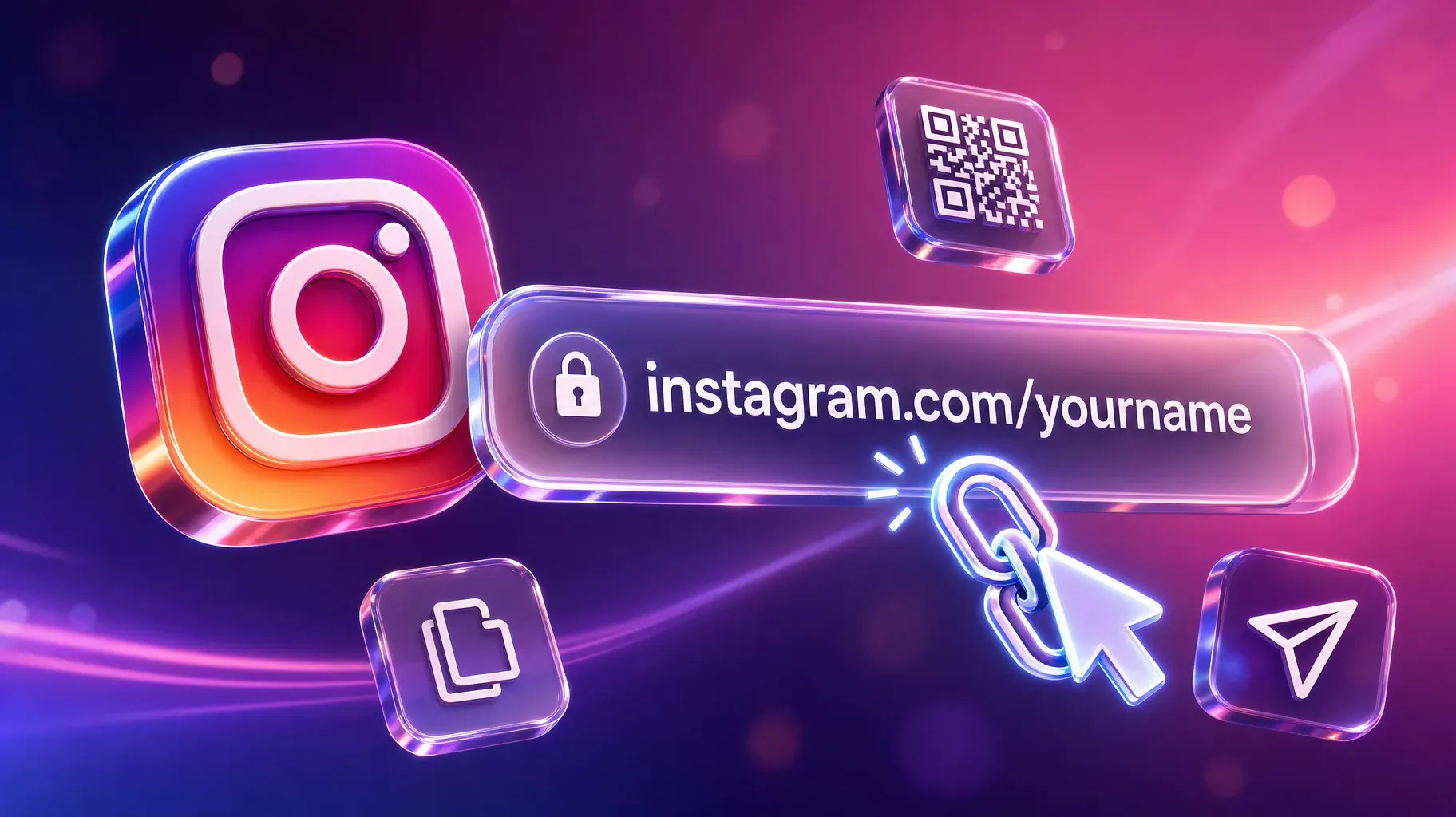
Every Instagram account has a public web address built from its username. The format is always the same:
https://www.instagram.com/yourusername
If your username is studio.maya, your profile URL is https://www.instagram.com/studio.maya. When someone opens that link on a phone with Instagram installed, it usually opens the app directly on your profile. On a computer, it opens your profile in the browser.
A few rules are worth knowing:
- The URL uses your username, not your display name. Your display name is the bold name shown on your profile, and it can contain spaces and capital letters. Your username is the handle after the @ symbol, and it is the only part that appears in the URL.
- Usernames can only contain letters, numbers, periods, and underscores. There are no spaces or special characters, and usernames are limited to 30 characters.
- Capital letters do not matter. Instagram treats uppercase and lowercase letters the same, so instagram.com/StudioMaya and instagram.com/studiomaya lead to the same place. Writing it in lowercase keeps it clean.
- The "www" and "https://" parts are optional when you type it, but including the full address is safer when you paste it into websites, forms, and email tools.
You cannot choose a completely custom Instagram URL separate from your username. If you want a different address, you need to change your username, which changes your URL too. More on the consequences of that in section 7.
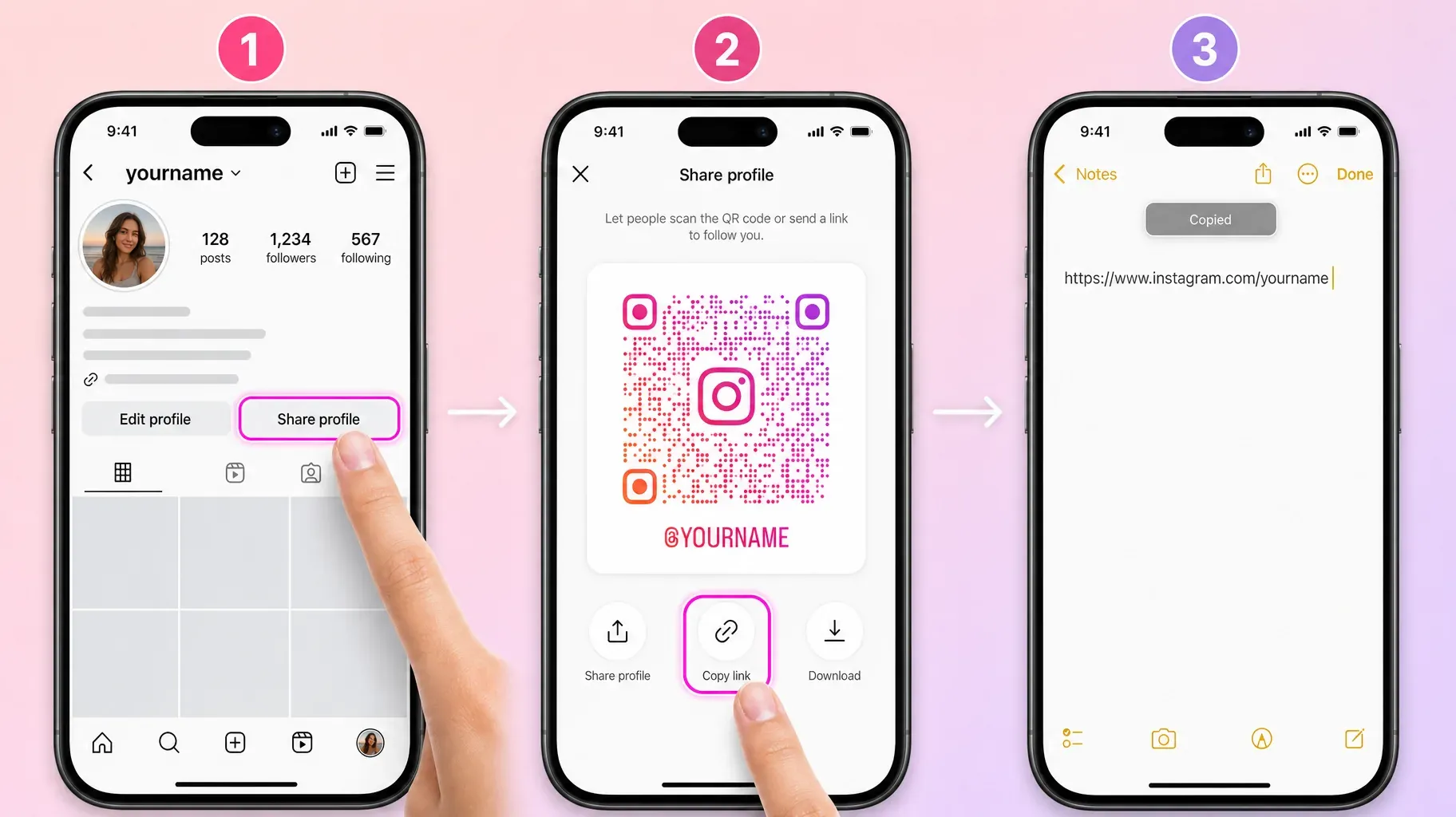
1. Copy the URL to your Instagram profile in the app
The quickest way to get your own profile link is the share option on your profile.
- Open the Instagram app and tap your profile picture in the bottom right corner.
- Tap Share profile, the button under your bio next to Edit profile.
- A screen opens with your Instagram QR code. Tap Copy link.
- Your profile URL is now on your clipboard. Paste it into a note, a message, or wherever you need it.
- Open the pasted link once to confirm that it leads to your profile.
The same screen gives you two other useful options. Share profile opens your phone's share menu, so you can send the link directly by text, email, or another app. Download saves your QR code as an image, which is handy for printed materials and presentations.
If you do not see a Share profile button, update the Instagram app. On some versions, the share option lives behind the three-line menu or a share icon at the top of your profile instead. You can also simply type your URL by hand using the format above.
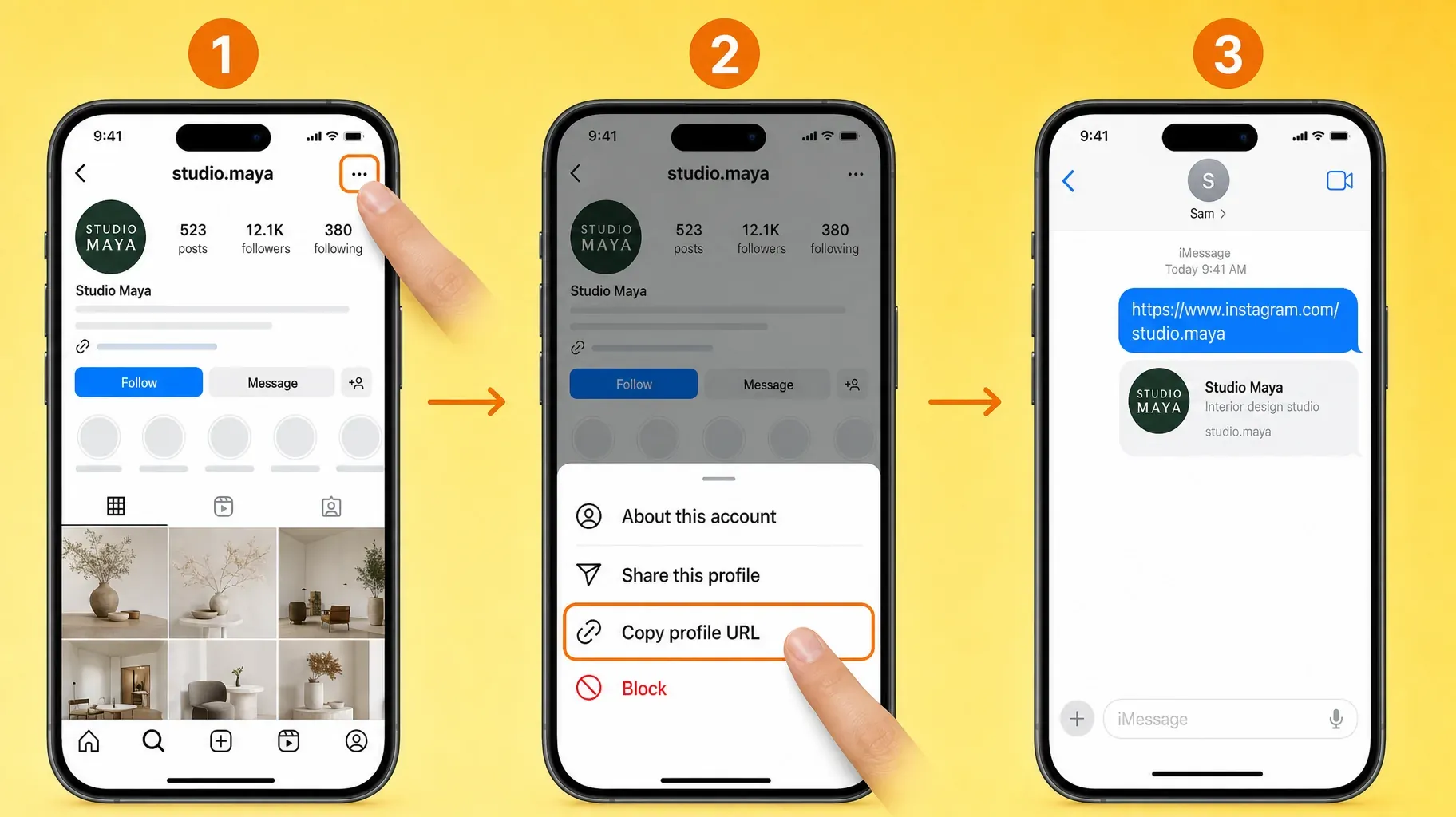
2. Copy the URL of someone else's Instagram profile
Sometimes you need a link to another account, for example to credit a photographer, recommend a business, or send a friend's profile to a client.
- Open the profile you want to share.
- Tap the three-dot icon in the top right corner of the profile.
- Tap Copy profile URL.
- Paste the link into your message, document, or post.
The same menu also offers Share this profile, which lets you send it directly through Instagram messages or your phone's share sheet.
This is the most reliable way to link to another account, because you copy the exact address instead of guessing at a username that might contain an extra period or underscore.
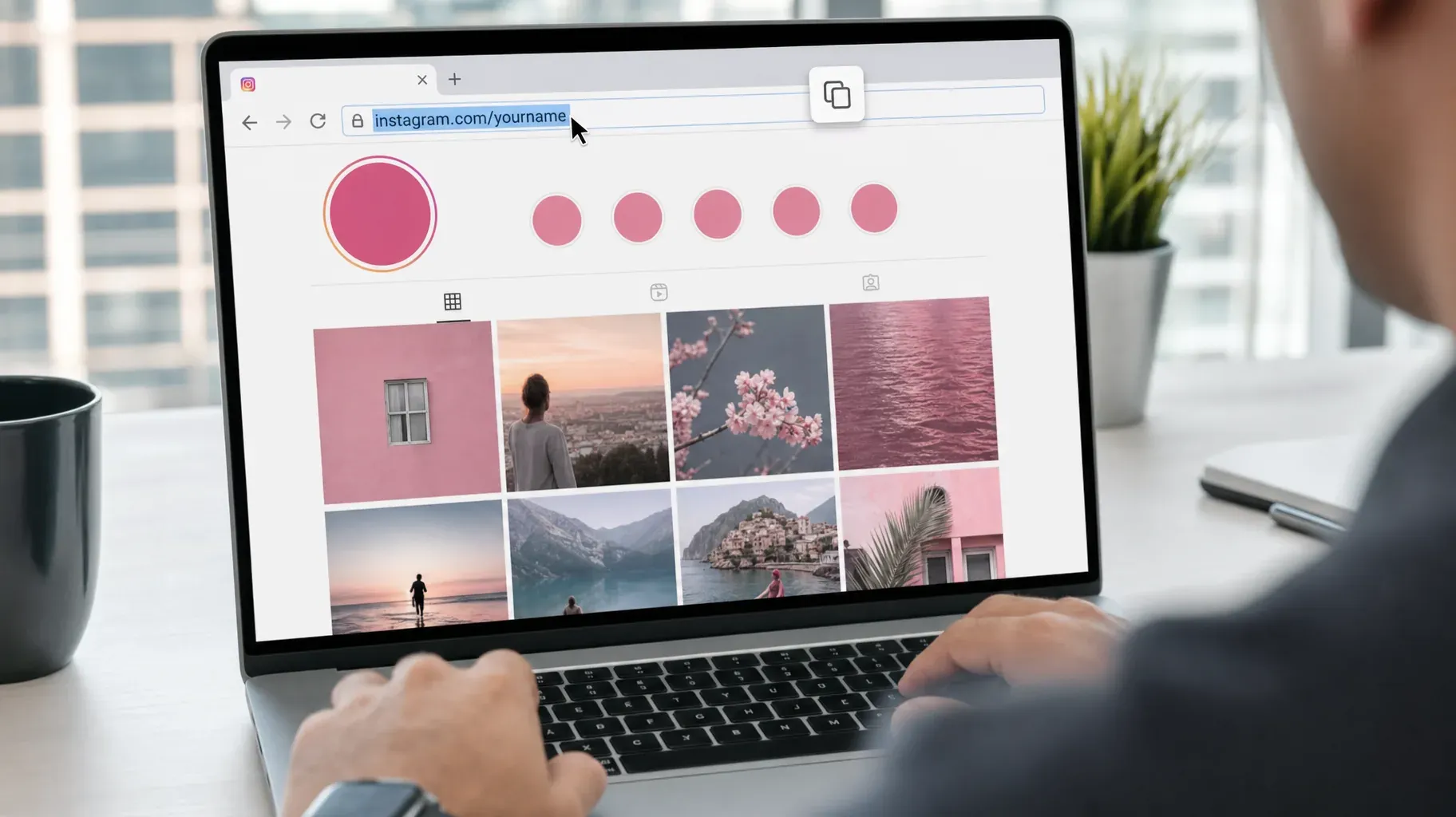
3. Find your Instagram URL on a computer
On a computer, the address bar gives you the exact URL with no guesswork.
- Open your browser and go to instagram.com.
- Log in if needed.
- Click Profile in the left menu to open your own profile, or search for the account you want.
- Click the address bar at the top of the browser. The full URL is selected.
- Copy it with Ctrl+C on Windows or Cmd+C on Mac.
Desktop is often the safest option when you are adding your Instagram link to a website, a newsletter template, or a directory listing, because you copy the address the browser actually resolved. If the page shows your profile, the link works.
If the address bar shows extra characters after your username, such as a question mark followed by tracking codes, remove everything after your username before sharing. The clean version looks like https://www.instagram.com/yourusername.
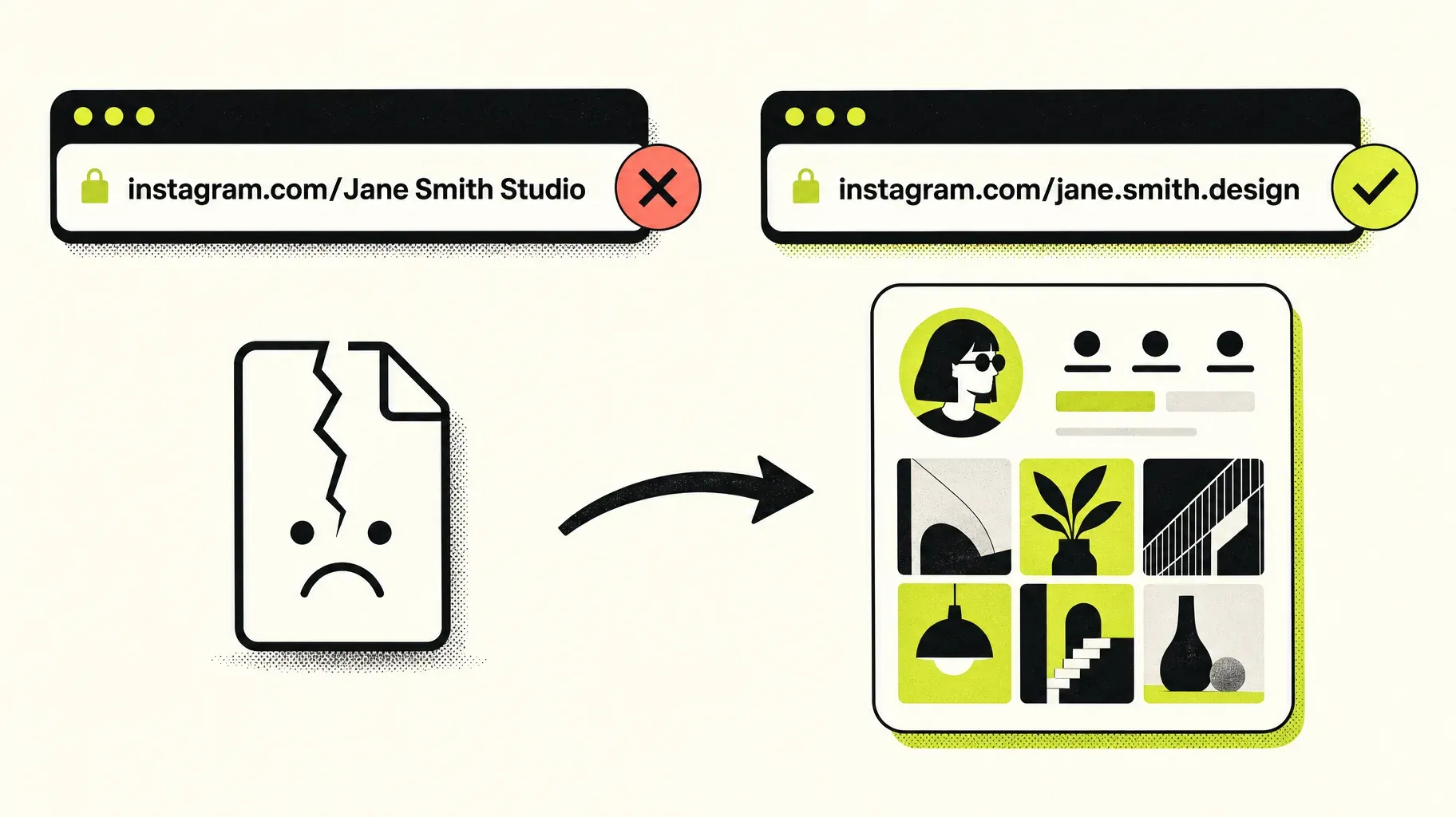
4. Type your Instagram URL by hand without mistakes
You will not always have the app open. When you need to write your Instagram URL from memory, for a form, a print file, or a quick reply, a few habits prevent broken links.
Use the username exactly as shown after the @. Open your profile and look at the top of the screen, or go to Edit profile and check the Username field. Copy every period and underscore.
Do not use your display name. This is the most common mistake. If your display name is "Jane Smith Studio" and your username is "jane.smith.design," the correct URL is instagram.com/jane.smith.design. A link built from the display name leads nowhere.
Watch for look-alike characters. A lowercase l and the number 1, or the letter O and the number 0, are easy to confuse, especially in printed materials. Double-check against your profile.
Test it in a private browser window. Paste the URL into a private or incognito tab. If your profile loads, the link is correct for everyone, not just for you while you are logged in.
Save it somewhere you can find it. Keep your full profile URL in a note or password manager so you can paste it instead of retyping it each time.

5. Share your Instagram URL everywhere it helps
Once you have the correct link, put it where the right people will see it. Each placement works a little differently.
Your website. Add an Instagram icon in the header or footer that links to your profile. For creators and shops, a small feed or a "Follow us on Instagram" section near the end of a page can also work well.
Your email signature. Add a small Instagram icon or a short text link under your name. Every email you send becomes a quiet invitation to follow you.
Business cards and printed materials. Long URLs are hard to type from paper. Print your Instagram QR code, which you can download from the Share profile screen, next to your handle. People can scan it with their phone camera and land on your profile instantly.
Other social profiles. Link your Instagram from TikTok, YouTube, LinkedIn, X, Pinterest, and Threads. Audiences often follow creators on more than one platform.
Directories and listings. Business listings, marketplace profiles, podcast guest pages, and event speaker pages usually have a field for social links. Use your full profile URL there.
Your link-in-bio page. If you use a link-in-bio page, include your Instagram as one of your social icons so visitors who arrive from other platforms can follow you there too.
Messages and replies. When someone asks how to find you, paste the link instead of spelling your username. It saves time and avoids mistakes.
6. Track clicks to your Instagram with UTM parameters
If you want to know how many people reach Instagram from your website or newsletter, you can measure it. The most reliable approach is to track clicks on your own side.
Track outbound clicks on your website. Most analytics tools can count clicks on external links. Set up an event for clicks on your Instagram link or icon, and you will see how often visitors choose to follow you.
Use a link you control for campaigns. If you want to compare sources, such as your newsletter, business cards, and podcast notes, point each one to a short redirect or a link-in-bio page that records the click before sending people to your profile. This gives you clean numbers per source.
Be careful with UTM tags on Instagram links. You can add campaign parameters to the end of your Instagram URL, but Instagram does not report them back to you, and the app may ignore them. They are only useful if a tool you control records the click. Keep the public version of your URL clean.
Check Instagram insights. With a professional account, Instagram shows how many profile visits and follows you get over time. Compare those numbers before and after you add your link somewhere new, such as a website redesign or a new email signature.
7. Keep your Instagram URL working over time
A link that works today can break later. These are the situations to watch.
You change your username. Your URL changes with it, and links using the old username stop leading to your profile. Instagram currently lets you switch back to your old username for a short period, around 14 days, after which someone else may claim it. Before changing your username, list every place your URL appears: website, email signature, QR codes, printed materials, media kits, directory listings, and link-in-bio pages. Update all of them right after the change.
You make your account private. Your URL keeps working, and people can still see your name, profile photo, and bio. Your posts are hidden until you approve their follow request. If you use your profile link for business, a public account is usually the better choice.
Your account is restricted or deactivated. If Instagram limits or deactivates your account, the URL may show an error page. Resolve the account issue first, then test your link again.
Printed QR codes point to an old username. A QR code downloaded from Instagram encodes your profile link. If you change your username, reprint your QR codes, or use a QR code that points to a page you control so you can update the destination without reprinting.
A simple habit prevents most problems: keep one list of every place your Instagram URL appears, and review it whenever your profile changes.
Make your profile worth the click
Sharing the URL to your Instagram only pays off if people like what they find when they arrive. Before you promote your link widely, take a few minutes to polish the page it leads to.
Write a clear bio. In 150 characters, say who you are, what you share, and who it is for. "Ceramic artist in Lisbon, new mugs every Friday" tells a visitor far more than a string of emojis.
Use a recognizable profile photo. A clear face for creators, a clean logo for brands. It should match the photo you use on your website and other platforms so people know they found the right account.
Pin your best posts. Instagram lets you pin up to three posts or Reels to the top of your grid. Pin the ones that explain what you do, show your best work, or answer the question new visitors ask most.
Organize Highlights. Group saved Stories into Highlights such as "Shop," "Reviews," "How it works," or "FAQ." They sit right under your bio and act like a menu for newcomers.
Add your link in bio. Make sure the people who arrive through your URL have a next step, such as your shop, booking page, or newsletter.
A polished profile turns more visits into follows, which makes every placement of your link more valuable.
How to link to a post, Reel, or Story
Sometimes you want to send people to a specific piece of content instead of your whole profile.
Posts and Reels. Tap the share icon under the post or Reel, then tap Copy link. Post links look like instagram.com/p/ followed by a short code, and Reel links look like instagram.com/reel/ followed by a code.
Stories. Open your Story, tap the three-dot menu or the share option, and copy the link. Story links only work while the Story is live, usually 24 hours, unless you save it to a Highlight.
Highlights. To send people to saved Stories permanently, share your profile URL and mention the Highlight name, since Highlights sit right under your bio.
Linking to a specific post works well for press, portfolios, and customer questions, while your profile URL is best for general "follow me" calls to action.
Instagram URL or link-in-bio page?
Your Instagram URL sends people to Instagram. That is perfect when your goal is to gain followers or show your latest posts. But when you share one link in several places, you might want it to do more.
Use your Instagram URL when you want new followers, when you are asked specifically for your Instagram, or when the platform you are on already has separate fields for each social network.
Use a link-in-bio page when you have only one link to share and several places to send people: your shop, booking page, newsletter, portfolio, and all your social profiles. A link-in-bio page gathers everything and lets visitors choose, and it can include your Instagram as one of the options.
Many creators use both. Their Instagram bio links to their link-in-bio page, and that page links back to Instagram and their other profiles. The result is a clear loop: followers can buy, book, or subscribe, and visitors from elsewhere can follow them on Instagram.
Examples of where to use your Instagram URL
Seeing how different professionals use their profile link can spark ideas for your own.
A wedding photographer adds an Instagram icon to the header of their website and includes the profile URL in every quote they send, because couples want to see recent weddings before booking.
A café owner prints the Instagram QR code on table tents and takeaway cups, and links the profile from their listing on map and review sites, so customers can see daily specials and new pastries.
A freelance designer puts the URL in their email signature and on their portfolio's contact page, where potential clients look for proof of recent work.
A podcaster includes the Instagram link in every episode description and asks listeners to send questions through Instagram messages.
A speaker shows their Instagram QR code on the last slide of every talk, next to their website, so attendees can follow them before leaving the room.
An online shop links Instagram from the footer of every product page and from order confirmation emails, inviting customers to share photos of their purchases.
In each case, the link appears exactly where people are already curious about more. Look at your own customer journey and place your Instagram URL at those moments.
Mistakes to avoid
Using the display name instead of the username. The URL only works with the handle after the @.
Sharing a link full of tracking codes. Remove everything after your username before publishing it.
Forgetting to update links after a username change. Old links stop working. Update your website, signature, QR codes, and listings right away.
Printing a long URL without a QR code. Few people will type a long address from a flyer. Add a QR code next to it.
Testing only while logged in. Always check your link in a private browser window to see what new visitors see.
Burying your Instagram link. An icon hidden at the very bottom of a long page gets few clicks. Put it where people naturally look for social links, such as the header or footer.
Frequently asked questions
What is the URL to my Instagram profile?
It is https://www.instagram.com/ followed by your username. For example, if your username is studio.maya, your URL is https://www.instagram.com/studio.maya.
How do I copy my Instagram profile link on my phone?
Go to your profile, tap Share profile, then tap Copy link. The URL is copied to your clipboard and ready to paste.
How do I copy the link to someone else's Instagram profile?
Open their profile, tap the three-dot icon in the top right corner, and tap Copy profile URL.
Is my Instagram name the same as my URL?
No. Your URL uses your username, the handle after the @. Your display name, the bold name on your profile, does not appear in the URL.
Can I change my Instagram URL?
Only by changing your username. Your URL updates automatically, but any link using your old username will stop working, so update every place you shared it.
Does my Instagram URL work if my account is private?
Yes. People can open your profile and see your name, photo, and bio, but they need to follow you and be approved to see your posts.
Put your Instagram link to work
The URL to your Instagram profile is small, but it connects every other place you show up online back to your audience on Instagram. Copy it the right way, share it where your future followers already are, and keep it up to date, and it will keep bringing people to your profile long after you share it.
If you want one link that sends people to Instagram and everything else you offer, create a link-in-bio page with your social icons, products, and booking options in one place. Create your Roctify page and share one link that works everywhere, including your Instagram bio.