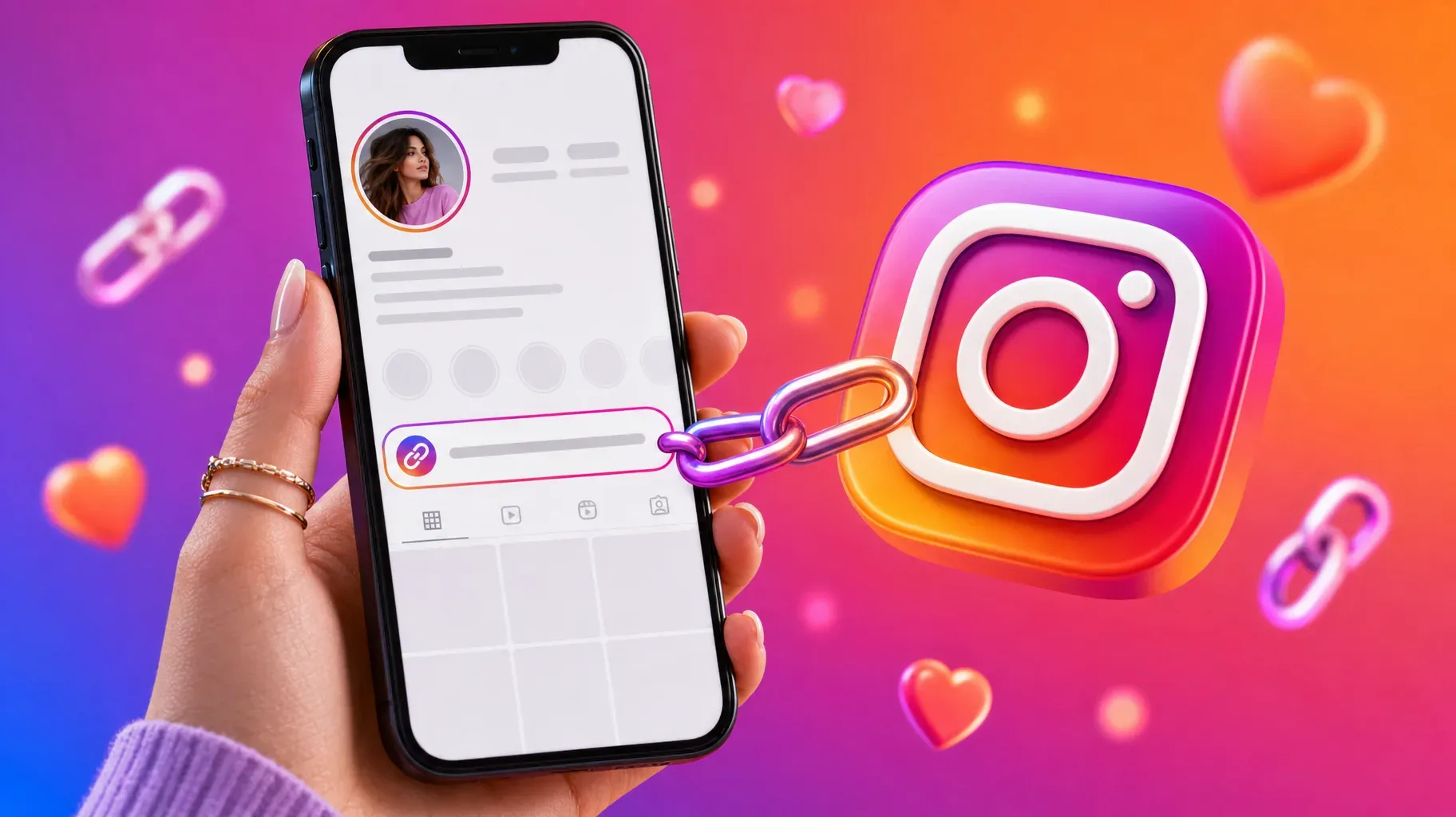
The link in your Instagram bio is one of the few places on the app where people can tap and leave for your website, shop, booking page, or newsletter. When you launch something new, change your offer, or move to a new website, that link needs to change with you. An outdated link sends interested visitors to the wrong page, and many of them will not come back to look for the right one.
Changing the link takes less than a minute once you know where Instagram keeps it. The steps are slightly different from editing your bio text, and a few details trip people up: links pasted into the bio field do not become clickable, the desktop site does not always show the links section, and the order of your links decides which one people see first.
This guide covers everything step by step. You will learn how to change an existing link, add a new one, remove or reorder links, write titles that get taps, track which link performs best, and fix the most common problems when a link will not save or opens the wrong page.
How links in your Instagram bio work
Before you edit anything, it helps to understand how Instagram displays profile links today.
You can add up to five links. Instagram lets every account, personal, creator, or business, add up to five external links to its profile. There is no follower minimum.
The first link gets the spotlight. On your profile, Instagram shows your first link under your bio, followed by a short summary such as "and 2 others" when you have more than one. When someone taps it, a panel opens with all your links and their titles. That means your first link is the one most people notice.
Links live in their own section. Profile links are managed in a dedicated Links section of your profile settings. If you paste a web address directly into your bio text, it will usually appear as plain text that people cannot tap.
Captions are not clickable. Links in post captions and comments do not become tappable, which is why "link in bio" became such a common phrase. Your profile links, along with link stickers in Stories, are the main ways to send people off Instagram.
Editing happens in the app. The Links section is managed in the Instagram app for iPhone and Android. The desktop website may not show it, so keep your phone handy.
Before you change your link
A little preparation prevents broken links and wasted traffic.
- Copy the full address. Open the page you want to share in your browser, copy the address from the address bar, and make sure it starts with https://.
- Test the page on your phone. Most Instagram visitors are on mobile. Check that the page loads quickly, looks right on a small screen, and does not ask people to log in unexpectedly.
- Decide on a title. Each link can have a short title that appears in the links panel. Think about what the visitor will get, such as "Shop the spring collection" or "Book a free call."
- Add tracking if you use it. If you track traffic with analytics, add campaign parameters to the address before you paste it, so you can see how many visits came from Instagram.
- Plan your order. If you have several links, decide which one deserves the first spot. That is usually your newest offer or the page that matters most to your business right now.
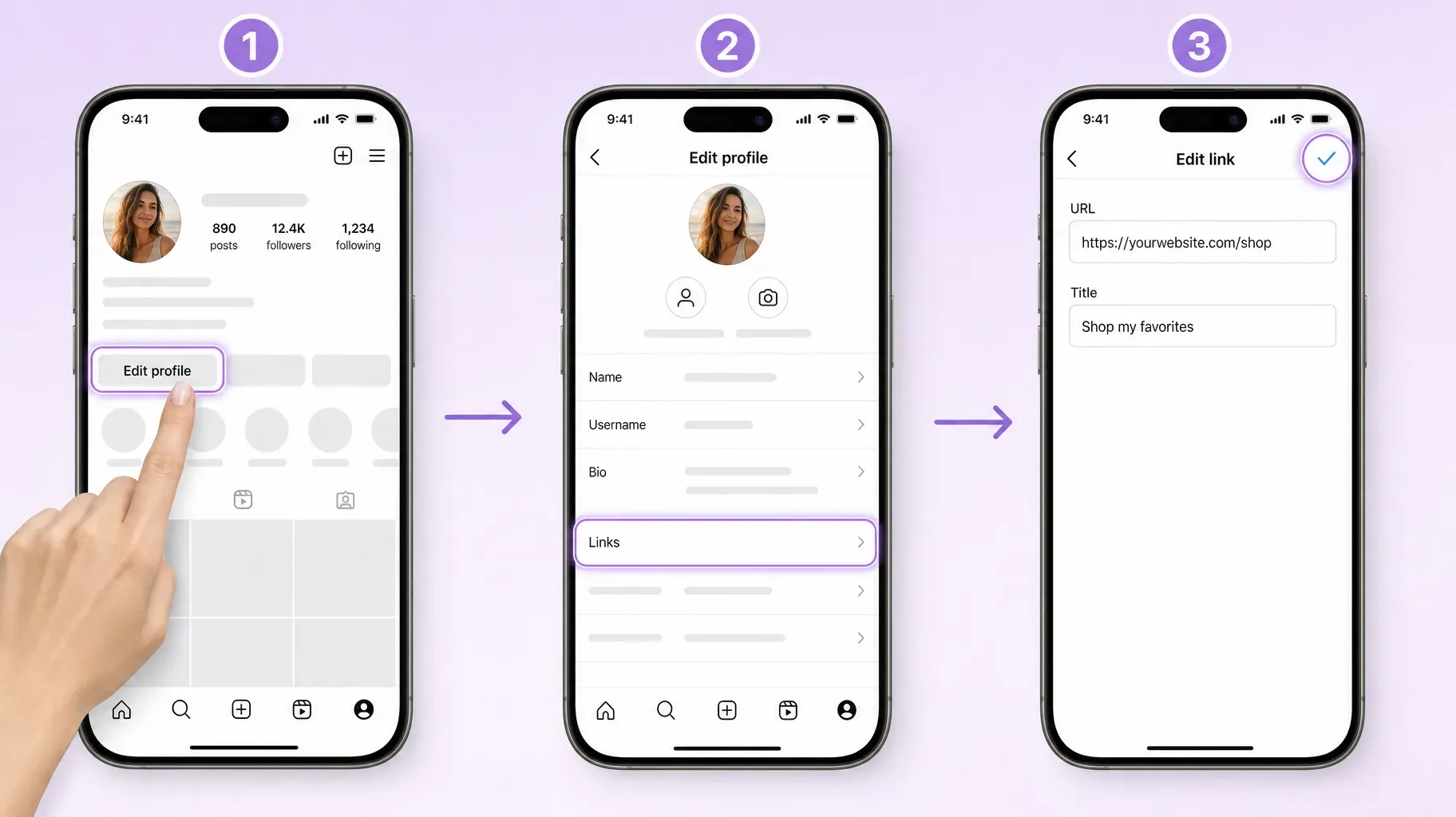
1. Change an existing link in your Instagram bio
Use this method when you already have a link and want to point it somewhere else, or when you want to rename it.
- Open the Instagram app and tap your profile picture in the bottom right corner to go to your profile.
- Tap Edit profile.
- Tap Links. You will see the list of links currently on your profile.
- Tap the link you want to change.
- Replace the address in the URL field. Tap the field, clear the old address, and paste the new one.
- Update the Title if the destination has changed.
- Tap the checkmark or Done in the top right corner to save.
- Go back to your profile and tap your link to make sure it opens the right page.
That last step matters more than it seems. A single missing letter or an extra space can break a link, and Instagram will not always warn you. Testing takes five seconds and saves you from sending visitors to an error page.
If you only want to change the label people see, you can leave the URL alone and edit the title. This is useful when the page stays the same but the offer on it changes, for example from "Pre-order" to "Shop now."
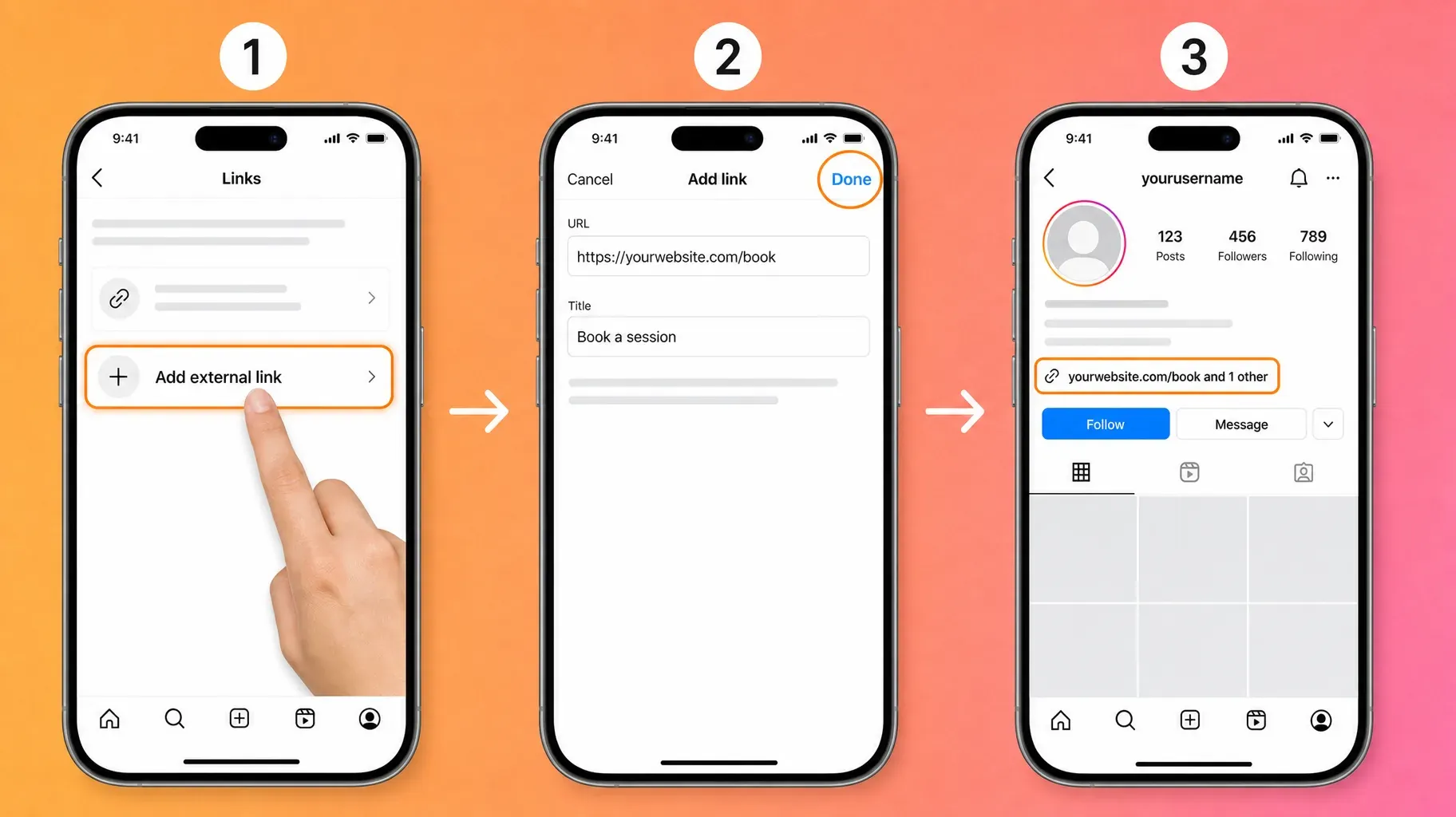
2. Add a new link to your bio
If you do not have a link yet, or you want to add a second, third, fourth, or fifth one, follow these steps.
- Go to your profile and tap Edit profile.
- Tap Links.
- Tap Add external link.
- Paste the address into the URL field.
- Type a clear Title that tells people what they will find.
- Tap Done or the checkmark to save.
- Return to your profile. Your link now appears under your bio.
When you add a link, Instagram places it in your list, and you may need to reorder your links if you want the new one to appear first. Section 4 explains how.
If the Add external link option is missing, you have probably reached the five-link limit. Remove a link you no longer need, then try again.
3. Remove a link from your bio
Old links are worse than no links. A page for a sold-out product, an event that already happened, or a website you no longer maintain makes your whole profile feel neglected. Remove links as soon as they stop being useful.
- Go to your profile and tap Edit profile.
- Tap Links.
- Tap the link you want to delete.
- Tap Remove link.
- Confirm if Instagram asks you to.
The link disappears from your profile right away. If it was your first link, the next one in your list takes its place in the spotlight, so check your profile to make sure the new first link is the one you want people to see.
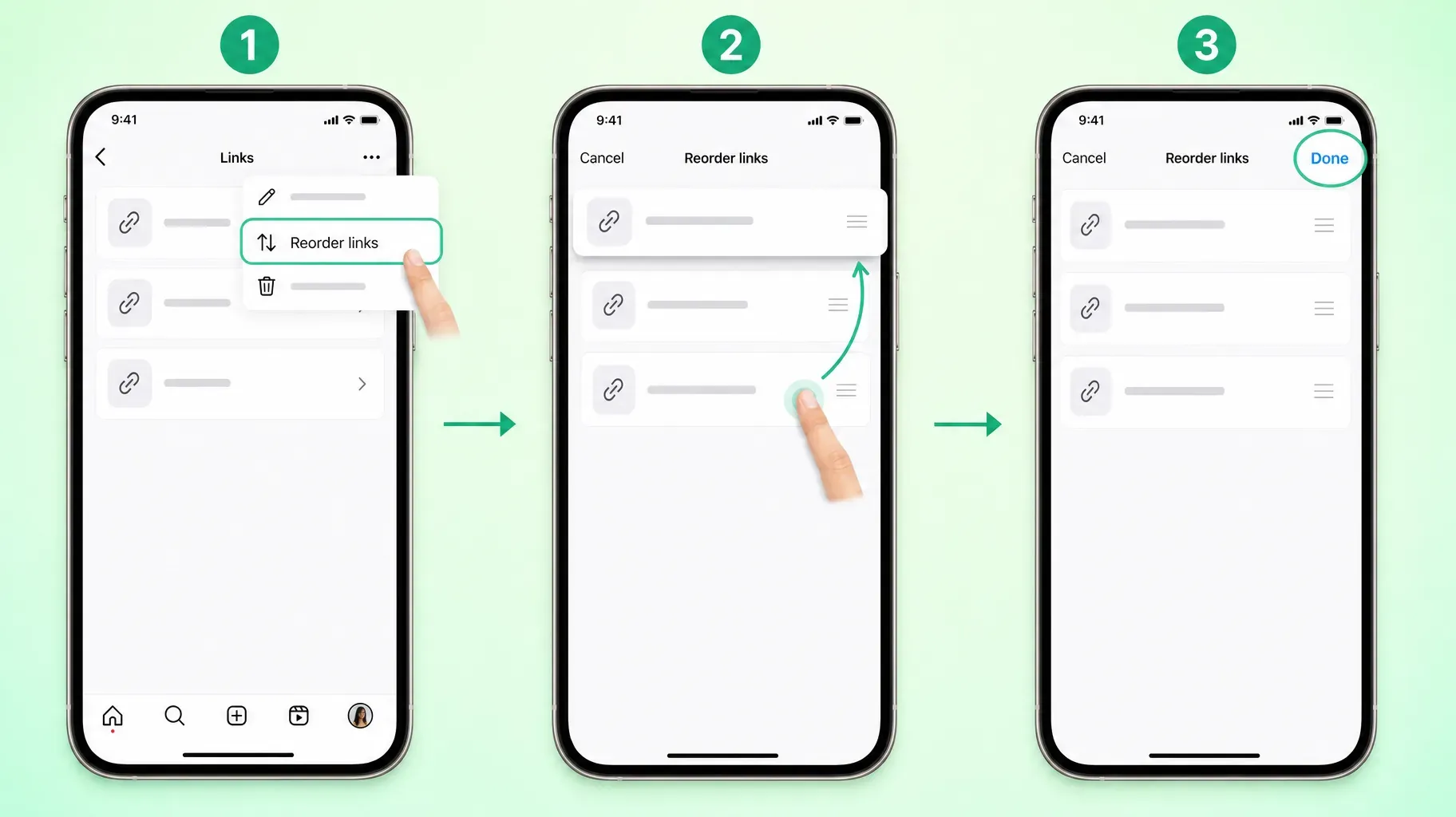
4. Reorder your links so the right one comes first
Because the first link is the most visible, its position matters as much as its content. Reordering takes a few seconds.
- Go to your profile and tap Edit profile.
- Tap Links.
- Tap the three-dot menu in the top right corner.
- Tap Reorder links.
- Press and hold the grip handle next to a link, then drag it up or down.
- Tap Done to save the new order.
- Check your profile to confirm which link now appears first.
If you do not see the reorder option, you may only have one link, since there is nothing to rearrange. Add a second link first.
A simple rule works for most accounts: put your most important current goal first. During a launch, that is the launch page. The rest of the year, it might be your shop, your booking page, or your link-in-bio page that gathers everything in one place.
5. Write link titles and a bio call to action that get taps
Changing the link is only half the job. People also need a reason to tap it.
Make titles specific. A title like "Website" tells people almost nothing. "Shop handmade candles," "Book a portrait session," or "Get the free meal plan" tells them exactly what they will get. Keep titles short enough to read at a glance.
Match titles to your content. If your latest Reel promotes a new preset pack, your first link title should mention the preset pack. When the words in your post, your bio, and your link title line up, visitors trust that they are in the right place.
Point to the link in your bio text. Your bio has 150 characters, so use a few of them for a clear call to action. Phrases such as "New collection below," "Book your spot below," or "Free guide in the link" guide the eye to your link.
Mention it in your posts and Stories. Tell viewers what they will find and where. "The full recipe is in the link in my bio" works better than hoping people will look on their own.
Keep it human. Emojis can help your call to action stand out, but keep the words doing the work. One arrow or pointing hand is plenty.

6. Track which link gets the most clicks
Once your links are in place, find out which ones people actually use. This tells you what your audience wants and whether a change improved your results.
Use Instagram's insights. If you have a professional account, Instagram's insights show how many people tapped your profile links over a given period. This gives you a quick overall picture, although it may not break the numbers down by individual link.
Add campaign parameters. Analytics tools can track visits from Instagram when you add campaign parameters to your links, such as a source of "instagram" and a medium of "bio." Use a different campaign name for each link, and you will see exactly which one brings visitors, signups, and sales.
Use a link-in-bio page with built-in analytics. If your first link leads to a link-in-bio page, that page can count clicks on every button, product, and signup form. This is often the simplest way to see what people tap without setting up anything complicated.
Review once a week. Compare clicks before and after a change. If you moved a new offer to the first spot, did taps increase? If you rewrote a title, did more people choose that link? Small weekly reviews help you learn what works for your audience.
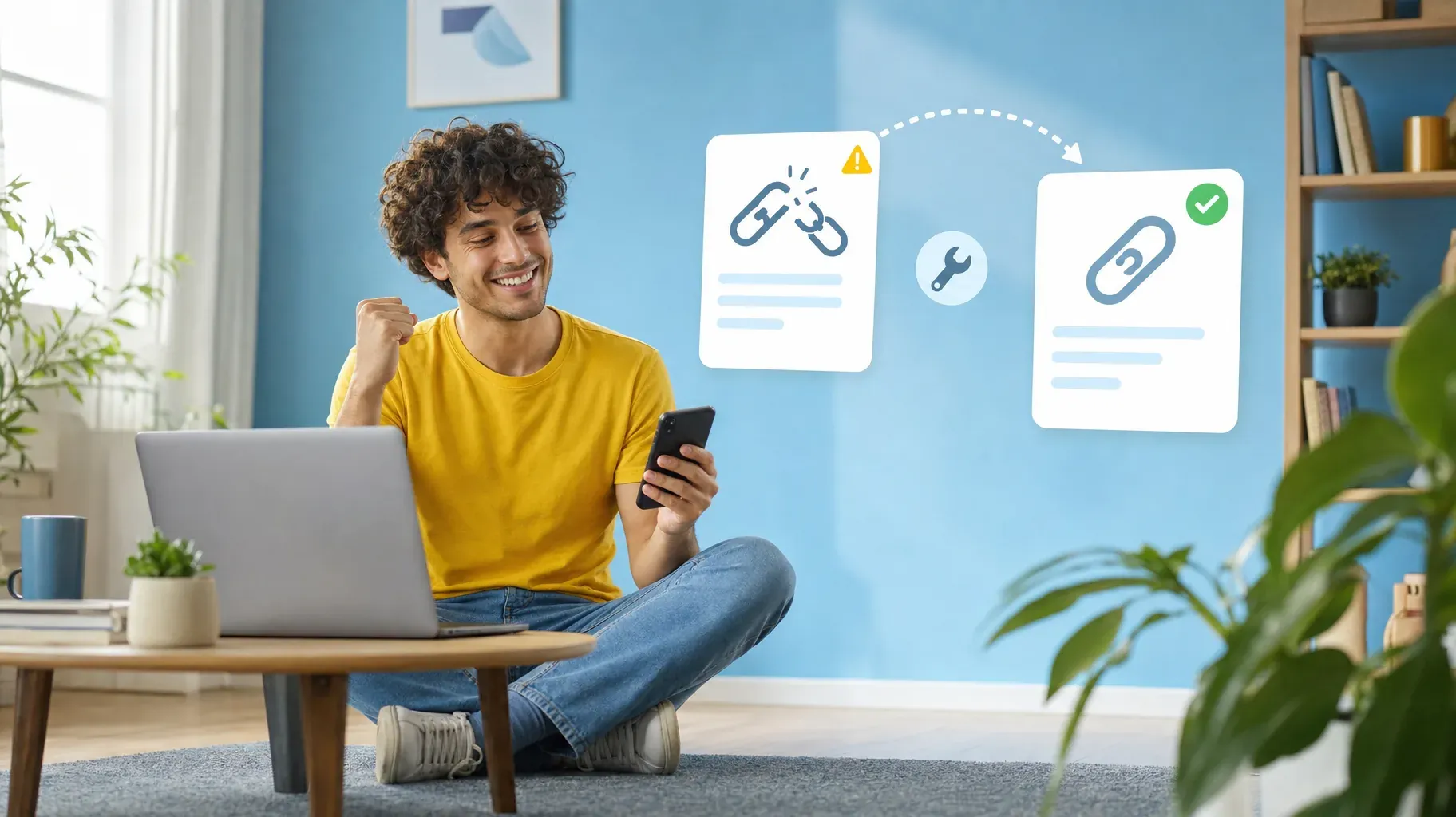
7. Fix problems when your link will not change
Most link issues have simple causes. Work through this list if something goes wrong.
The Links option is missing. Update the Instagram app to the latest version, then close and reopen it. If you are on a computer, switch to the mobile app, where the Links section is available.
The link shows as plain text. You probably typed the address into the Bio field. Remove it from the bio text and add it through Links instead.
Instagram will not save the link. Check the address for typos, spaces, or missing parts. Open it in your phone's browser to confirm the page exists. Make sure you have a stable internet connection, then try again.
The link opens the wrong page. Go back to Links and check the saved address carefully. If the address is correct, the website itself may be redirecting visitors. Test the page directly in your browser, and ask whoever manages the site to check the redirect.
Instagram says the link is not allowed. Instagram blocks links it considers spammy, unsafe, or against its guidelines. Some shortened or heavily redirected addresses may also be restricted. Use the full, direct address of a trustworthy page. If you believe the block is a mistake, follow the review option Instagram offers.
Your account has a restriction. If your account has been limited, you may not be able to add or edit links for a while. Check your account status in your settings and follow the steps Instagram gives you.
The change does not appear right away. Occasionally the profile takes a moment to refresh. Close the app, reopen it, and view your profile again. Ask a friend to check from their account if you are unsure.
Five native links or one link-in-bio page?
With five links available, you might wonder whether you still need a link-in-bio page. The answer depends on how much you offer and how you want your profile to work.
Native links work well when you have only a few destinations. A photographer with a portfolio, a booking page, and a contact form can use three links and keep things simple. Visitors see the titles and pick one.
A link-in-bio page works better when you have more to show. A link-in-bio page can display products with images and prices, embed a signup form, feature videos, and sell directly on the page. It also gives you one place to update instead of editing several Instagram links every time something changes.
Many creators combine both. They put their link-in-bio page first, because it gathers everything, and use the remaining native links for their single most important destinations, such as a booking page or a current campaign.
Think about the visitor's experience. Five plain links with short titles are easy to scan but show little. A well-designed page shows your offers visually and lets people act without leaving. Choose the setup that makes the next step clearest for your audience.
Other ways to share links on Instagram
Your bio is the permanent home for links, but it is not the only option.
- Link stickers in Stories. Add a link sticker to any Story to send viewers directly to a page. This works well for time-sensitive offers and new launches.
- Story Highlights. Save Stories with link stickers to a Highlight on your profile, such as "Shop" or "Guides," so they stay visible after 24 hours.
- Direct messages. Links shared in DMs are clickable, which helps when someone asks for more information.
- Pinned comments and captions. Links there are not clickable, but you can use them to remind people to check your bio.
Use these channels to support your bio link. For example, announce a launch in a Story with a link sticker, then keep the launch page as your first bio link for the rest of the campaign.
Examples of strong bio link setups
Seeing a few setups side by side makes it easier to plan your own.
A handmade jewelry shop. First link: "Shop the new silver collection," pointing to the collection page. Second link: "Custom orders," pointing to a request form. Third link: "Care guide," pointing to a short article that answers the most common question in the shop's messages. The bio ends with "New pieces every Friday, shop below."
A fitness coach. First link: "Start the free 7-day plan," which captures email addresses. Second link: "1:1 coaching," pointing to a booking page with prices and available times. Third link: "Client results," pointing to testimonials. The coach changes the first link title whenever a new challenge starts.
A podcaster. First link: "Listen to the latest episode," updated every week. Second link: "Become a supporter," pointing to a membership page. Third link: "Sponsor the show," pointing to a media kit. Because the first link changes weekly, the podcaster keeps a reminder in their publishing checklist.
A freelance designer. First link: a link-in-bio page that shows recent projects, services, prices, and a contact form in one place. Second link: "Book a discovery call." Keeping only two links makes the choice obvious for potential clients.
In each case, the first link matches the account's main goal, every title describes a clear result, and the bio text points to the links. Use the same logic for your own profile.
Mistakes to avoid
Leaving an old link in place. An expired offer or a broken page tells visitors your profile is not maintained. Review your links every time you launch or end something.
Pasting links into your bio text. They will not be clickable. Always use the Links section.
Using vague titles. "Link" or "Website" gives people no reason to tap. Describe the result.
Forgetting the first position. A new link added at the bottom of the list may barely be seen. Reorder so your priority comes first.
Skipping the test. Always tap your link after changing it. It takes seconds and prevents lost visitors.
Sending people to slow or desktop-only pages. Most Instagram traffic is mobile. A page that loads slowly or looks broken on a phone wastes every tap you earned.
A quick routine for every launch
When you release something new, use this checklist:
- Prepare the destination page and test it on your phone.
- Add campaign parameters to the address if you track traffic.
- Change your first link, or add a new one and move it to the top.
- Write a specific title that matches your launch.
- Update your bio call to action to mention what is new.
- Publish a post or Reel that tells people the link is in your bio.
- Share a Story with a link sticker for people who watch Stories first.
- Check your clicks after a few days, and switch back to your evergreen link when the launch ends.
Frequently asked questions
How many links can I add to my Instagram bio?
You can add up to five external links. Instagram shows the first one under your bio, and people can tap it to see the full list.
Why can't I change my Instagram bio link on my computer?
The Links section is managed in the Instagram mobile app. If you do not see it on the desktop site, open the app on your phone and edit your links there.
Why is the link in my bio not clickable?
It was probably typed into the bio text instead of the Links section. Remove it from your bio text and add it through Edit profile, then Links, then Add external link.
Do I need a certain number of followers to add a link?
No. Any account can add links to its profile, regardless of follower count.
How do I know if people are clicking my link?
Professional accounts can see profile link taps in Instagram's insights. For more detail, add campaign parameters to each link or use a link-in-bio page with built-in click analytics.
Can I change the title without changing the link?
Yes. Open the link in the Links section, edit only the Title field, and save.
Make every tap count
Your Instagram bio link is small, but it carries a lot of weight. Keeping it current, well labeled, and in the right order makes sure the attention you earn on Instagram turns into visits, bookings, and sales.
If you want one link that always stays up to date, point your first link to a page you control. A Roctify link-in-bio page can show your products, services, and signup form in one place, so you update it once and your Instagram link keeps working. Create your Roctify page and add it to your Instagram bio today.