
Sometimes a post no longer fits your profile. It might be an old photo that doesn't match your style anymore, a promotion that has ended, a product that's sold out or simply something you'd rather keep to yourself for now. Deleting it feels too final. That's exactly what Instagram's archive is for.
So how do you archive Instagram posts? You open the post, tap the three dots and choose Archive. It takes two seconds, and the post disappears from your profile without being lost. This guide explains every way to archive posts, Reels, Stories and Lives, how to archive several posts at once, how to find and restore archived content, what happens to likes and comments, how archiving compares with deleting and hiding, and how creators and brands can use the archive to keep their profile clean and selling.
What archiving an Instagram post means
Archiving hides a post from your profile and from everyone else, while keeping it safe in a private space that only you can see.
- It disappears from your grid. Followers and visitors can't see it on your profile, in their feed or through a direct link.
- It isn't deleted. The photo or video, caption, likes and comments are all kept.
- Only you can see it. Archived posts live in your Archive, which is private.
- It's reversible. You can put the post back on your profile at any time, in its original place.
- Nobody is notified. Instagram doesn't tell your followers when you archive or restore a post.
Think of the archive as a drawer. Deleting throws the post away. Archiving puts it in the drawer until you decide what to do with it. It's the safest way to tidy your profile, because nothing you do with the archive is permanent and you can change your mind as often as you like.
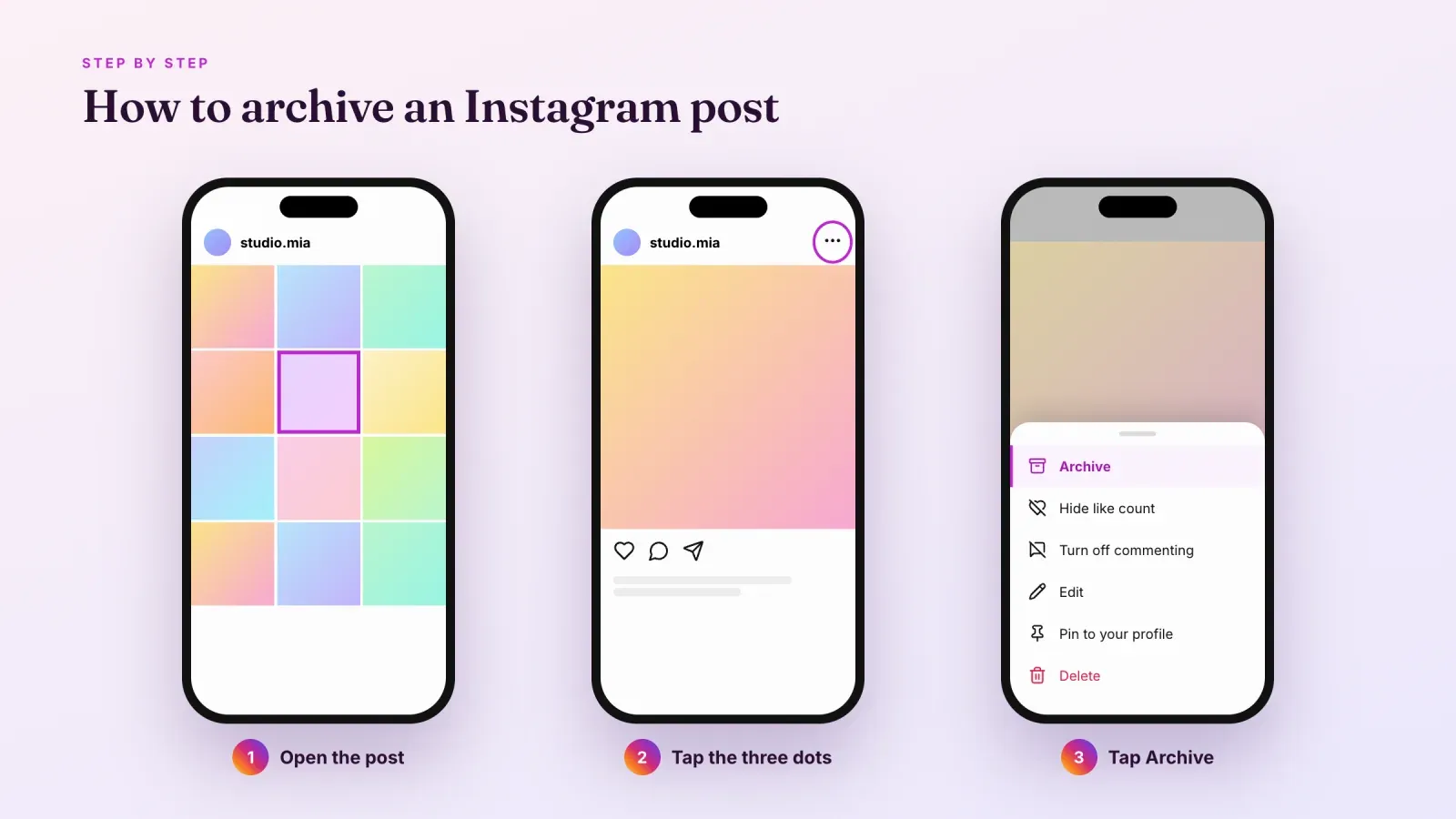
How do you archive Instagram posts on iPhone and Android
The steps are the same on iPhone and Android.
- Open your profile. Tap your profile picture at the bottom right of the app.
- Open the post. Tap the photo, carousel or Reel you want to hide from your grid.
- Tap the three dots. They're at the top right of the post, or at the bottom right on a Reel.
- Tap Archive. The post disappears from your profile immediately.
That's it. There's no confirmation screen and no notification. If you archived the wrong post, you can restore it from your Archive in a few seconds, as explained below.
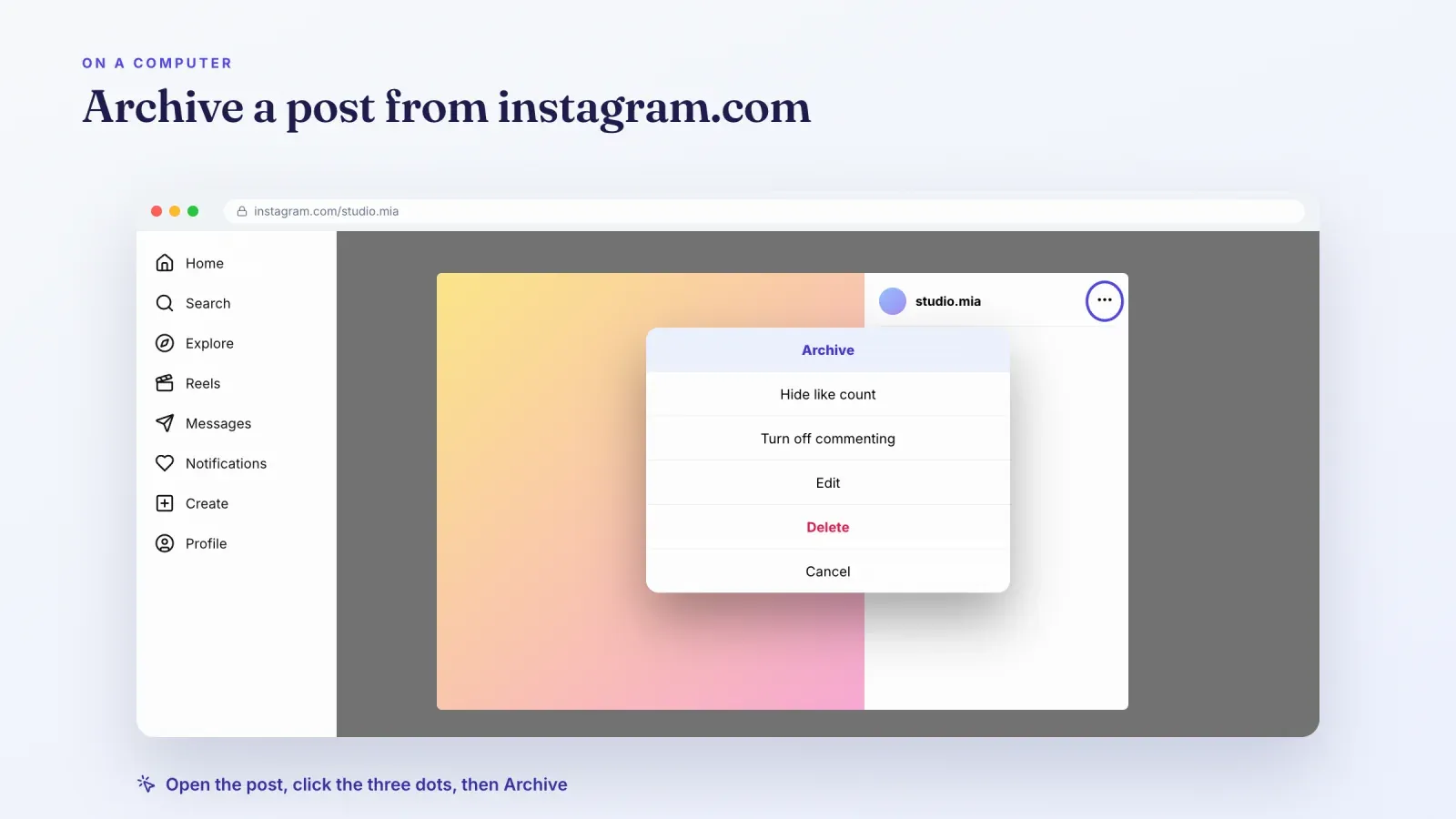
How to archive Instagram posts on a computer
You can also archive posts from a computer.
- Go to instagram.com in your browser and log in.
- Open your profile by clicking your profile picture or Profile in the left menu.
- Click the post you want to archive.
- Click the three dots at the top right of the post window.
- Click Archive.
Viewing your full archive and restoring posts are still easier in the mobile app, where all archive tools are available.
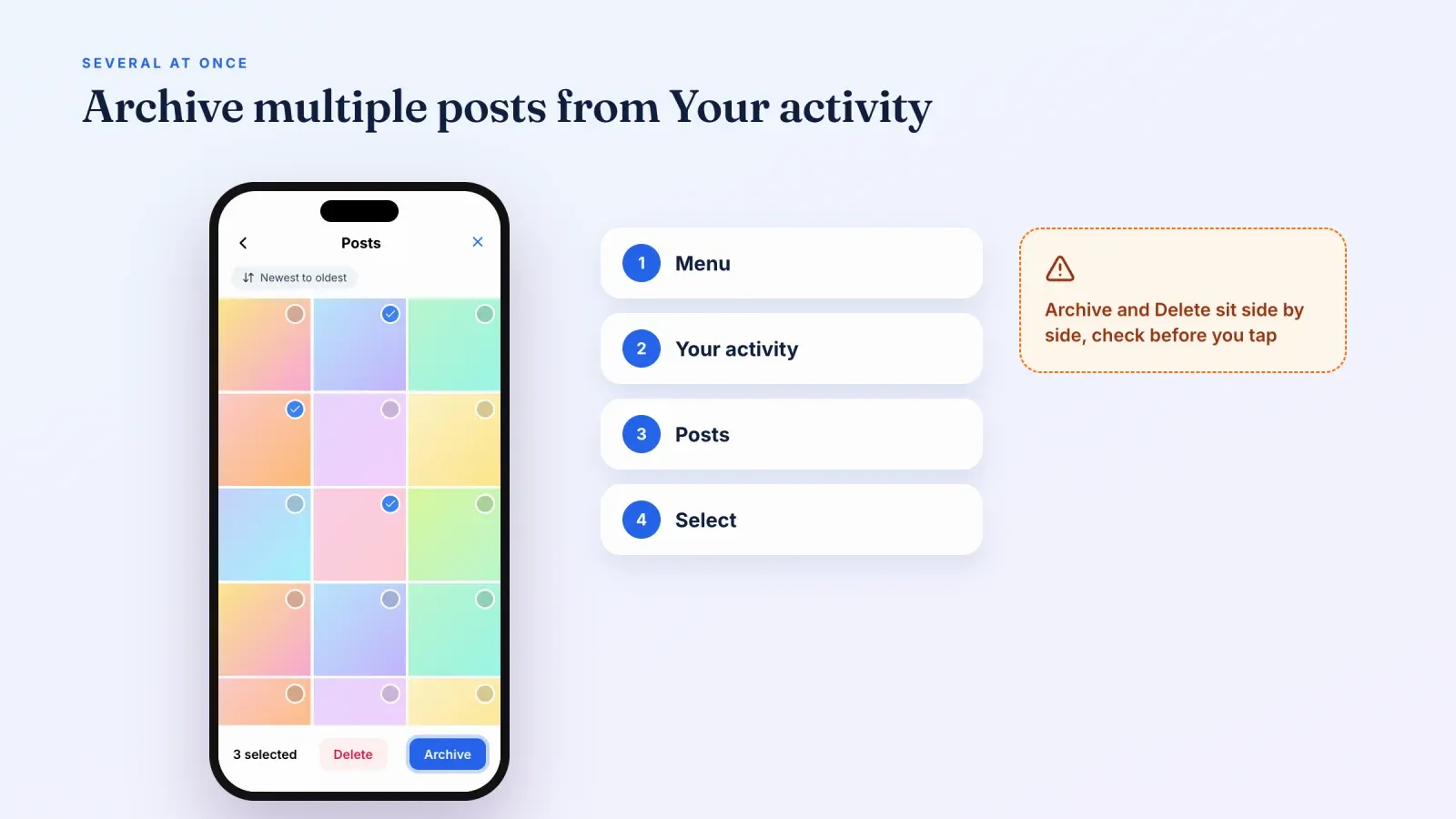
How to archive several posts at once
If you want to clean up your grid, archiving posts one by one quickly gets tedious. Instagram lets you select several posts at once from your activity settings. Menu names can change slightly between app versions, but the path looks like this.
- Open your profile and tap the menu with three lines at the top right.
- Tap Your activity.
- Open Posts, or Reels, in the section about content you've shared.
- Tap Select at the top right.
- Tap each post you want to archive. You can sort and filter by date to find older posts faster.
- Tap Archive at the bottom of the screen and confirm.
The same screen lets you delete several posts at once, so check which button you tap. It's a good idea to work in batches rather than archiving hundreds of posts in one go, and to avoid third-party apps that ask for your password to "bulk archive" your account. They put your account security at risk.
How to archive Reels
Reels are archived exactly like posts.
- Open your profile and tap the Reels tab.
- Open the Reel you want to archive.
- Tap the three dots, then tap Archive.
Archived Reels appear in your Posts archive, alongside archived photos and carousels. When you restore them, they go back to the Reels tab and to your grid if they were shown there.
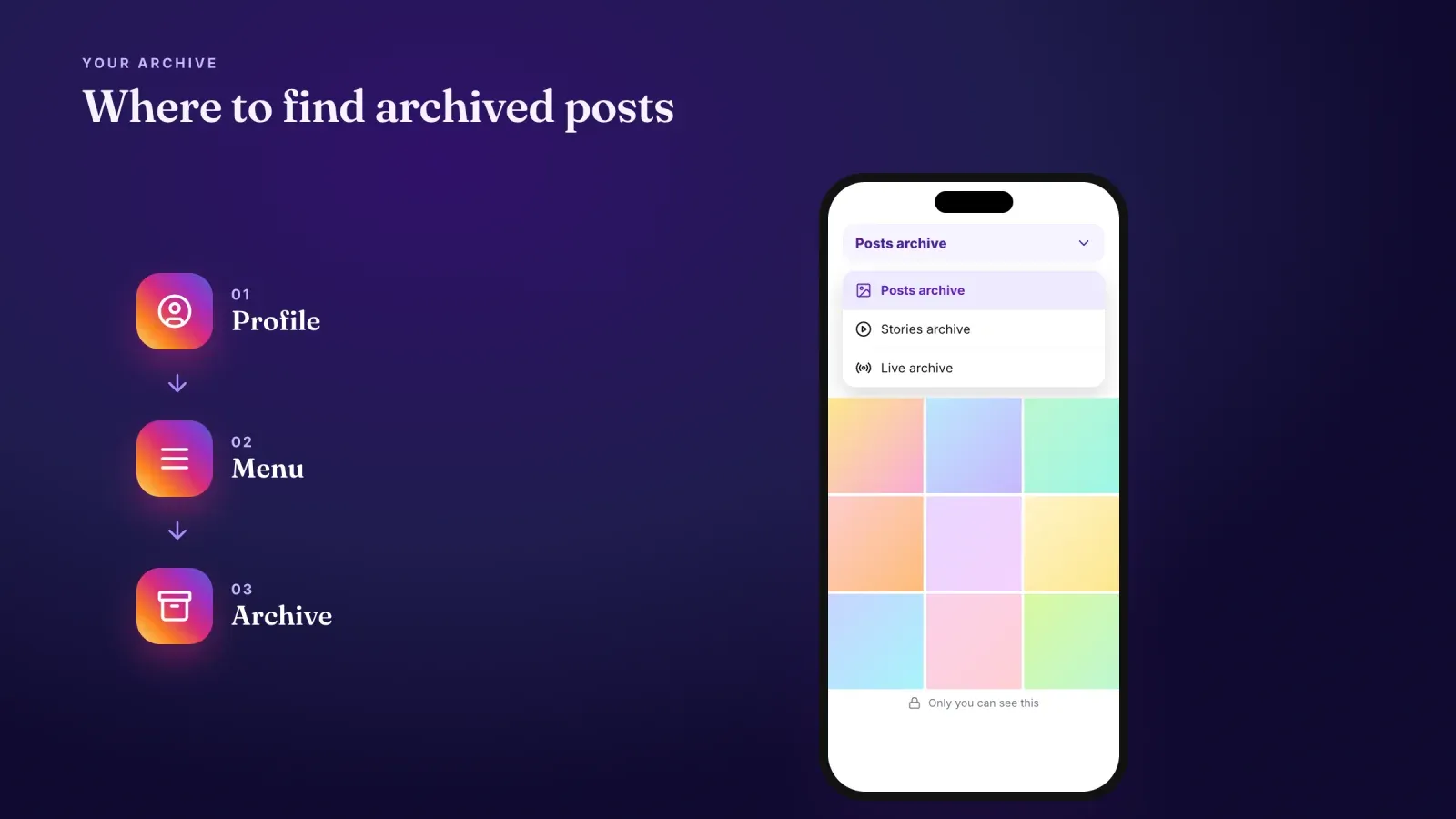
How to find your archived posts
Everything you archive is stored in one place.
- Open your profile and tap the menu with three lines at the top right.
- Tap Archive. Depending on your app version, it can be listed directly in the menu or under Your activity.
- Choose the type of archive. At the top of the screen, switch between the Posts archive, the Stories archive and the Live archive.
Archived posts are shown as a grid, from the most recent to the oldest. Tap one to open it. You'll see the full post with its caption, likes and comments, just as it was.
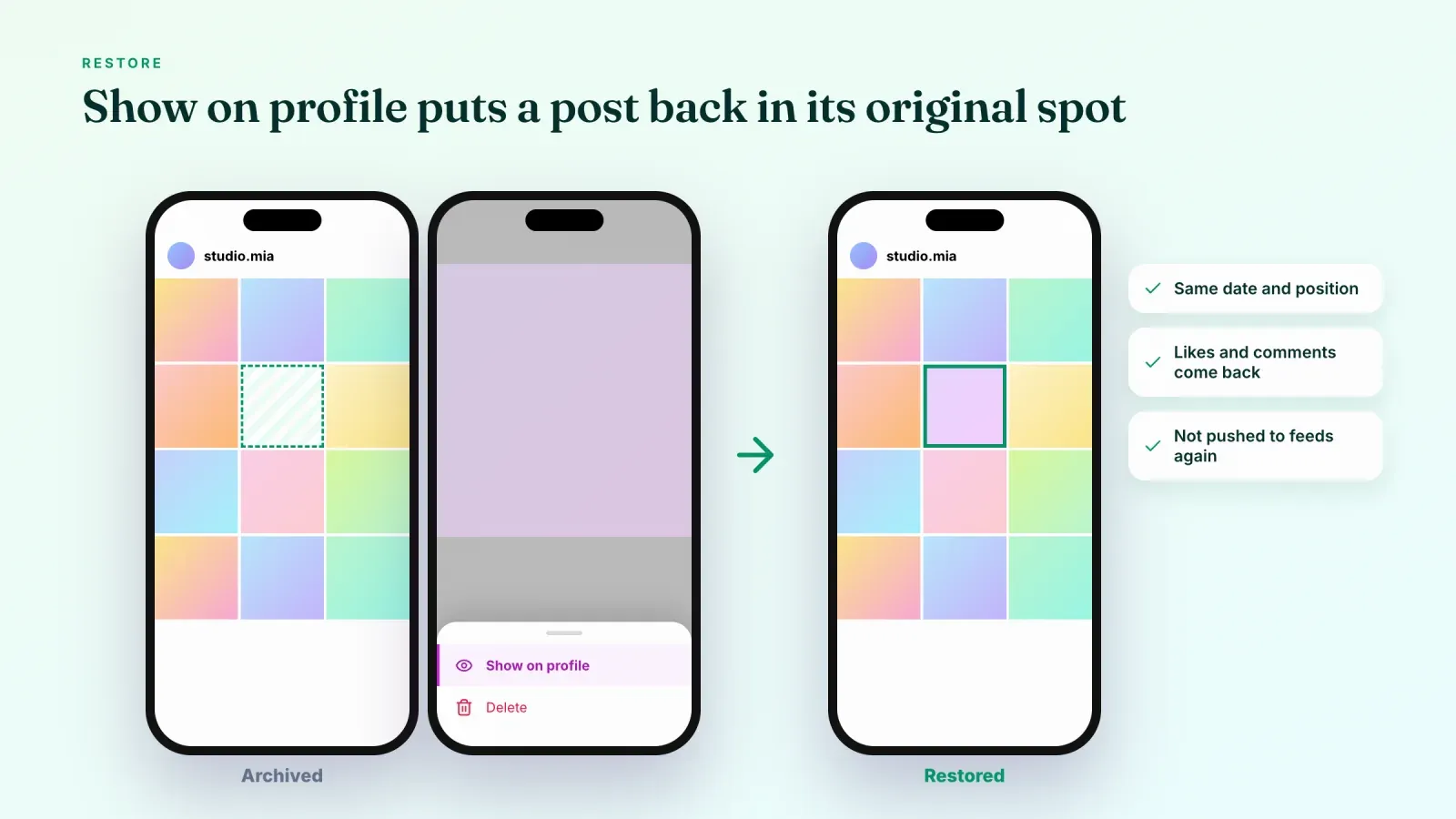
How to unarchive a post
Restoring an archived post takes a few taps.
- Open your Archive and select the Posts archive.
- Tap the post you want to restore.
- Tap the three dots.
- Tap Show on profile.
The post returns to your profile in its original position, based on the date it was first published. It doesn't jump to the top of your grid, and it doesn't appear again in your followers' feeds. If you want a post to get fresh attention, you'll need to share it again as a new post, or share it to your Story.
Archiving Stories
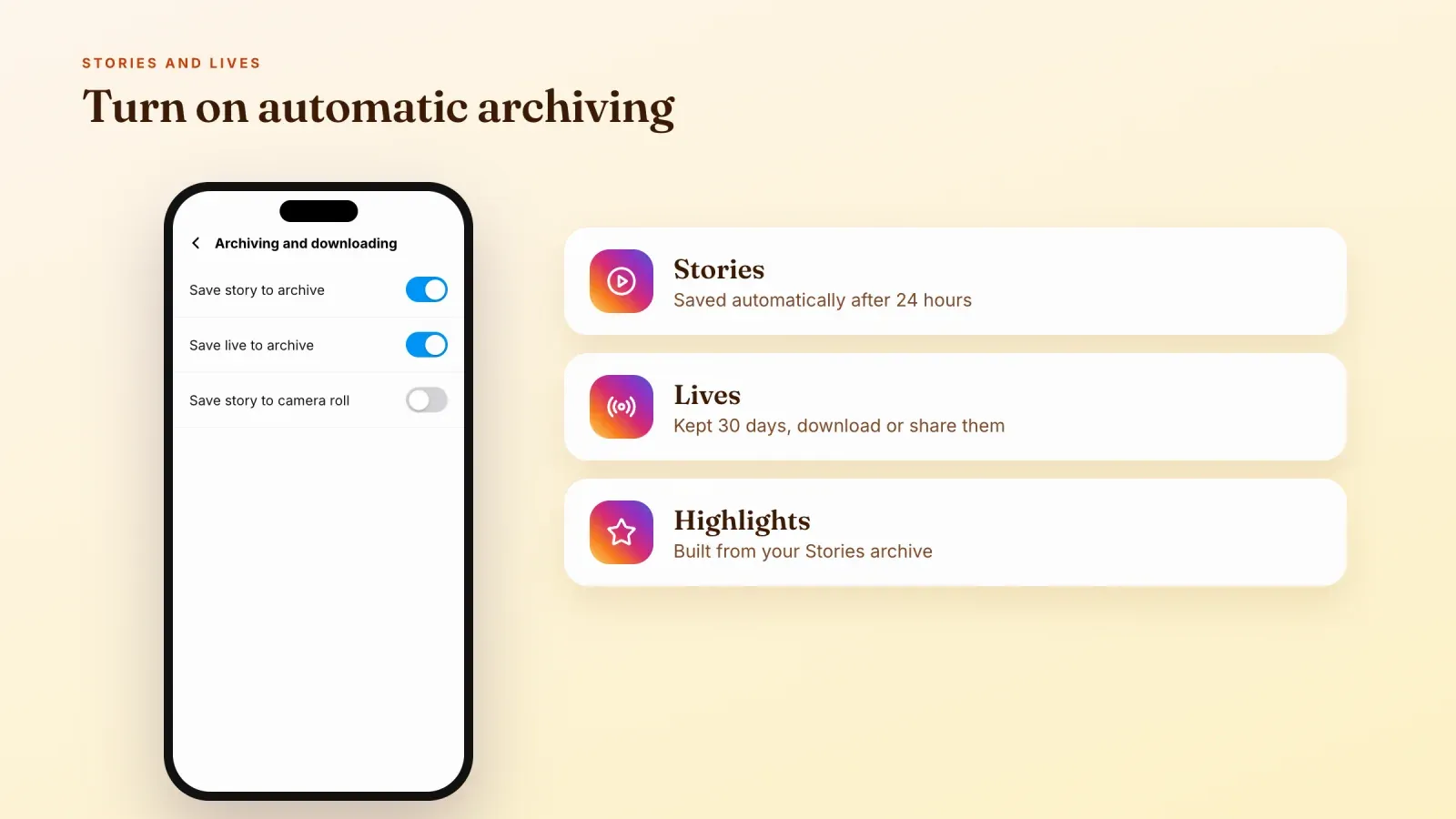
Stories work differently, because Instagram archives them automatically.
- Automatic archive. When the setting is on, every Story is saved to your Stories archive after it disappears from your profile at the 24-hour mark.
- Check the setting. Go to Settings and activity, then Archiving and downloading, and make sure Save story to archive is turned on. It's on by default for most accounts.
- You can't archive an active Story. To remove a Story early, delete it from the Story itself.
- Reuse archived Stories. Open a Story in your Stories archive and tap More or the three dots to share it again as a Story, add it to a Highlight or share it as a post.
The Stories archive is also where you can see who viewed a Story, but only up to 48 hours after posting. Our guide to viewers on Instagram explains exactly what you can see and for how long.
Archiving Live videos
Lives can be archived too.
- Turn on Save live to archive in Settings and activity, then Archiving and downloading.
- After a Live ends, it's kept in your Live archive for 30 days.
- During that time, you can download it or share it as a Reel or video so it stays on your profile permanently.
- After 30 days, archived Lives are removed, so save the important ones in time.
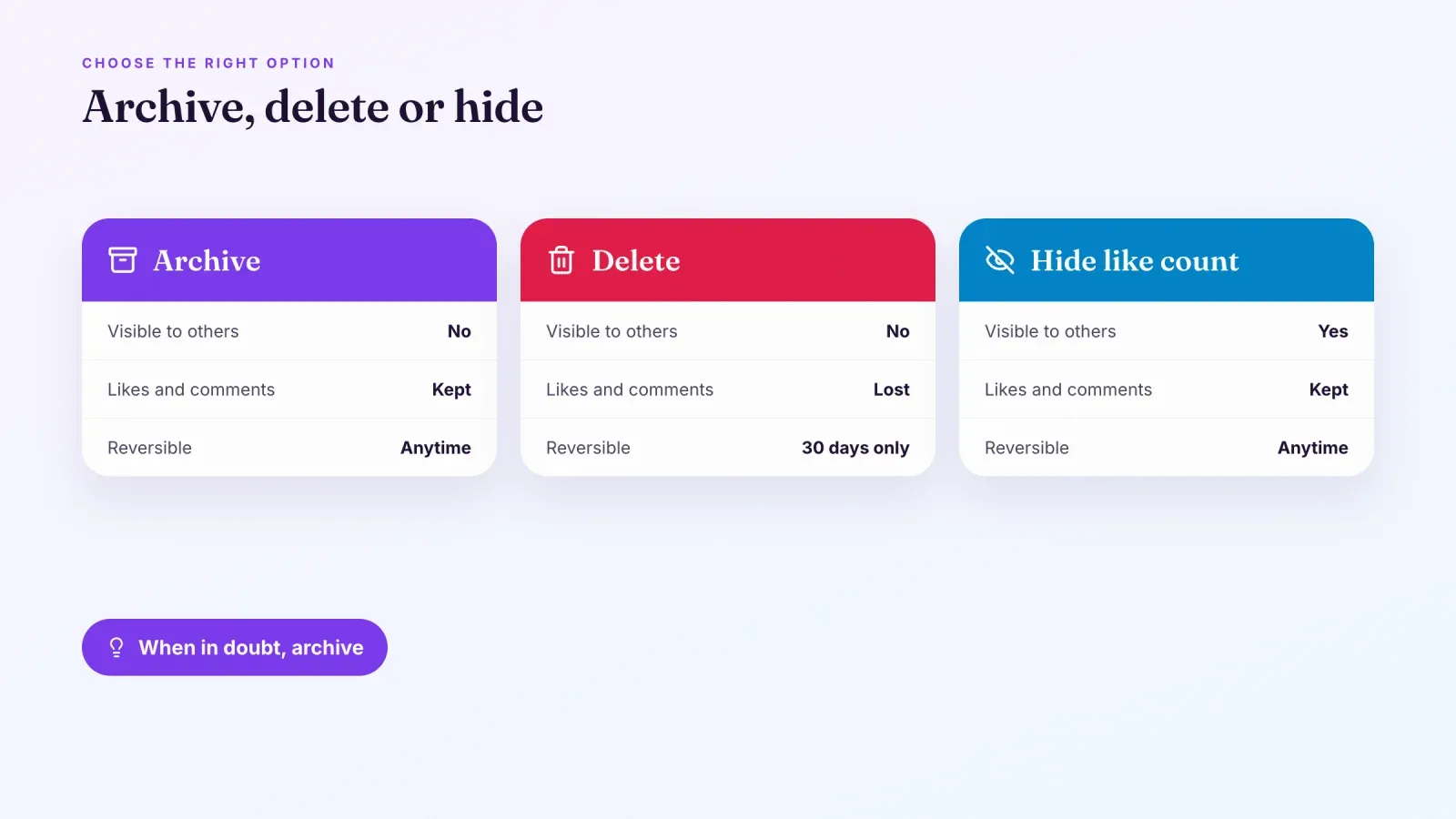
Archive vs delete vs hide
Instagram offers several ways to make content disappear, and they don't do the same thing.
- Archive. Hides the post from everyone but you, keeps likes and comments, and can be undone at any time.
- Delete. Removes the post. It goes to Recently deleted, where you can restore it for up to 30 days. After that, it's gone for good, along with its likes and comments.
- Hide like counts. Keeps the post visible but hides the number of likes from viewers. Useful when the numbers bother you but the content is still good.
- Turn off comments. Keeps the post visible but stops new comments. Useful for posts attracting negative comments.
- Remove tags or hide tagged posts. Removes a post you were tagged in from your Tagged tab, without affecting the original post.
As a rule of thumb, archive when you're not sure, delete only when you're certain you'll never need the post or its engagement again.
To find a deleted post, open the menu, tap Your activity, then Recently deleted. Restore it before the 30 days are up, or it will be permanently removed.
What happens to likes, comments and tags
Archiving is designed to preserve everything.
- Likes and comments stay attached to the post. They're hidden while it's archived and reappear when you restore it.
- Views and insights are kept for professional accounts.
- Tags stay on the post. While it's archived, people you tagged can't see it either.
- Collab posts shared with another account can be affected differently, depending on who archives the post. Check how the post appears on the other account before relying on the archive.
- Shopping tags and links in the caption stay on the post and come back with it.
Posts you're tagged in
You can only archive your own posts. Posts where someone else tagged you belong to them, so they don't have an Archive option for you. You still have control over where they appear.
- Hide from your profile. Open the post from your Tagged tab, tap the three dots and choose to hide it from your profile or remove yourself from the post.
- Review tags before they appear. In your settings, under Tags and mentions, you can choose to approve tags manually so new tagged posts don't show on your profile automatically.
- Ask the owner. If a tagged post really bothers you, the only way to remove it entirely is to ask the person who posted it to archive or delete it.
Does archiving affect your reach?
Archiving a post removes the visibility of that specific post, but it doesn't change how Instagram treats your account or your future content. Your followers count, your other posts and your future Reels are not affected.
What archiving changes is the first impression. When someone lands on your profile from a Reel, a mention or a search, they scan the top of your grid in a few seconds. A grid full of old offers, mixed styles and outdated information makes them hesitate. A focused grid makes it easier to follow, click your link or buy. In that sense, a thoughtful archive routine can improve the results of the traffic you already get.
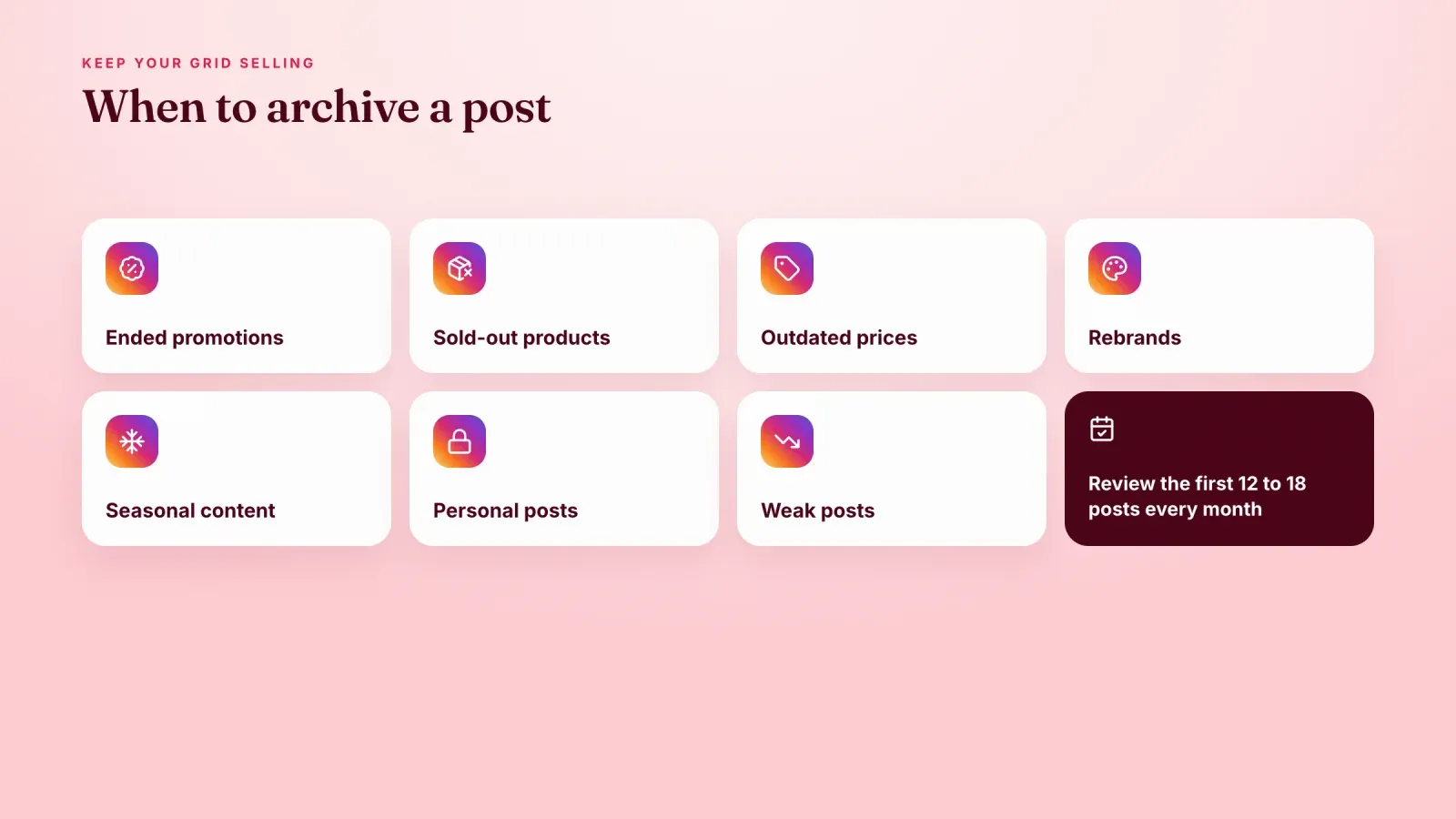
When to archive posts
Archiving is useful in many situations, both for personal accounts and for creators and businesses.
- Ended promotions. Black Friday offers, launch countdowns and "last chance" posts look confusing once the offer is over.
- Sold-out or discontinued products. Keep the grid focused on what customers can actually buy.
- Outdated prices or information. Old prices, opening hours or links can mislead visitors.
- Rebrands. When your style, colors or positioning change, archive the posts that no longer match.
- Seasonal content. Archive Christmas or summer posts after the season and restore them next year.
- Personal posts. Keep memories you'd rather not share publicly without losing them.
- Underperforming posts. If a post didn't land with your audience, archive it rather than leaving a weak spot on your grid.
An archive strategy for creators and businesses
For a creator or a brand, your profile works like a shop window. Visitors decide in a few seconds whether to follow, click or buy. A regular archive routine keeps that window clean.
- Review your grid every month. Look at the first 12 to 18 posts, the ones new visitors see first.
- Archive anything outdated. Remove ended offers, old prices and sold-out products.
- Keep evergreen posts visible. Tutorials, testimonials, behind-the-scenes and best-sellers keep working for months.
- Pin your best posts. Pin up to three posts or Reels at the top of your grid to show new visitors what matters most.
- Use Highlights for permanent Stories. FAQs, reviews, product categories and how-to-order guides belong in Highlights.
- Update your link in bio. When you archive a post about an offer, make sure your link in bio doesn't still point to it. Our guide on how to change the link in your Instagram bio walks through it.
- Restore seasonal posts when relevant. Your archive becomes a library of content you can bring back when the season returns.
How to archive posts before a rebrand
A rebrand is one of the best reasons to use the archive. Here's a simple way to do it without losing anything.
- Decide what stays. Pick the posts that still fit your new style or remain useful, such as testimonials, tutorials and best-sellers.
- Archive the rest in batches. Use Your activity to select several posts at once, starting with the oldest.
- Update your profile. Change your profile picture, name field, bio and link in bio at the same time so everything feels consistent.
- Post a first strong piece of new content. A Reel or carousel that introduces the new direction gives visitors context.
- Pin your key posts. Pin the introduction and one or two best-sellers at the top of your grid.
- Restore selectively. Over the following weeks, bring back older posts that fit the new look, if any.
Some creators go further and do a full "grid reset", archiving almost every post before a big launch so the profile starts fresh with a teaser. It creates curiosity, but it also removes the social proof of older posts, so keep a few strong posts visible or in Highlights.
Archiving messages
Instagram also lets you tidy up your inbox, though the options differ from posts. Depending on your app version, you can swipe left on a conversation in your messages and choose Hide or Archive, or mute it so it stops sending notifications. Hidden chats can still be found through search, and they move back to your inbox when a new message arrives. For business accounts, labels and folders can also help you organize customer conversations.
Troubleshooting
If you don't see the Archive option, try these steps.
- Update the app. Older versions may not show every archive option.
- Check the post type. Some content, such as ads that are still running or certain collab posts, may not offer Archive in the same way.
- Check your account. Restricted or flagged accounts can have limited options. Look at Account status in your settings.
- Use the mobile app. Some tools, like viewing all archives and selecting several posts at once, work best in the app.
- Avoid third-party apps. Unofficial clients may not support archiving and can put your account at risk.
Common mistakes
Deleting instead of archiving. Deleting is permanent after 30 days and erases all engagement. When in doubt, archive.
Tapping Delete during bulk selection. The Archive and Delete buttons sit side by side on the selection screen. Check before you confirm.
Expecting restored posts to get new reach. A restored post goes back to its original date and doesn't appear in feeds again.
Forgetting about Live archives. Archived Lives are removed after 30 days unless you download or share them.
Leaving broken links behind. Archiving a promo post while your link in bio still points to the offer sends visitors to a dead end.
Frequently asked questions
How do you archive Instagram posts? Open the post on your profile, tap the three dots and tap Archive. The post disappears from your profile but stays in your private Archive.
Can people see archived Instagram posts? No. Only you can see archived posts. They're hidden from your profile, followers, people you tagged and anyone with a link.
Does Instagram notify followers when you archive or unarchive a post? No. Neither action sends a notification.
Do you lose likes and comments when you archive a post? No. Likes and comments are kept and come back when you restore the post.
Where are archived posts on Instagram? Open your profile, tap the menu with three lines and tap Archive. Switch between the Posts, Stories and Live archives at the top of the screen.
How do I unarchive an Instagram post? Open your Posts archive, tap the post, tap the three dots and tap Show on profile. It returns to its original place in your grid.
Can I archive multiple Instagram posts at once? Yes. Go to Your activity, open Posts or Reels, tap Select, choose the posts and tap Archive.
Can I archive posts on a computer? Yes. On instagram.com, open the post, click the three dots and click Archive. Viewing and restoring archives is easier in the mobile app.
How long do archived posts stay in the archive? Archived posts and Reels stay there for as long as you keep them, with no time limit. Archived Lives are the exception, they're removed after 30 days unless you download or share them.
Can I archive a post someone else posted? No. You can only archive your own posts. For posts you're tagged in, you can hide them from your profile or remove the tag.
Does archiving a post remove it from Explore and hashtags? Yes. While a post is archived, it can't be seen anywhere on Instagram, including Explore, hashtag pages and search.
What's the difference between archiving and deleting on Instagram? Archiving hides a post but keeps it and its engagement, and you can restore it anytime. Deleting removes it, with a 30-day recovery window in Recently deleted, after which it's gone for good.
Keep your profile focused on what you sell
A clean grid shows visitors what you're about and what they can buy right now. Archive old offers, then give visitors one clear place to go. Create your free Roctify page to turn the link in your bio into a page with your current products, digital downloads and offers, with built-in checkout and 0% transaction fees on every plan. For ideas on what to post next, see our guide to the best time to post on Instagram.